 Renke Holert
Project Management with Microsoft Teams
 Renke Holert : Jun 7, 2026, 11:47:25 AM
Efficient project management with Microsoft Teams: how Teams streamlines collaboration, communication, and integrates Microsoft project tools...
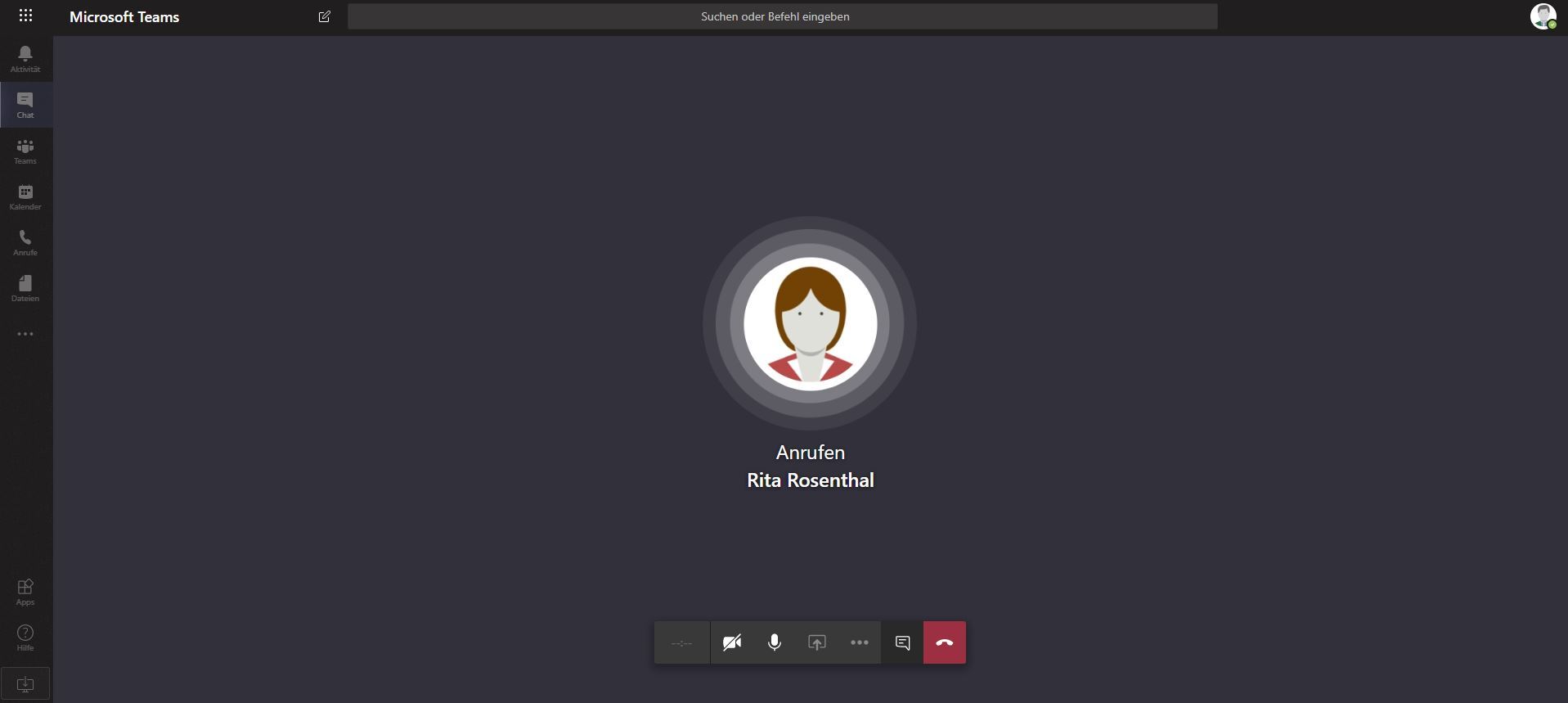
Make phone calls with Microsoft Teams on your PC and mobile devices.
If you work with Microsoft Teams, you can also use the communication tool to make phone calls and manage calls. Whether on the go, from your home office or from your company PC – with Microsoft Teams you can easily call any landline or mobile phone.
With Microsoft Teams, you can make any number of phone calls at very low rates. This protects your company's liquidity and gives you access to the latest infrastructure.
In this article, we address the following questions, among others:
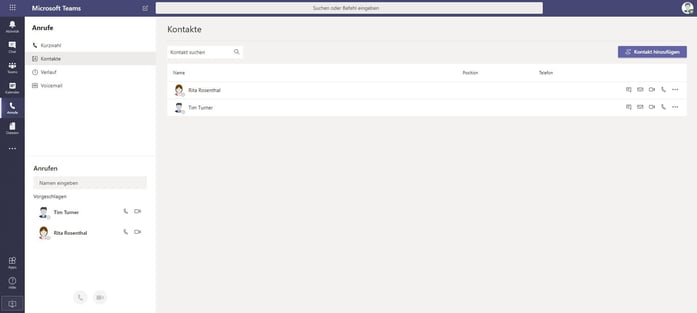
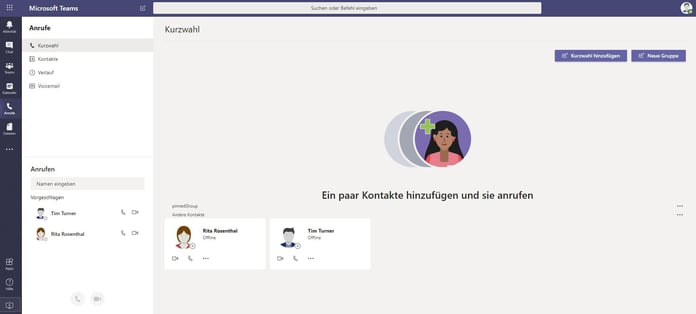
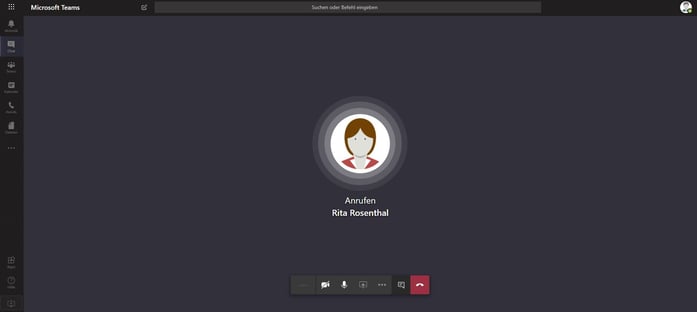
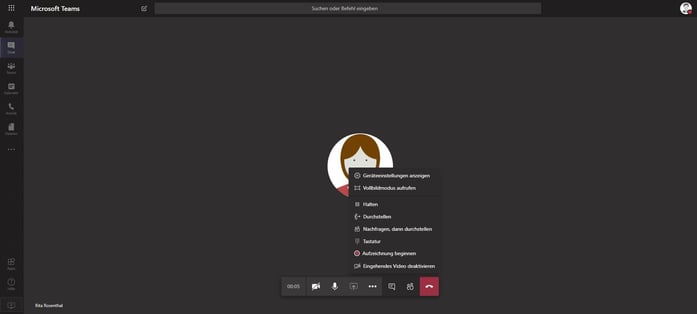
With the Microsoft Phone System, you can make calls to the landline network directly from Microsoft Teams and receive calls from the landline network. There are, among others, three options for this.
With this option, you can connect your existing phone system (PBX) directly to Microsoft Teams. The practical part: you do not have to change your telephone provider or your phone number. This works with any phone system certified by Microsoft as an SBC (Session Border Controller) partner, or via our partner with any SIP telephony provider.
With this option, Microsoft acts as your telephone provider. For supported countries, including Germany, you can purchase Calling Plans and assign them to users via the Teams admin center. This first requires Teams Phone licensing: it is already included in Microsoft 365 E5 and Office 365 E5; for all other plans (including Microsoft 365 Business Basic/Standard/Premium, E3, F1/F3 and Office 365 E1/E3), the "Microsoft Teams Phone Standard" add-on license must be purchased separately before the actual Calling Plan can be licensed. Alternatively, Microsoft offers the "Microsoft Teams Phone with Calling Plan" bundle, which combines both.
With this option, you do not need your own phone system but book it directly from a telephone provider. The Microsoft Teams Phone Standard license is required for this.
Since 30 September 2026, Teams Phone Agent has been generally available. It answers incoming calls on service numbers, responds to recurring questions based on configured FAQ files and web pages, books or reschedules appointments, and routes callers to the right person or department with an AI-generated conversation summary – in more than 60 languages and outside business hours as well.
Billing is usage-based through Copilot Credits. According to the Microsoft documentation, prerequisites are at least one Teams Phone license in the tenant and a resource account with the free Microsoft Teams Phone Resource Account license. For transfers to external phone numbers using Microsoft-provided numbers, the resource account additionally needs a funded pay-as-you-go license or Communications Credits.
How much does calling with Microsoft Teams cost?
Calls between colleagues within the organization are free via the Teams app and require no additional telephony license. For calls to landlines or mobile numbers, costs depend on the chosen option (Direct Routing, Calling Plan or Operator Connect) and include the Teams Phone license plus usage- or provider-based call charges.
Can I keep my existing phone number and phone system?
Yes. With Direct Routing, you connect your existing phone system (PBX) or a SIP trunk provider to Microsoft Teams via a certified Session Border Controller (SBC) – your number and provider stay unchanged.
What is the difference between Calling Plan, Operator Connect and Direct Routing?
With a Calling Plan, Microsoft itself is your telephone provider. With Operator Connect, a certified carrier connects its service directly in the Teams admin center, so you don't need to operate your own hardware. With Direct Routing, you connect any SIP provider via your own or a hosted SBC instance – the most configuration effort, but also the most flexibility.
Do I need additional hardware to make calls with Teams?
No, calls can be made via PC, mobile device or desk phone; a headset is sufficient for most use cases. Certified Teams phones are also available for shared spaces.
In practice, the calling function in Microsoft Teams often stays disconnected from the actual project work: follow-up calls with clients, suppliers or team members still run through separate channels, even though chat, meetings, files and tasks already come together in Teams. As a result, the link between a call and the project, task or activity it belongs to is frequently lost.
Holert has supported companies for more than 25 years in using Microsoft Teams as a consistent project management environment – chat, meetings and telephony embedded in tasks, activities and project structure rather than isolated tools. As part of our fixed-price project management software implementation package, we set up Microsoft 365 and Teams accordingly; our project and portfolio management customer references show how we do this for our clients. To see how telephony fits into the broader picture of project work with Microsoft Teams, read our article Project Management with Microsoft Teams.
Would you like to set up Microsoft Teams as the central environment for your project work? Simply get in touch with us.
 Renke Holert : Jun 7, 2026, 11:47:25 AM
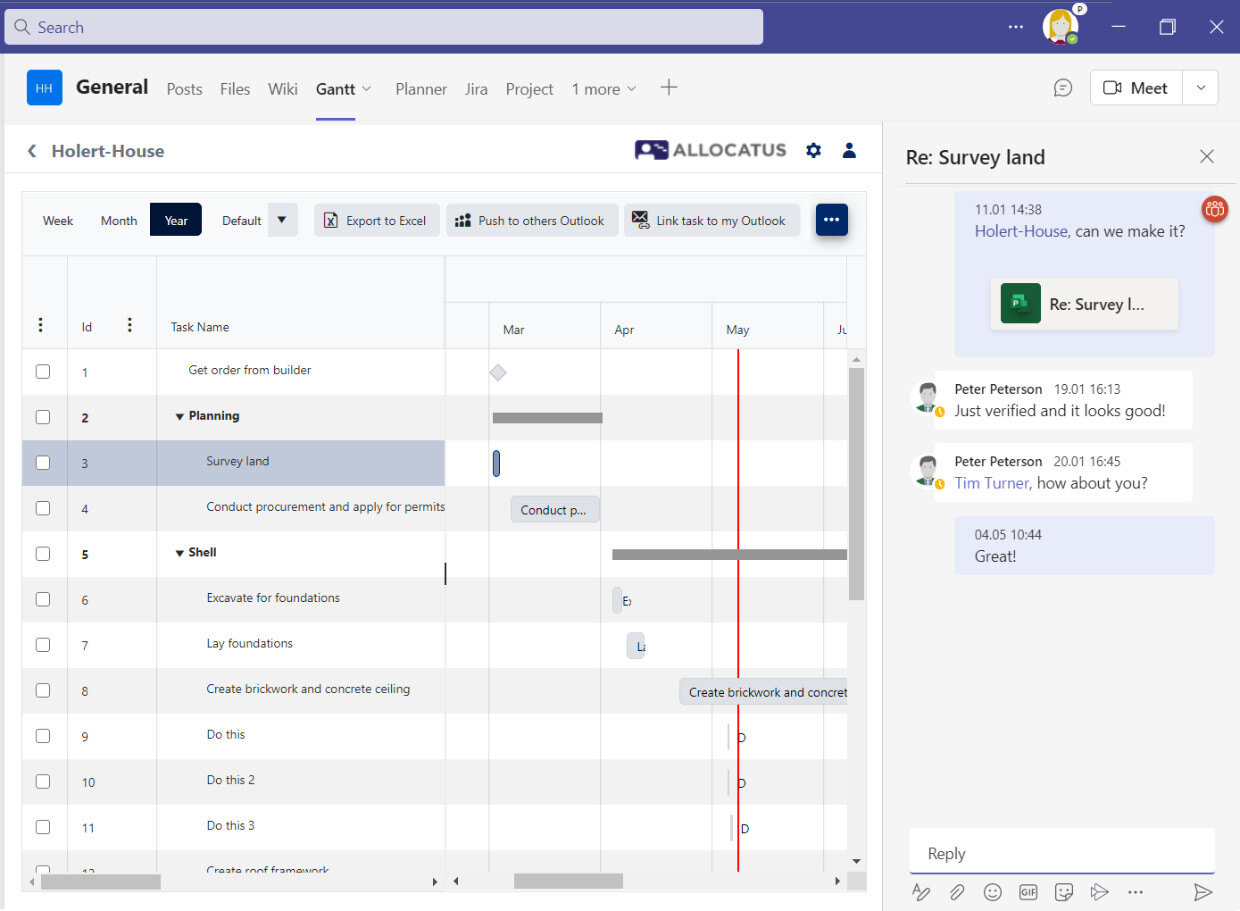
Efficient project management with Microsoft Teams: how Teams streamlines collaboration, communication, and integrates Microsoft project tools...
 Renke Holert : Sep 1, 2025, 11:15:00 AM
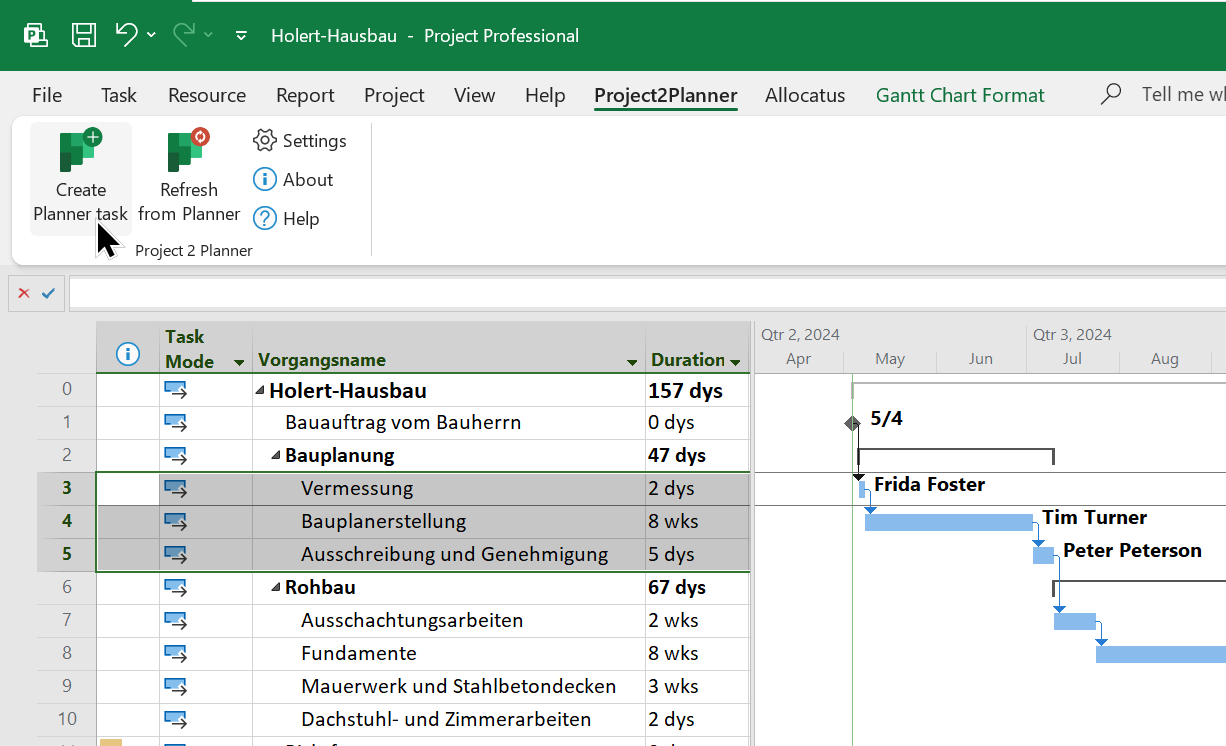
Microsoft Project and Microsoft Planner integration, send tasks from Microsoft Project to your team in the Planner app, e.g. in Microsoft Teams
 Renke Holert : Jun 7, 2026, 11:47:25 AM
Efficient task management with Microsoft Planner: task organization, integration with MS Teams and Outlook, plus practical add-ons for project...