Microsoft Teams is much more than a communication tool – it enables seamless integration of project management apps such as Planner, Planner Premium, and Microsoft Project. Learn how to plan, coordinate, and control projects efficiently – all in one place.
Key takeaways
- One central place: Microsoft Teams brings communication, documents, tasks and reports together per project – it does not replace a project and portfolio management system.
- Three project classes, three tools: Planner Basic (included in Microsoft 365) for small projects without scheduling, Planner Premium for projects with scheduling, Microsoft Project with Altus or Allocatus for scheduling and resource planning.
- Portfolio: Steering all projects together requires a PPM solution such as Altus PPM or Projectum xPM that integrates with Teams.
- AI in the project workspace: With Microsoft 365 Copilot, Planner Agent creates plans, takes on tasks and writes status reports – in basic and premium plans. In meetings, Facilitator captures notes and action items.
- Project Online: Microsoft retired Project Online on 30 September 2026 – successor options and migration paths are covered in Microsoft Project Online ends.
Why use Microsoft Teams for project management?
Sound familiar? Data on current projects is scattered across many places: status reports in PowerPoint presentations, project charters in Excel sheets, open-item lists in SharePoint lists, meeting notes in OneNote, communication in email – and now new Teams workspaces keep popping up like mushrooms, creating even more places where documents are stored and communication takes place. Within them there are dozens of channels. On top of that, for task and project management there are Planner Basic, Planner Premium, Loop, Microsoft To Do, and many other web-based project management tools – not least Atlassian Jira. Who can still keep track? Is Microsoft Teams suitable as a project management tool?
Which projects is Microsoft Teams suitable for?
If we set aside, for the moment, purely agile product development and recurring, process-oriented work in teams, there are at least three classes of projects:
- Smaller projects without scheduling. In these projects, tasks are worked through in a structured way, often with a backlog that is released for processing step by step. Examples include smaller marketing campaigns and smaller HR projects. There is often no formal project manager; the person responsible also works on the project themselves.
- Small to medium-sized projects with scheduling. In these projects, a statement about the completion date is usually expected. All project work is mapped onto a timeline, so every team member knows when to carry out which tasks in the project. Examples include smaller IT projects, such as client roll-outs, or larger marketing campaigns. These are often led by project managers who also work on the project themselves and have no special project management training.
- Larger projects with schedule and resource planning. In these projects, it is expected that the resource requirements are determined before the project starts and that execution can be completed on time, taking into account other projects, other activities, and absences. These are often larger technical projects, such as turnaround projects in chemical plants, typically led by full-time project managers with relevant certifications such as PMP.
In addition, there are of course very different project types and hybrid forms that contain many agile elements and are often referred to as hybrid project management.
In all cases, independent of task planning, there is also open-item tracking, which often merges with it in smaller projects.
From the perspective of the organization as a whole, there are also the portfolio management processes that decide which initiatives should be started in the first place. This often includes capturing the company's strategic goals and the intended benefits, as well as managing them holistically.
Which Microsoft tools are available for project management within Microsoft Teams?
Microsoft offers no fewer than four apps for project management and the cross-person management of tasks. These are Microsoft Project, Microsoft Planner Premium, Microsoft Planner Basic, and Loop. In Teams, the Planner app brings personal tasks from To Do together with basic and premium plans in one experience; as a tab, Planner can be added to standard, private, and shared channels.
In simplified terms, they match the three project types mentioned above
- Microsoft Planner Basic - small projects without scheduling
- Microsoft Planner Premium - small and medium-sized projects with scheduling
- Microsoft Project in combination with Altus or Allocatus - medium-sized and larger projects with schedule and resource planning
Regardless of the chosen project management tool, project management also includes – in addition to schedule and resource management – further areas such as communication management, content and scope management, stakeholder management, risk management, and the sub-areas of knowledge management and document management.
These can be supported effectively by Teams. That communication can be supported by Teams is obvious, but what about the other topics – can this be done with built-in features, or do you need add-ons? And if so, which ones?
How can I manage my entire project portfolio in Microsoft Teams?
Teams itself works well as the central place for everything related to a project. However, what is often missing is a project and portfolio management solution that can organize everything across all of a company's projects and that is integrated with Microsoft Teams. Project and portfolio management apps such as Altus and Projectum xPM are well suited for this.
Project communication and content in Microsoft Teams
Microsoft Teams is ideal for efficient collaboration in projects. With Teams, all project stakeholders can communicate and access project content through a single app.
Communication can be synchronous (phone call or online meeting) or asynchronous (chat or forum).
All project content can be conveniently accessed via tabs, e.g. documents, tasks on a Kanban board, reports, or other web-based applications, such as tasks from Microsoft Project (Planner and Project Plan 3), Microsoft Planner Basic (included in Microsoft 365), or Planner Premium (Planner Plan 1, Planner and Project Plan 3 and 5).
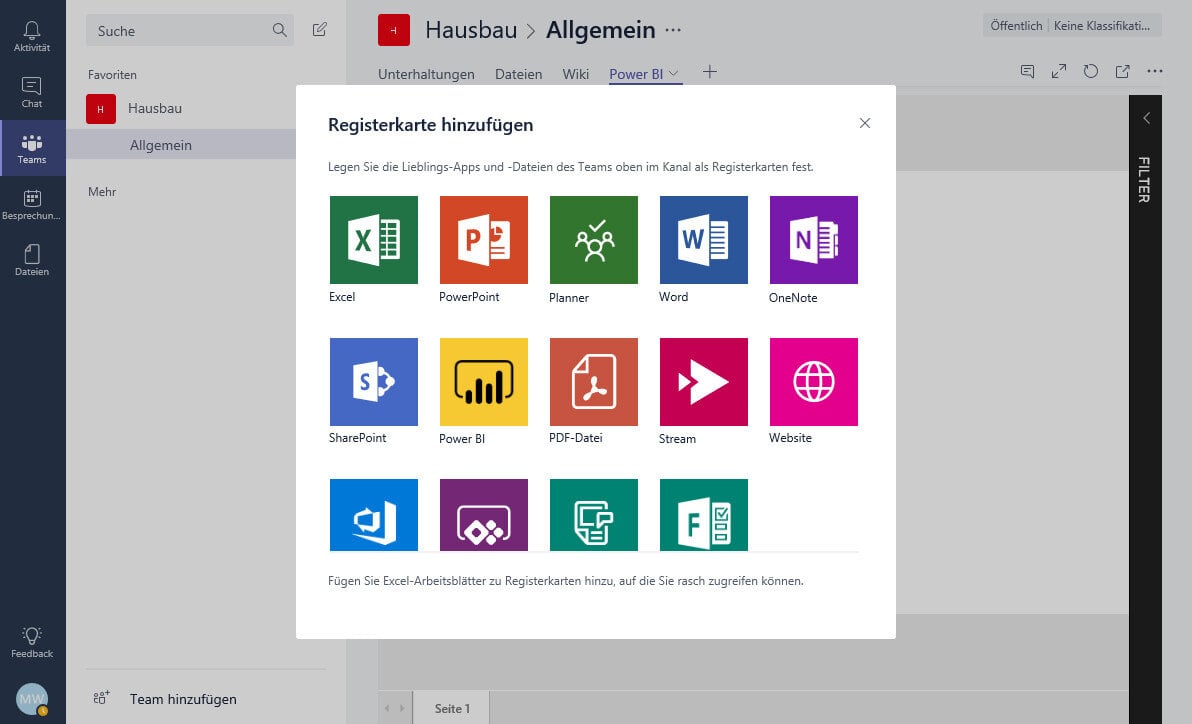
Simply customize the workspace in Microsoft Teams according to your needs and give the team access to content used daily, including from the home office. Microsoft Teams offers you the full range of the Microsoft 365 application landscape: Word, Excel, PowerPoint, SharePoint, OneNote, Planner, Power BI, Forms; and with Microsoft Project (with Allocatus), Microsoft Planner Premium and Azure DevOps are integrated into Microsoft Teams. Azure DevOps, Power Apps, and wikis can be embedded in your personal channel just like websites, streams, and PDFs.
Reporting for Microsoft Teams
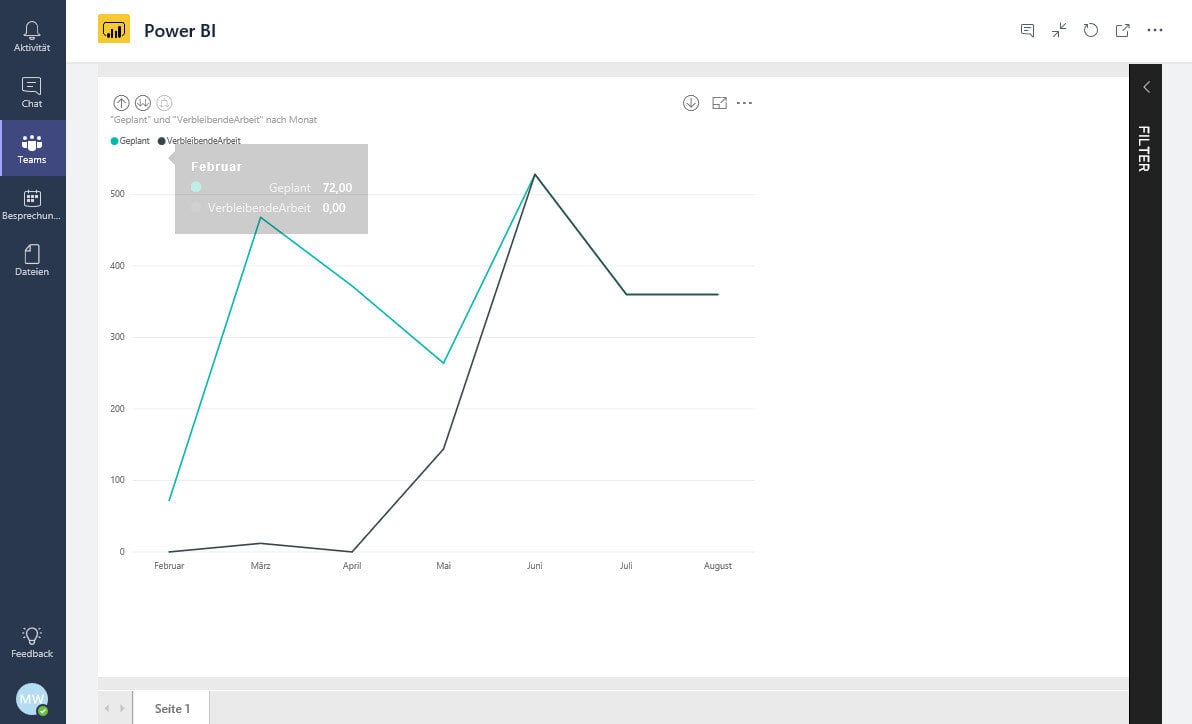
By default, you can add reports from Microsoft Power BI on an additional tab. This way you can display any kind of report within Microsoft Teams, e.g. a project status report. When adding a report, only a report can be selected, but not a specific selection, e.g. for one project.
As a data source, Microsoft Planner Premium on Dataverse is the primary option today. Project Online has no longer been available as a reporting source since 30 September 2026. If you have been reporting from it, the assessment of the successor options and the migration paths are covered in the article Microsoft Project Online ends – alternatives and migration; in your own data centre, Microsoft Project Server SE remains available as a data source. With Allocatus, content from Microsoft Planner (i.e. the Planner app in Teams) is added on top.
This way, while communicating with your team members, you can stay informed about everything important with just a few clicks, without having to switch applications.
Document management with Microsoft Teams
Where was that document again? Which version is the current one? What did the document look like at the time of an important milestone? Which version is approved? How can I work in one document with several people at the same time? How can I access the current project documents on the go? How can I access them when I have no internet connection? How do I ensure that confidential documents are protected? How do I best organize my document storage? What is the best structure for the project filing system? By work package, phase, product? Are such structures still best practice? Are folders still appropriate? Is a document as a file always the right solution, e.g. for a project charter, risk list, change requests, open-item list, meeting notes, correspondence in Teams and email? How do I keep track of documents in files and databases, e.g. change request and specification? How do I archive documents and store them in an audit-proof way?
With the document management capabilities of Microsoft Teams, every project stakeholder can access all relevant documents from anywhere and always knows the current status.
Knowledge management in Microsoft Teams
All too often, the wheel is reinvented, work is duplicated, or there is complete cluelessness when an employee is unexpectedly absent and needs to be covered.
With the global search in Microsoft 365 or Office 365, you have a good starting point for finding information about challenges similar to those you are currently facing in your project. With the search within Teams, you search only the content of your project.
Imagine being able to access – just like in Google – all documents and notes, all risks, all tasks, all data from the project charter, change requests, and lessons learned. Whether Copilot and Microsoft Search actually find project knowledge depends on how consistently notes, documents, and structured lists are brought together in one place and kept reachable for Microsoft Search.
Digital project requests in Microsoft Teams
We all know it: projects get started without clarifying the necessary framework conditions, and if there is a formalized process, it is usually too cumbersome. Annoying forms in which you have to enter similar information again and again, even though it is already available. Many manual processes, whether on paper or in Excel. That is not what we expect today.
With the digital project request in Microsoft Teams from Allocatus, you can easily use a standardized and convenient request process. It can be completed step by step – without any duplicate data entry – from the first stakeholder interview to the finished project charter, and the entire selection process can be controlled automatically through it.
Risk management in Microsoft Teams
If only we had known beforehand! A common cause of delayed projects is an insufficient risk analysis at the start of the project. That is why there are many risk management systems, but they often represent yet another separate application that is not easily accessible from the working environment, such as Microsoft Teams, and whose content cannot be found via Microsoft Search.
If you use the risk management integrated into Microsoft Teams from Allocatus , a simple and easy-to-use risk management is automatically available in every project workspace. This creates the framework for the early identification and mitigation of risks or, if necessary, criteria that prevent a project with excessive risks from starting in the first place.
Sharing the schedule in Microsoft Teams
Sound familiar? The project manager plans the workflows in their project plan. With a trained eye, e.g. in MS Project, they can see the dependencies and understand what runs in parallel. The project team, whether internal or external staff, either has no access to the project plan, or it is only provided in outdated form on paper or as a PDF document.
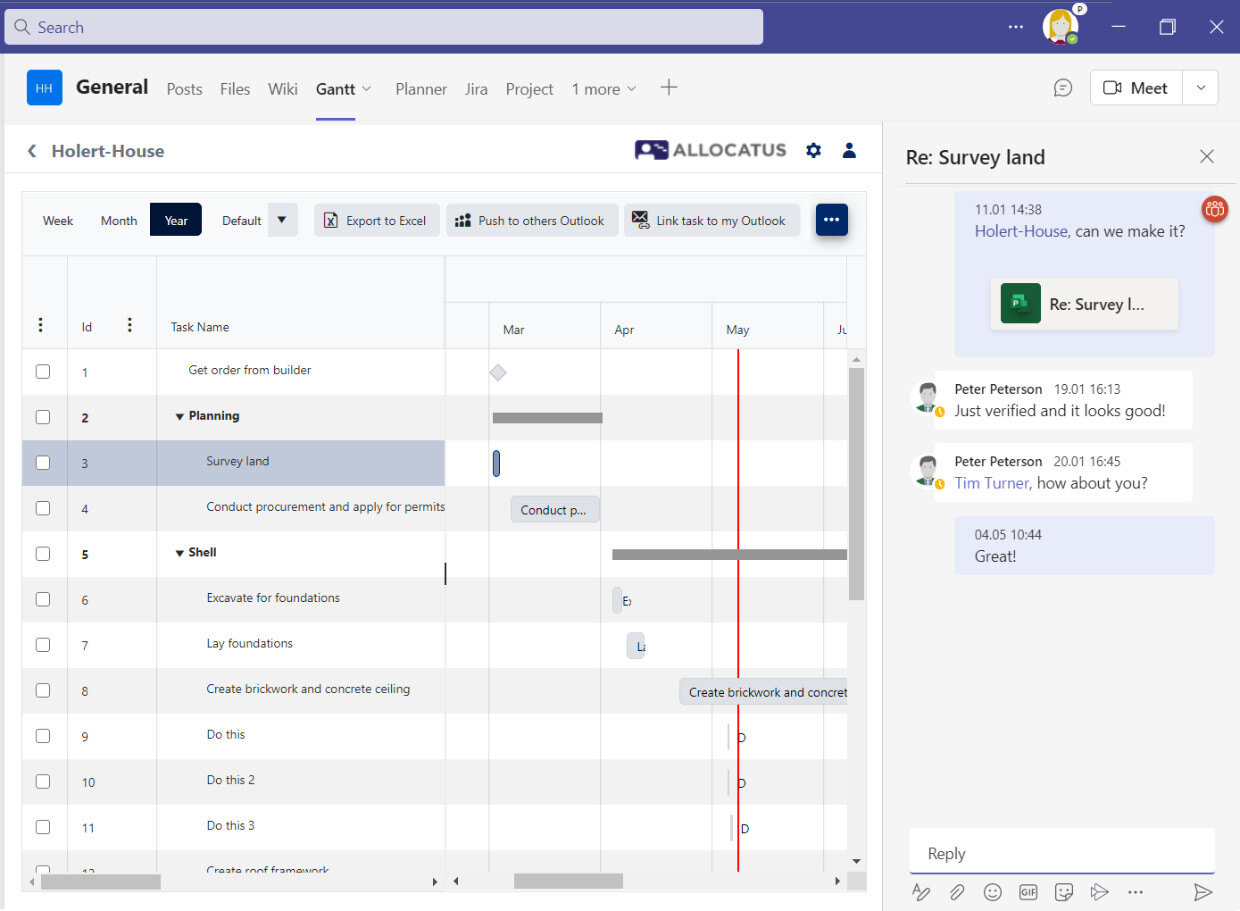
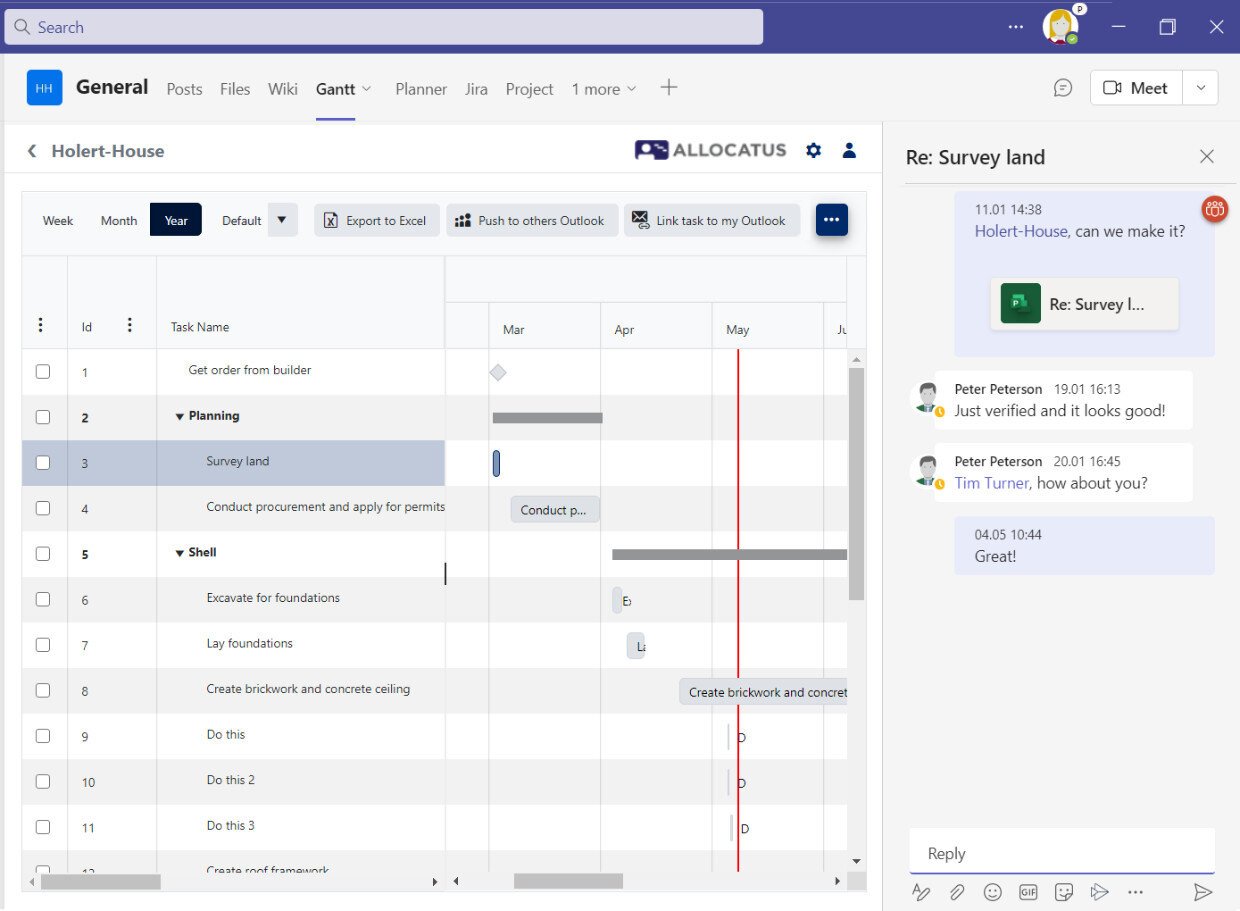
With Microsoft Teams and Allocatus, you can make the schedule available to the entire project team, including external staff such as trades (guest users). The whole team sees the currently running activities and can identify dependencies more easily. The whole project runs more smoothly, and the project manager can focus on steering instead of bureaucratic activities.
Collecting project feedback in Microsoft Teams
Hey, got a few minutes? How far along are you? Where was the latest status on this task again? It must be in some email. I'll ask a colleague. We all know this. It is difficult to capture the current status of individual tasks centrally. Many media discontinuities, e.g. via email, make it tedious to follow the ongoing discussion. Emails are not accessible to everyone in the project team, manual filing is cumbersome and therefore impractical. But even a discussion in Teams does not always lead to a result, because the necessary references are not provided and you end up searching laboriously after all.
Via the Teams integration for Microsoft Project (with Allocatus), you can reference a task and thus view the entire communication within the project management system inside Microsoft Teams. When a colleague approaches you, you always have the necessary references and can see what has already been discussed.
Controlling project scope in Microsoft Teams
Every project has change requests. There is a great danger that, amid all the changes, the project goal is jeopardized and costs and deadlines spiral out of control. Berlin's BER airport is an extreme example of scope creep, the gradual expansion of project scope. Scope creep is a permanent danger in smaller and less prominent projects, too. There are often separate systems that manage change requests. These are often outside the daily working environment and not accessible to the project stakeholders.
With the Microsoft Teams integration for change requests from Allocatus, all project stakeholders who are supposed to can access the list. Change requests can thus be collected quickly and easily, and prioritized, accepted, or deferred in such a way that the project actually achieves its intended goal and the associated benefits.
Formally closing a project in Microsoft Teams
One project follows another, and the same mistakes are made again and again. The knowledge gained from a project is often considerable, and it causes great costs and unnecessary delays when the entire team cannot draw on the lessons learned.
With the integration of lessons learned into Microsoft Teams from Allocatus, you create the basis for ensuring that, as part of project closure, important insights are captured and turned into usable knowledge for the entire organization, so that the organization continuously learns with every project.
Creating Microsoft Teams teams from templates
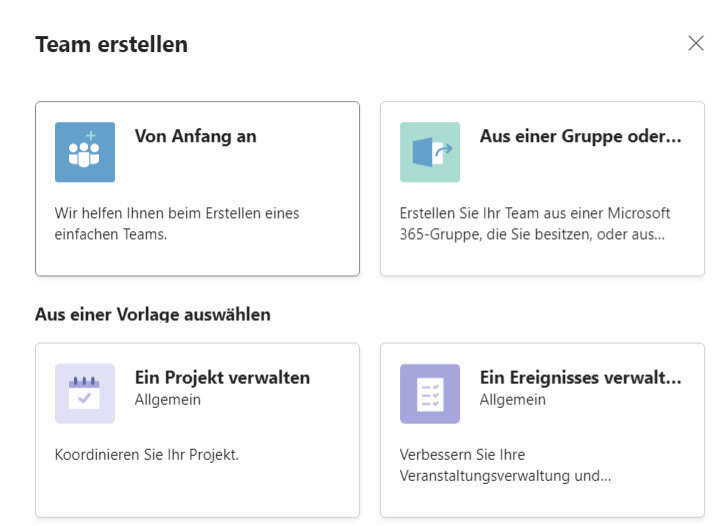
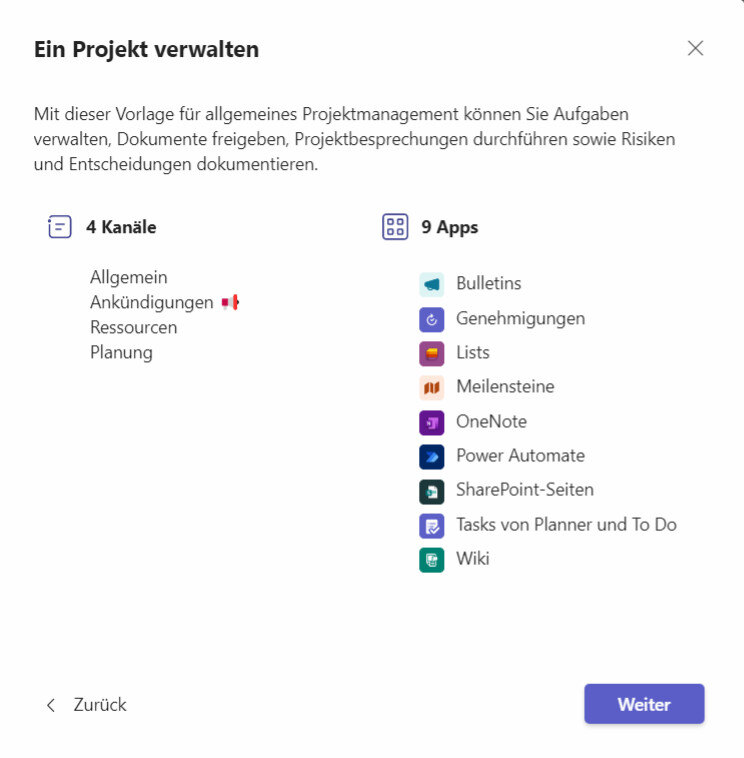
Microsoft Teams includes a standard template for project management. When creating a team for your project, simply select the template Manage a Project.
Compared to the standard template, in addition to the General channel there are three further channels: Announcements, Resources, and Planning. The apps shown in the screenshot are also available.
A general disadvantage of templates is that you cannot automatically change teams that have already been created. Existing projects therefore do not benefit from the improvements you make to your templates, and the workspaces drift apart. Instead, use Allocatus to automatically create a team for each project exactly according to your requirements and keep it up to date.
For the task structure, Planner additionally offers custom templates: an existing plan becomes a template with goals, buckets, labels and checklists that is shared with a Microsoft 365 group. The structure of the project workspace itself – channels, tabs, permissions – is not covered by this.
Project governance in Microsoft Teams
Projects often hold confidential data, and often important internal company knowledge as well. How do you ensure that this is easily accessible to the right people and inaccessible to others, such as project partners? How do you avoid uncontrolled growth in Teams and ensure that an appropriate and consistent structure is created for every project? How do you ensure that Teams workspaces that have already been created can be adapted retrospectively to changed structures?
With the governance capabilities of Microsoft 365 and Allocatus, you have many effective tools at hand to ensure exactly that.
Microsoft Teams - Extensions
Which MS Teams extensions do you need?
Displaying the schedule in Microsoft Teams
There are two extensions for project management: for larger projects that also require task-based resource management, there is the Microsoft Project integration for Teams from Allocatus. For smaller projects that do not need extensive resource management but primarily pure scheduling, there is the Teams integration for Planner Premium.
With both extensions, the project plan can be displayed within Microsoft Teams.
Displaying MS Project tasks as Teams tasks
For the integration of Microsoft Project and Microsoft To Do, there is Allocatus. Allocatus synchronizes tasks from MS Project to tasks in Microsoft Teams or Microsoft To Do. Every employee thus sees their tasks from all projects planned with MS Project that they are involved in – in the Planner app in Teams and in the Microsoft To Do apps, i.e. the web app, desktop app, and mobile apps for Android and iPhone or iPad. In addition, completion can be reported with a simple click in Microsoft Teams or To Do, which is then transmitted back to the project manager.
Creating project workspaces automatically
With the Teams integration from Allocatus, project workspaces can also be created automatically for projects planned with Microsoft Project and also with Microsoft Planner Premium (Teams provisioning). These can also be changed afterwards if your policies for Microsoft Teams workspaces change after creation.
The project workspaces then contain tabs you have predefined, e.g. with the project charter, schedule/Gantt chart, risks, open items, lessons learned, change requests, etc.
Copying Microsoft Planner plans/projects automatically
With Allocatus, you can also copy a predefined list of tasks from an existing Microsoft Planner plan into every new project.
Time tracking for Microsoft Teams
With the Teams and Outlook integration from Allocatus , every team member can also record their project hours very conveniently within Microsoft Teams in a calendar view in Teams. Hours can be booked on tasks from Microsoft Project, Planner Premium, Planner Basic and Jira.
The big picture - project portfolio management with Microsoft Teams
With our solutions based on Microsoft Power Apps, Altus and Projectum xPM, you can also round off Microsoft Teams at the top and consolidate and analyze all projects from Planner, Microsoft Project, Azure DevOps, Jira, and other project management solutions in one place – for examples, see Power BI. Added to this are capabilities for capturing project requests, defining strategic goals and benefits, and tracking them across all projects. The solution keeps all data entirely within your Microsoft 365 tenant, and you can contact us free of charge.
Teams integration with Microsoft Project
If you use Microsoft Project, our add-on Allocatus can automatically create a project workspace. The members of your project team are automatically authorized, they see tasks from Microsoft Project and can discuss them in Teams; see also the blog article MS Project tasks in Microsoft Teams.
Teams integration with Microsoft Planner Premium
If you use Planner Premium, you can display the plan as a tab in a Teams channel – including private and shared channels. The task list, the task board, and the bar chart (Gantt) are optimized for display in Teams. The entire project team thus has both communication and planning accessible in one place in Microsoft Teams.
AI in the project workspace: Planner Agent, Facilitator and Copilot
The biggest change for project management in Teams comes from Microsoft 365 Copilot. Planner Agent creates a first plan from a goal description, works on tasks assigned to it and generates status reports. It is available to users with a Microsoft 365 Copilot licence in all group-based plans, both basic and premium. Tasks can be queried and updated in natural language in chat; proposed plans and changes appear as drafts first and are only applied after approval. Details on the plan variants are in the article Microsoft Planner in Teams.
In meetings, Facilitator captures notes, agenda and action items in real time; handing those tasks over to Planner is currently in public preview. For custom scenarios, Microsoft provides the Planner MCP Server, through which your own agents can analyse plans, create status reports and add follow-up tasks.
For the PMO, this means: AI speeds up status reports, minutes and follow-up, but it does not replace a clean project structure. An agent can only evaluate what is maintained consistently in plans, tasks and project data. Scheduling and resource planning across projects and the portfolio view remain the job of Microsoft Project with Allocatus and a PPM solution such as Altus PPM or Projectum xPM.
Microsoft Teams - Security
Microsoft Teams offers the security and compliance that companies expect from Microsoft 365. This includes data protection features such as archiving, eDiscovery, legal hold, compliance content search, auditing, and reporting. Microsoft Teams encrypts data at rest as well as in transit and offers multi-factor authentication for enhanced identity protection.
What Holert contributes to project management in Microsoft Teams
The building blocks described here all exist – and that is precisely the problem. Teams, Planner Basic, Planner Premium, Microsoft Project, SharePoint, Power BI, and Jira can each be switched on individually, but on their own they do not add up to project management. In practice, it is the decisions in between that are hard: which tool for which class of project? What does the binding structure of a project workspace look like, and who maintains it once hundreds of teams already exist? Where does the data for portfolio reporting come from when every project plans differently?
These are exactly the decisions we support. For more than 25 years, Holert has specialised in project, programme, and portfolio management and in building PMOs and VMOs on Microsoft and Atlassian – methodologically aligned with PMI and SAFe, technically with Microsoft 365, Dataverse, Power Apps, and Jira. We select the right tool with you, implement it, and train the users; for scheduling and resource planning in the Teams context, our own products Allocatus and Project2Planner are added, and for the portfolio Altus PPM and Projectum xPM. What that looks like in practice is shown by our customers KUKA, KPT, and SteelcoBelimed in the PMO and project management customer references. If you are looking for a defined entry point, you will find it in our package fixed-price implementation of project management software.
 Renke Holert
 Renke Holert : Oct 16, 2026, 3:45:54 PM