Program management and portfolio management
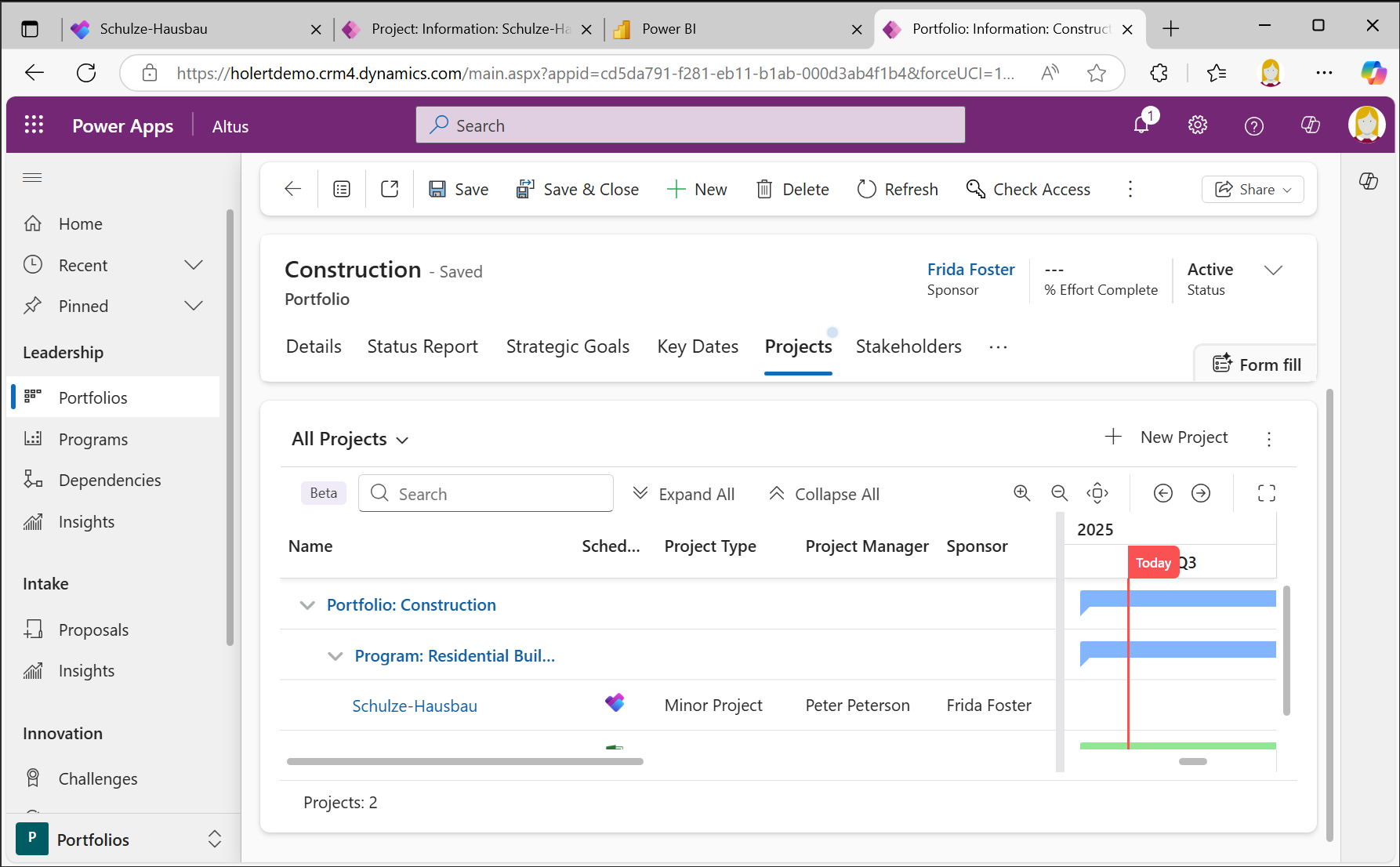
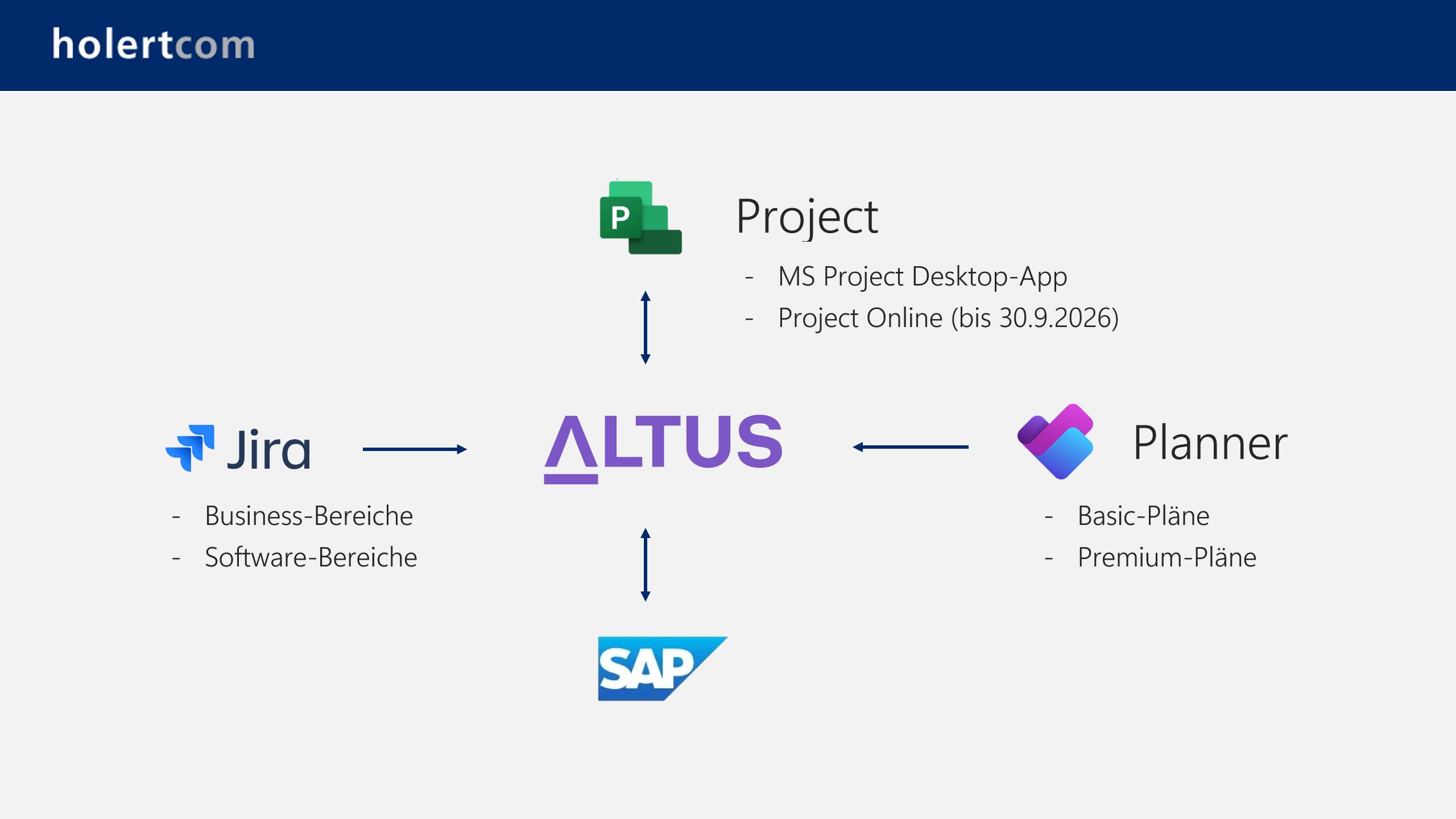
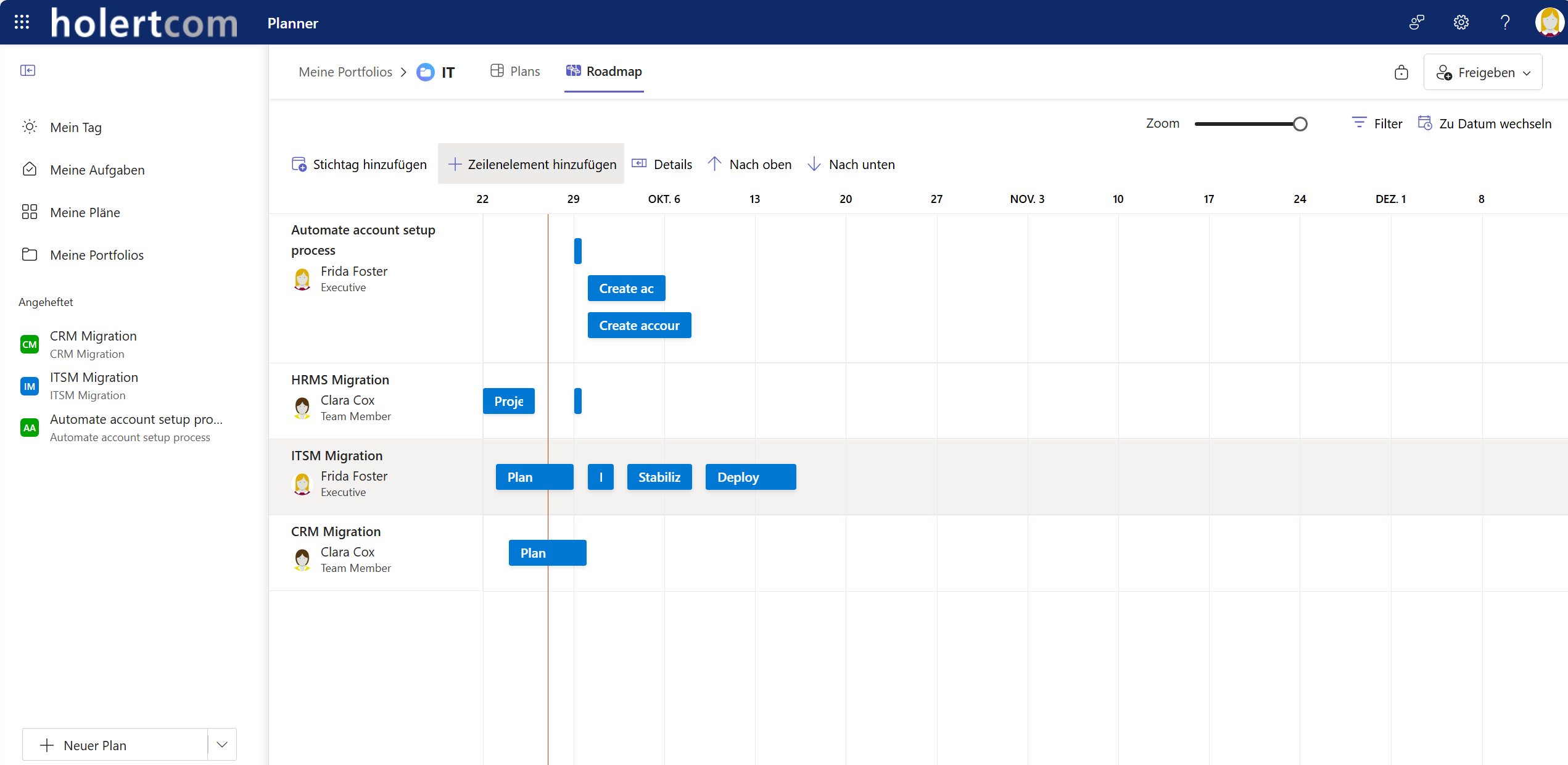
You can either add portfolio management or program management functions very easily with PPM apps such as Altus.
Reporting for project controlling with Microsoft Power BI and Planner Premium
What reports are available for Microsoft Planner Premium? There are standard reports for Power BI for the status of an individual project, for the entire portfolio and for all resources. We offer additional reports, e.g. on resource utilization, as an add-on.
Resource management with Planner Premium
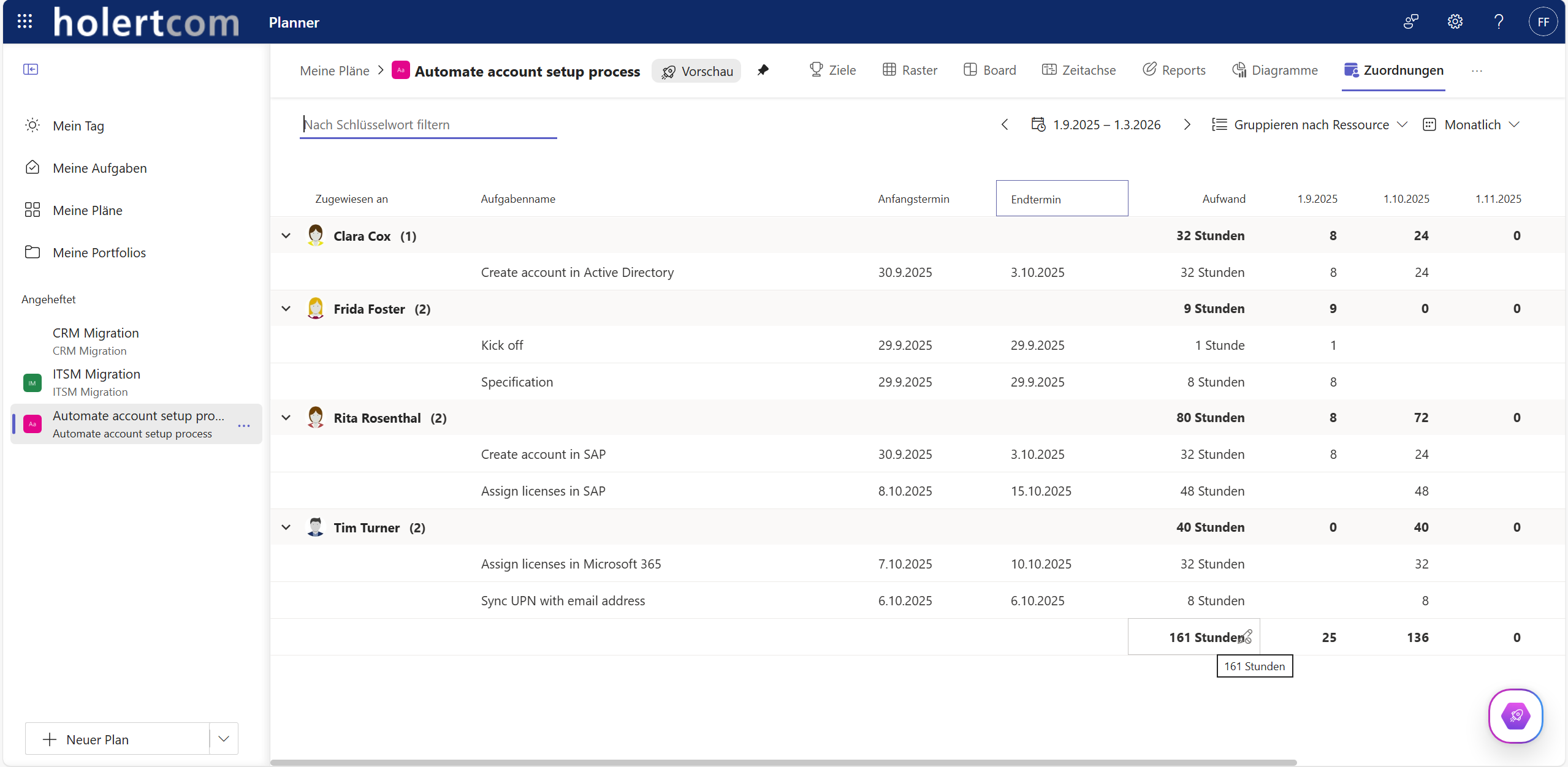
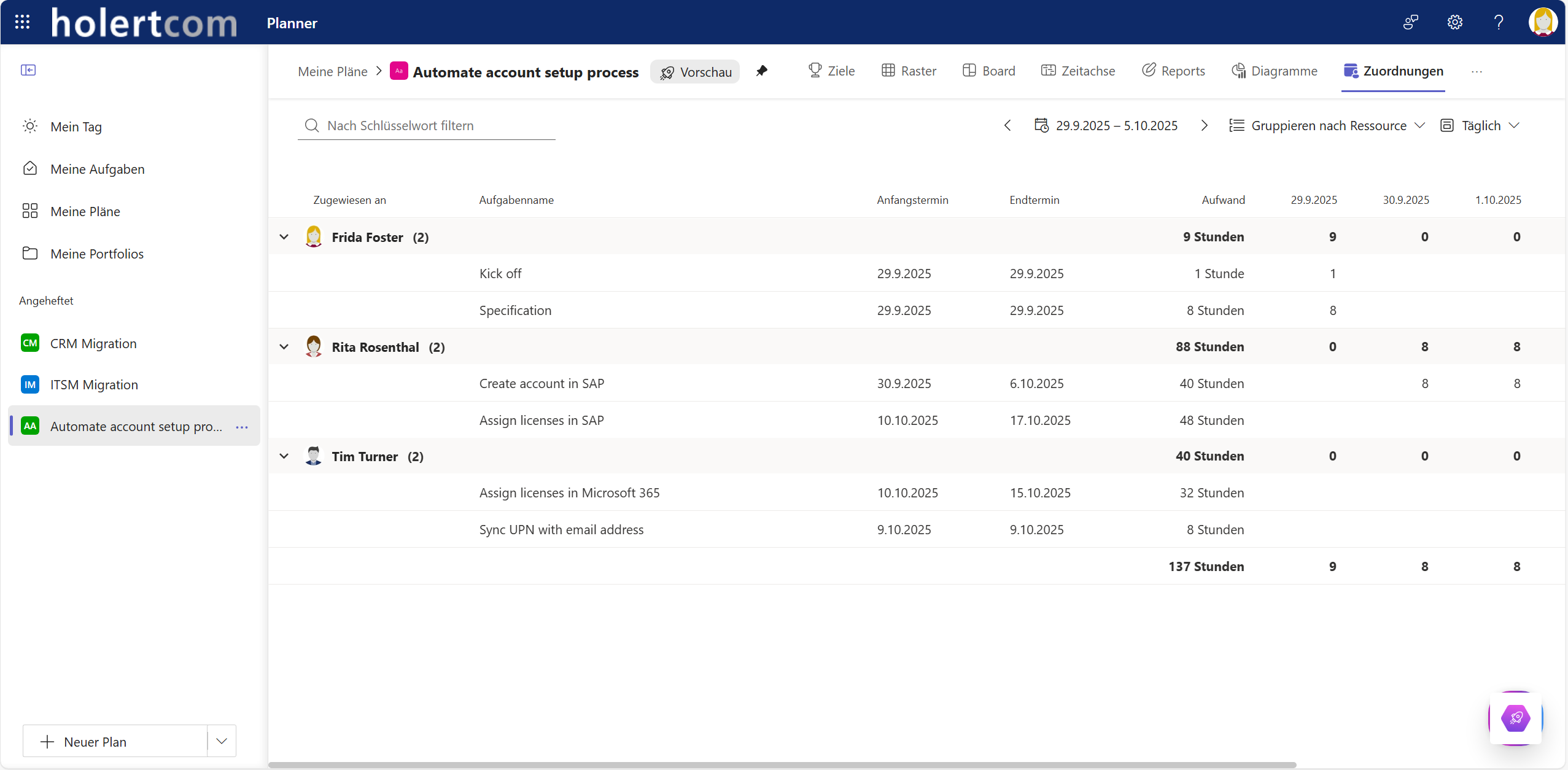
For capacity planning, you can use Planner Premium to record the resource requirements per task and also distribute them by period, e.g. per day, week, month or year, in the assignment view (from plan 3).
You can also display all tasks for a project in the web app sorted by resources ("People View").
However, effective cross-project resource management is not possible. You can add this with Altus PPM .
Planner Premium and Microsoft Teams integration
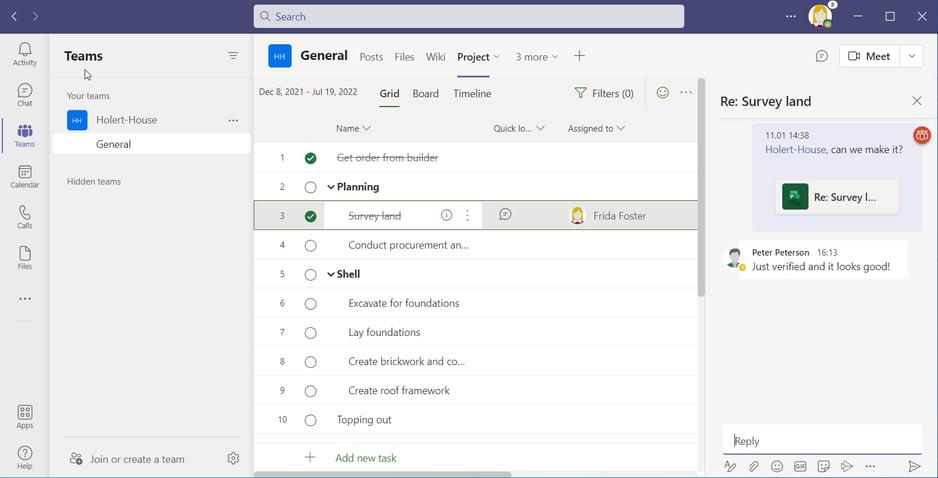
Everything is also integrated in Microsoft Teams, e.g. you can display all Planner Premium views within Teams as well as discuss the processes in Microsoft Teams.
With Allocatus, you can also automatically create new Teams including Planner plans.
Tip: With our Power Apps solutions, you can merge data from Microsoft Project Online and Project Server and Planner Premium plans in one place. Other project management solutions can also be integrated, including Atlassian Jira.
Planner Premium - refer to tasks
If you don't want to communicate via Teams, you can share the link to the task via email, chat or another channel instead. This way, the recipient can comment directly in Planner Premium and all project information remains bundled.
Microsoft 365 - Create meeting minutes for a project
In many meetings, it is customary to create meeting minutes. Someone is given the tedious task of taking notes during the meeting. Decisions are recorded, topics discussed and tasks assigned. The minutes are usually sent by e-mail and then taken out at the next meeting to check whether everything has been completed in the meantime. Those who have taken tasks with them then often transfer them manually to their own task management system. The project manager sometimes maintains a separate list of open points and updates the existing project documentation if necessary.
How can you better organize minutes for a meeting with Office 365?
A common approach is to record all documents in Microsoft Teams/SharePoint and, if necessary, to use OneNote or the Teams Wiki to record the agenda items for the meeting.
How can this be improved? What is the objective when it comes to creating more efficient meeting minutes?
Use only one place to record the open points, e.g. Microsoft Planner Premium.
All points that are to be discussed in the meeting must be known in advance as open points anyway or come to the surface when checking the project status. If something is discussed, then write it directly in the notes for the corresponding point, either directly in the task notes or task notes or in Planner Premium directly in the Teams notes for each task.
If a specific task arises for an employee, assign it to them directly so that they can see it together with their other tasks in their task list, for example directly in Microsoft To Do and the Planner app.
This gives everyone involved in the project a complete overview of the project in one place and the status remains up-to-date and does not become outdated like meeting minutes. It also avoids the need to send emails, as everyone knows the location and any queries can be managed directly on the spot, e.g. by mentioning a person in the associated Teams chat. If the entire team records the notes during the meeting based on a division of labor, there is no need for tedious formal follow-up work on a meeting.
This works even better in Altus or Project xPM, as they can record the topics for each project in a structured way. For example, there are decisions, change requests, risks and much more.
Planner Premium - Progress recording
How can I report the progress of my tasks in Planner Premium? All users who have access to the project plan can mark tasks as completed, e.g. within teams or via the web interface. This does not require a Planner Plan 1 license if the users have a valid Microsoft 365 license and Planner Premium is running in the standard environment.
Planner Premium plans - Save basic plans
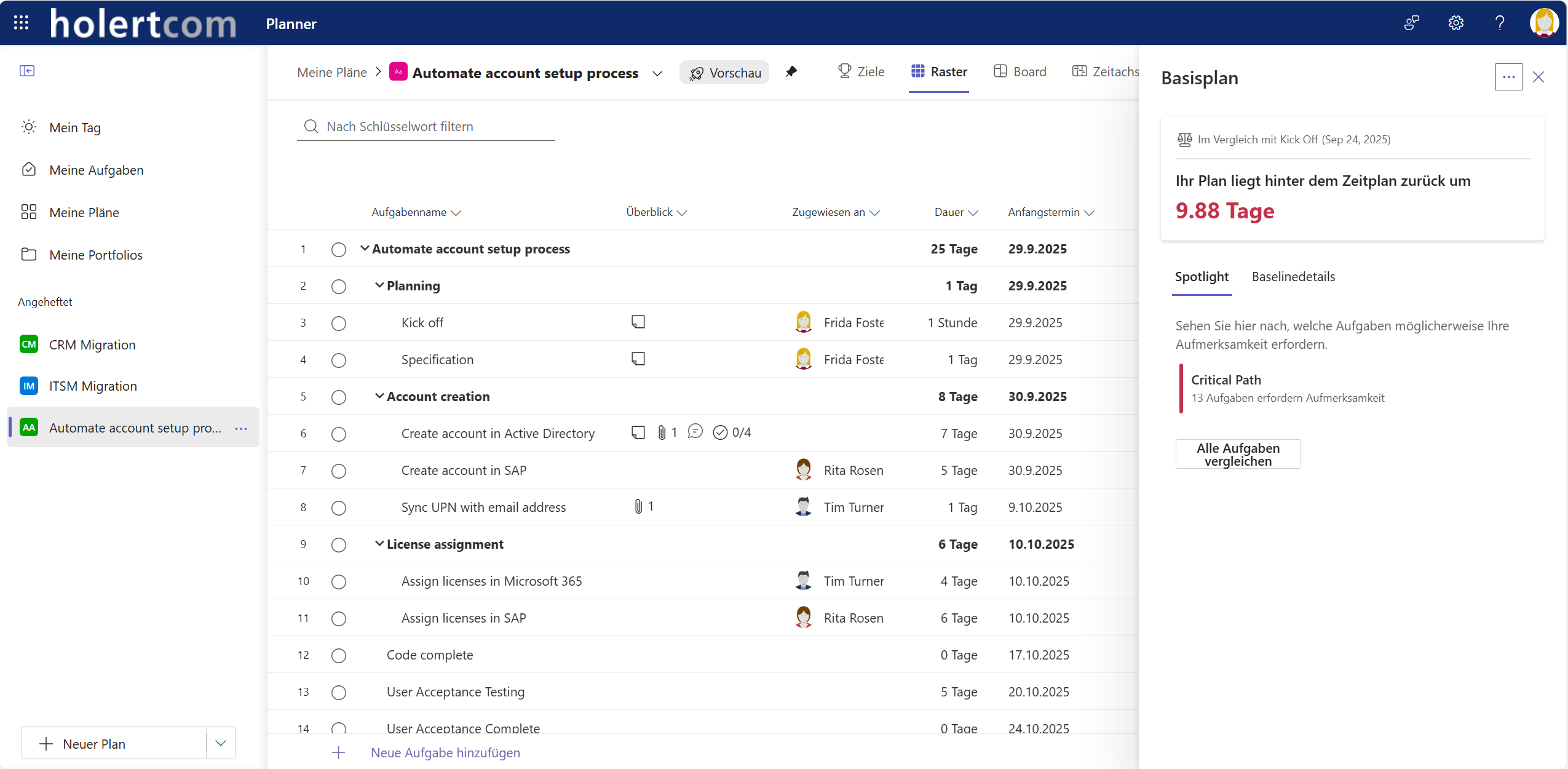
Baselines as known from Microsoft Project, for example, do not exist in Planner Premium plans as standard.
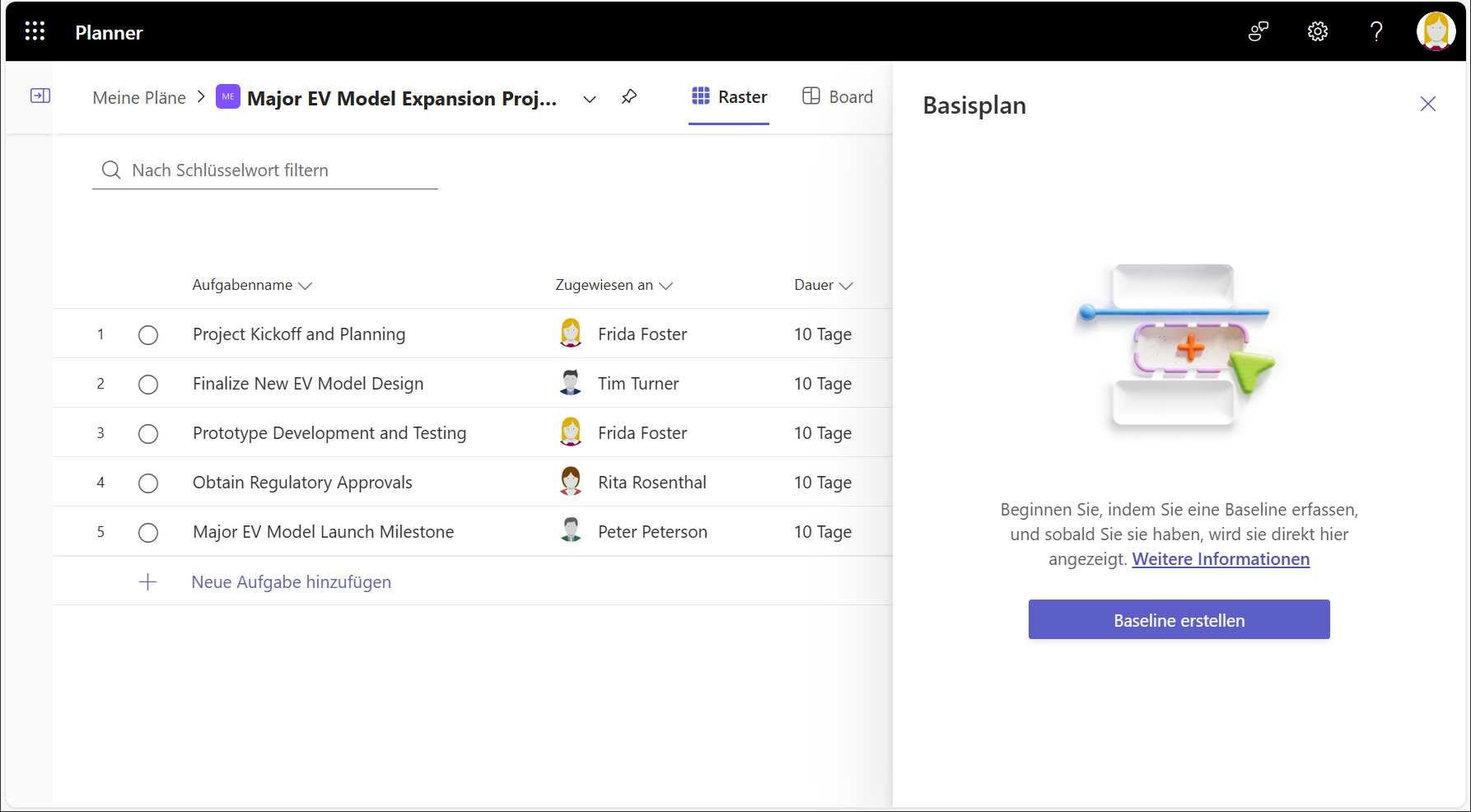
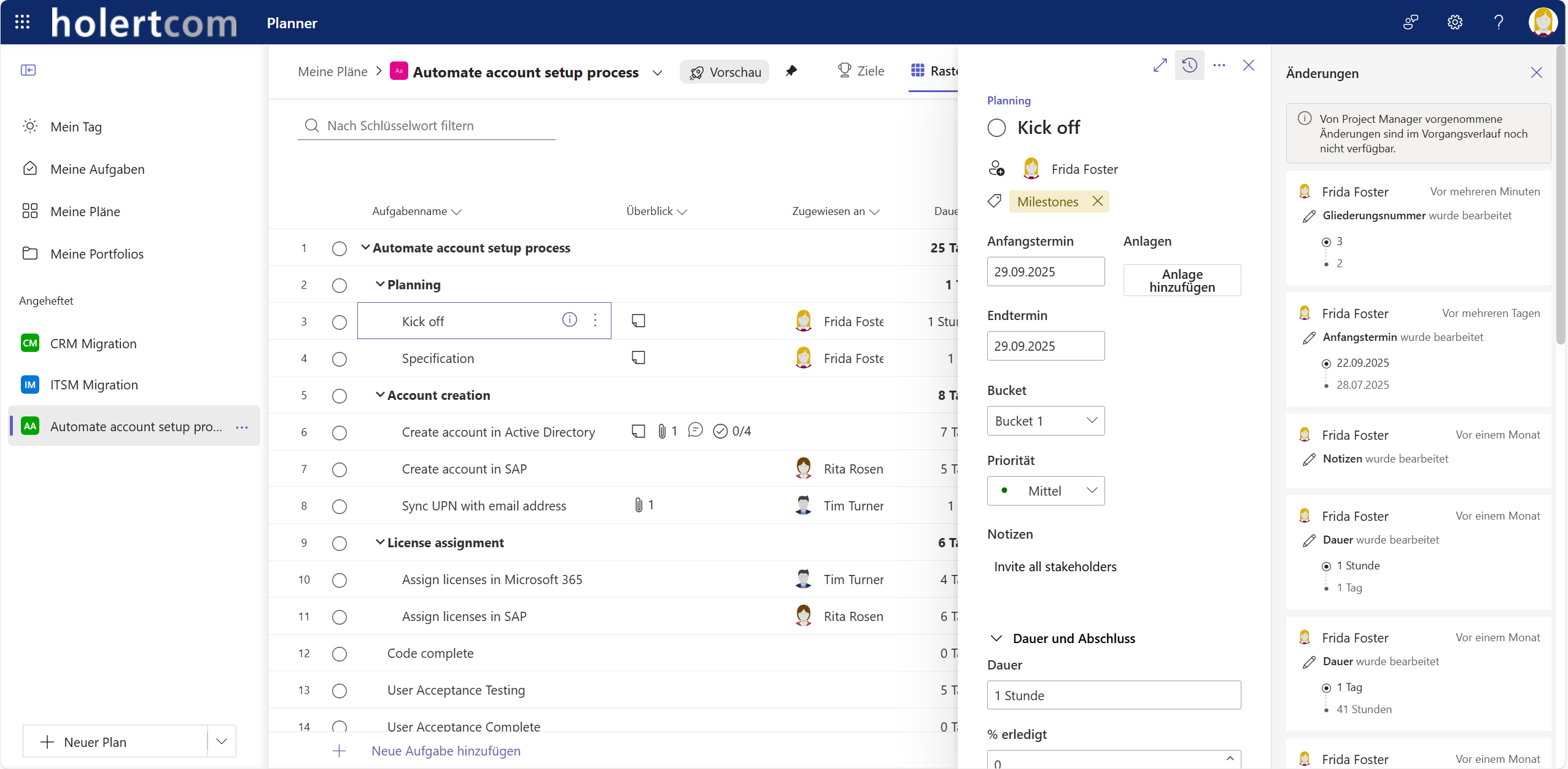
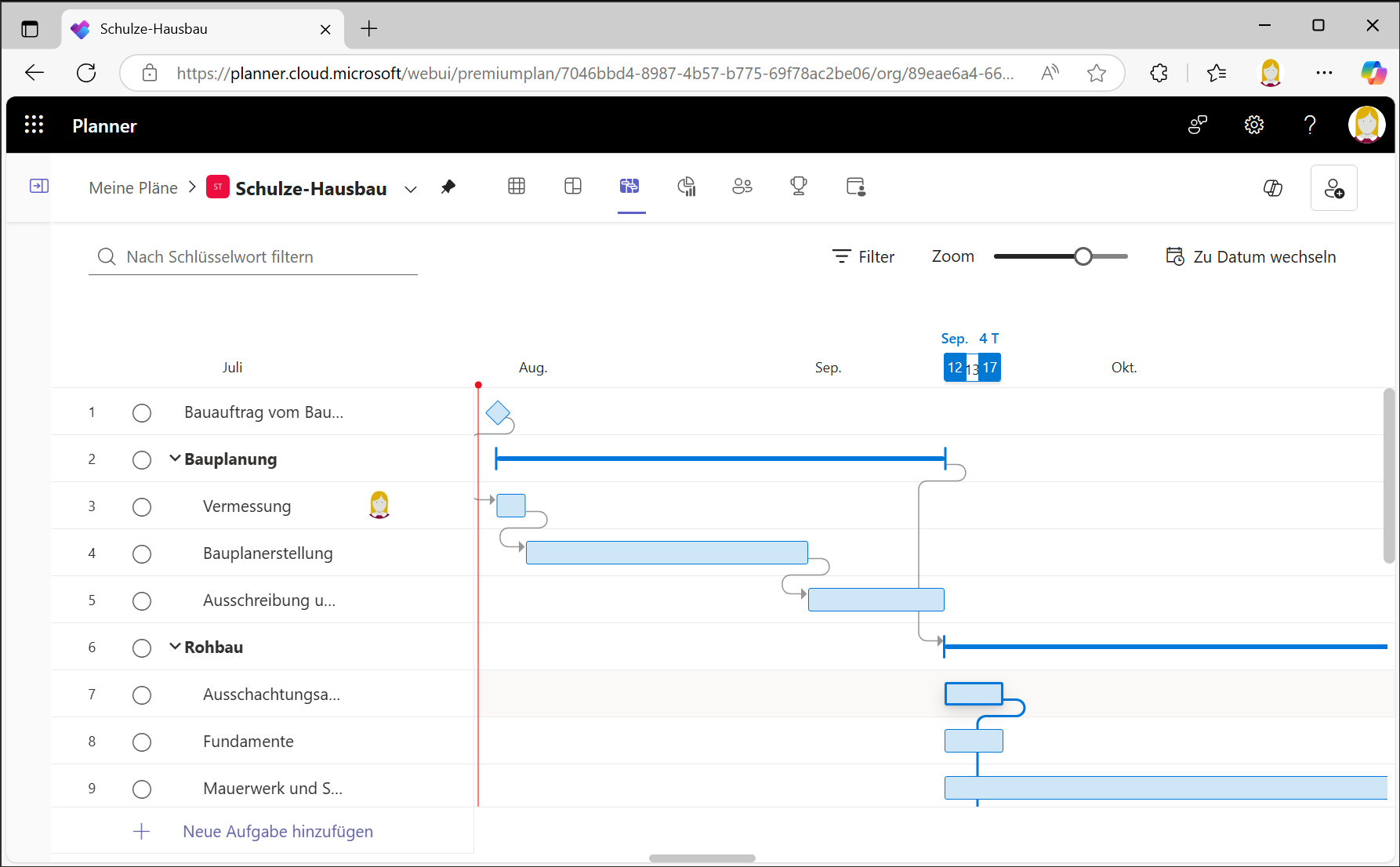
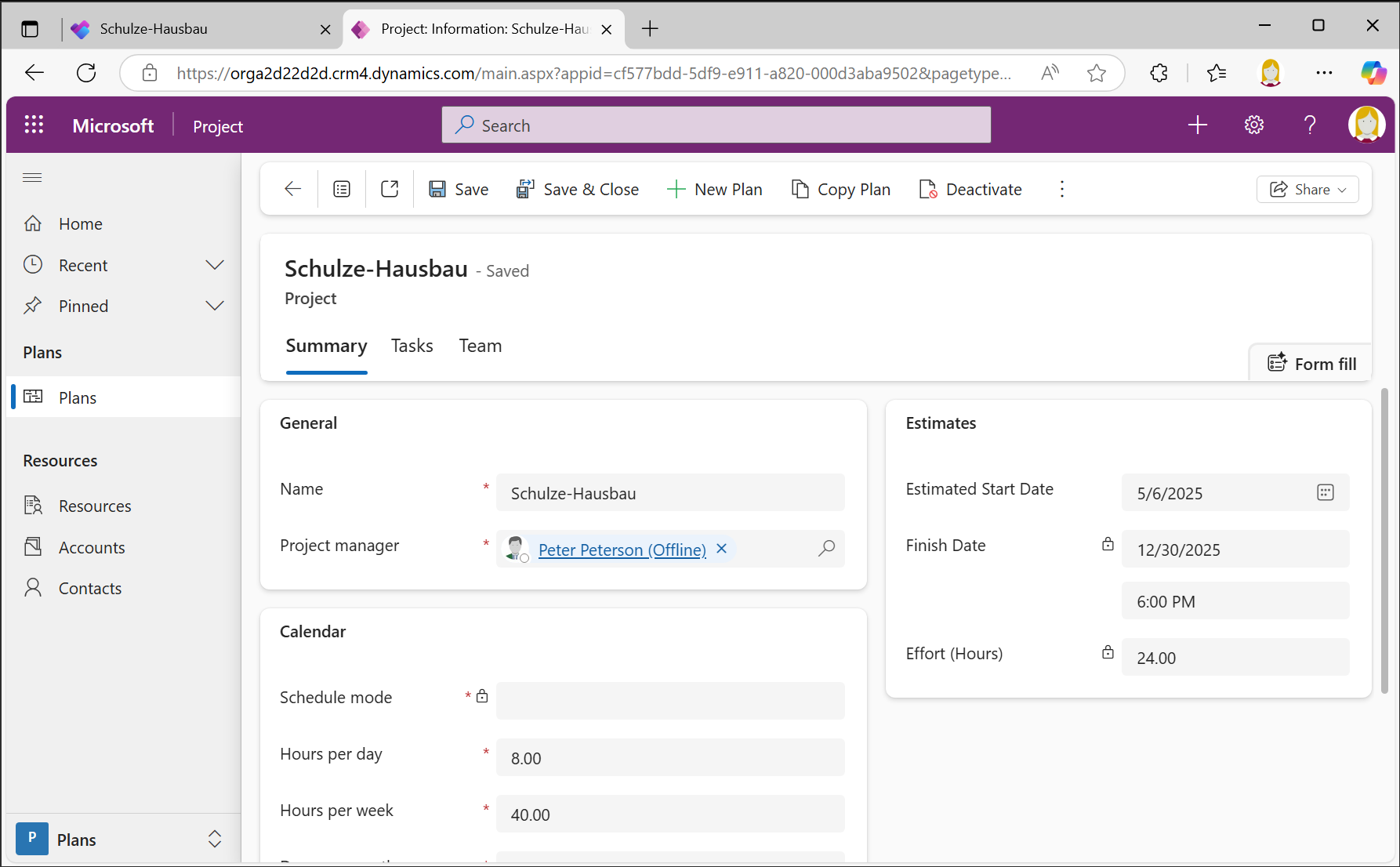
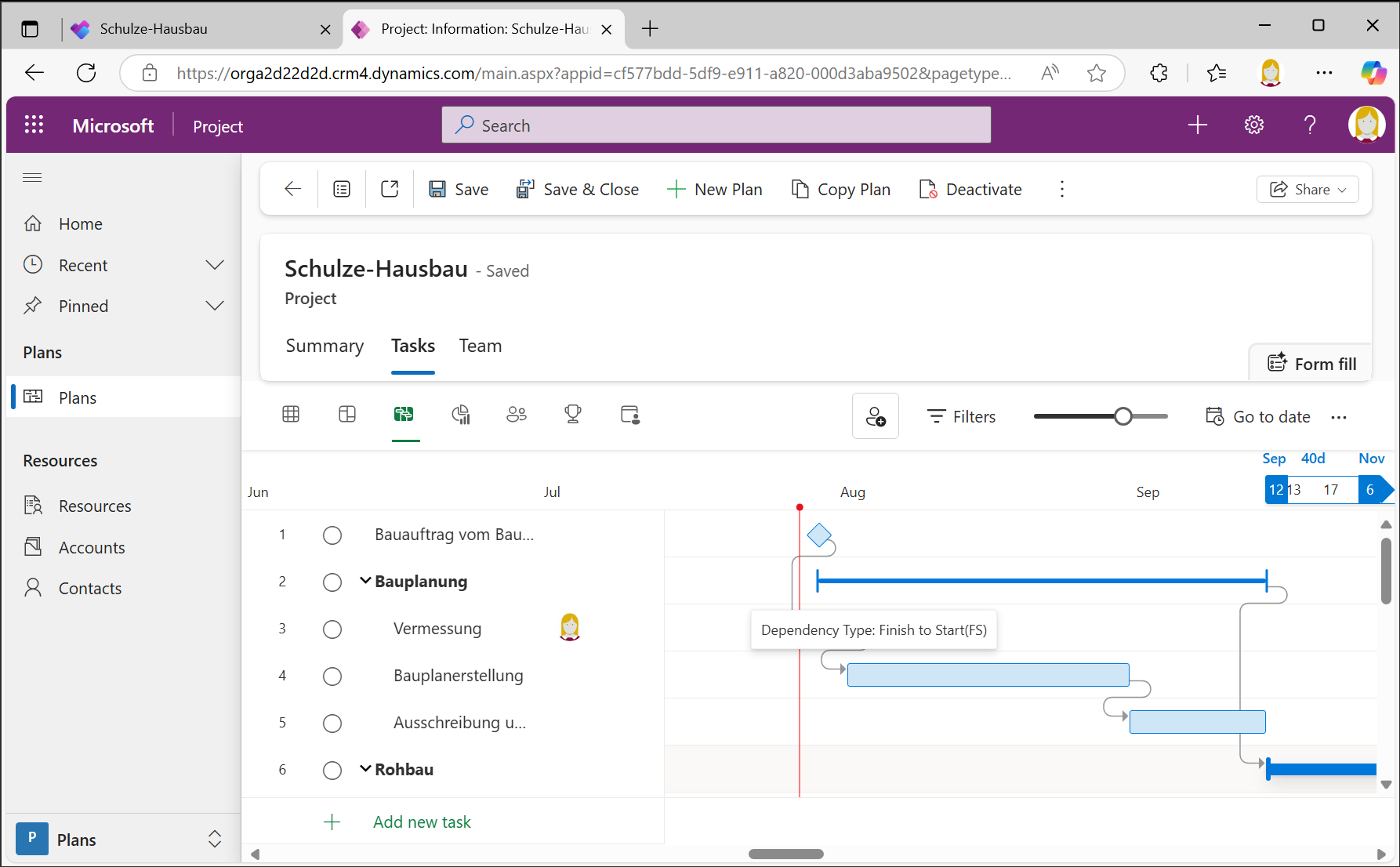
However, you can save a baseline and
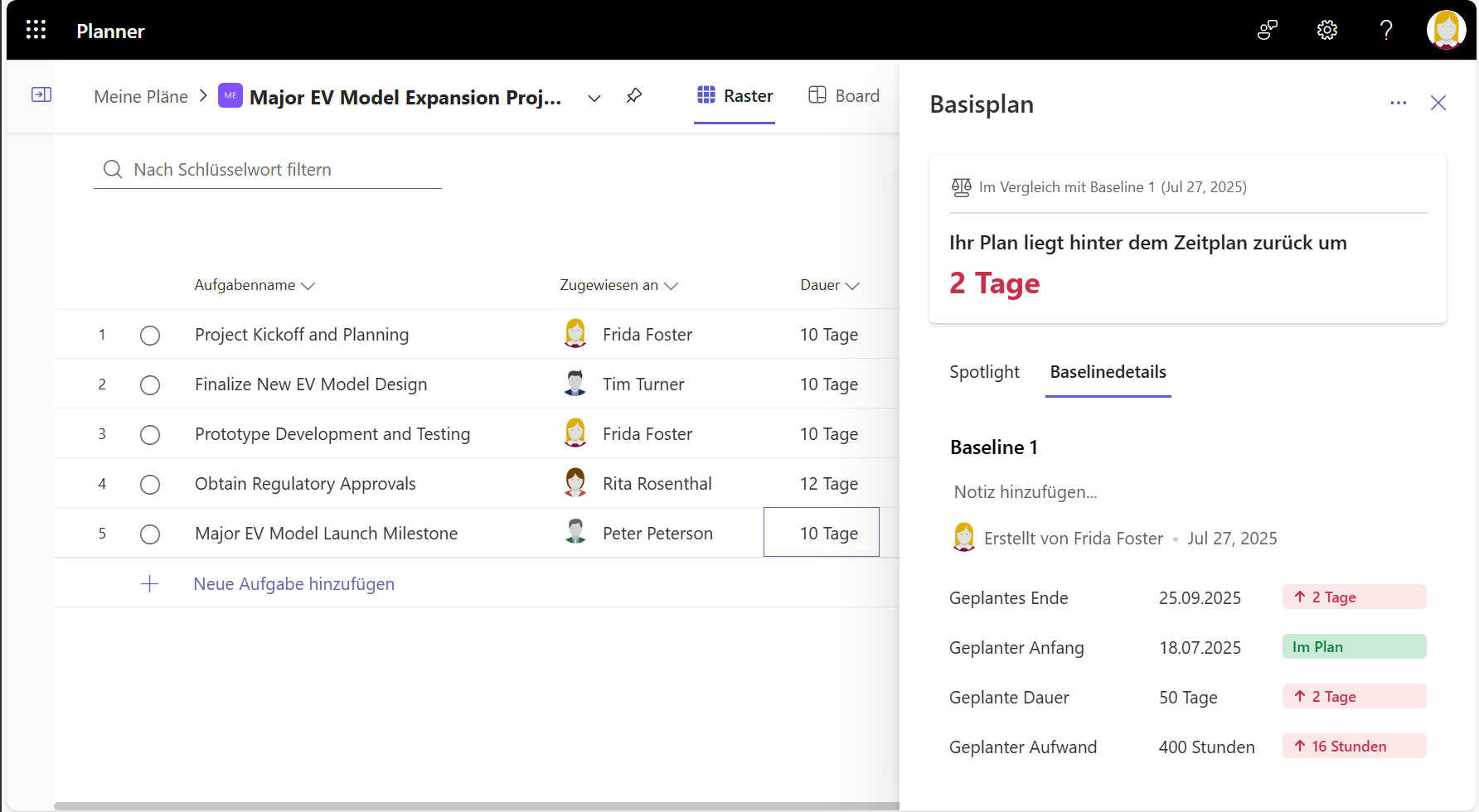
then compare the current data in the same dialog.
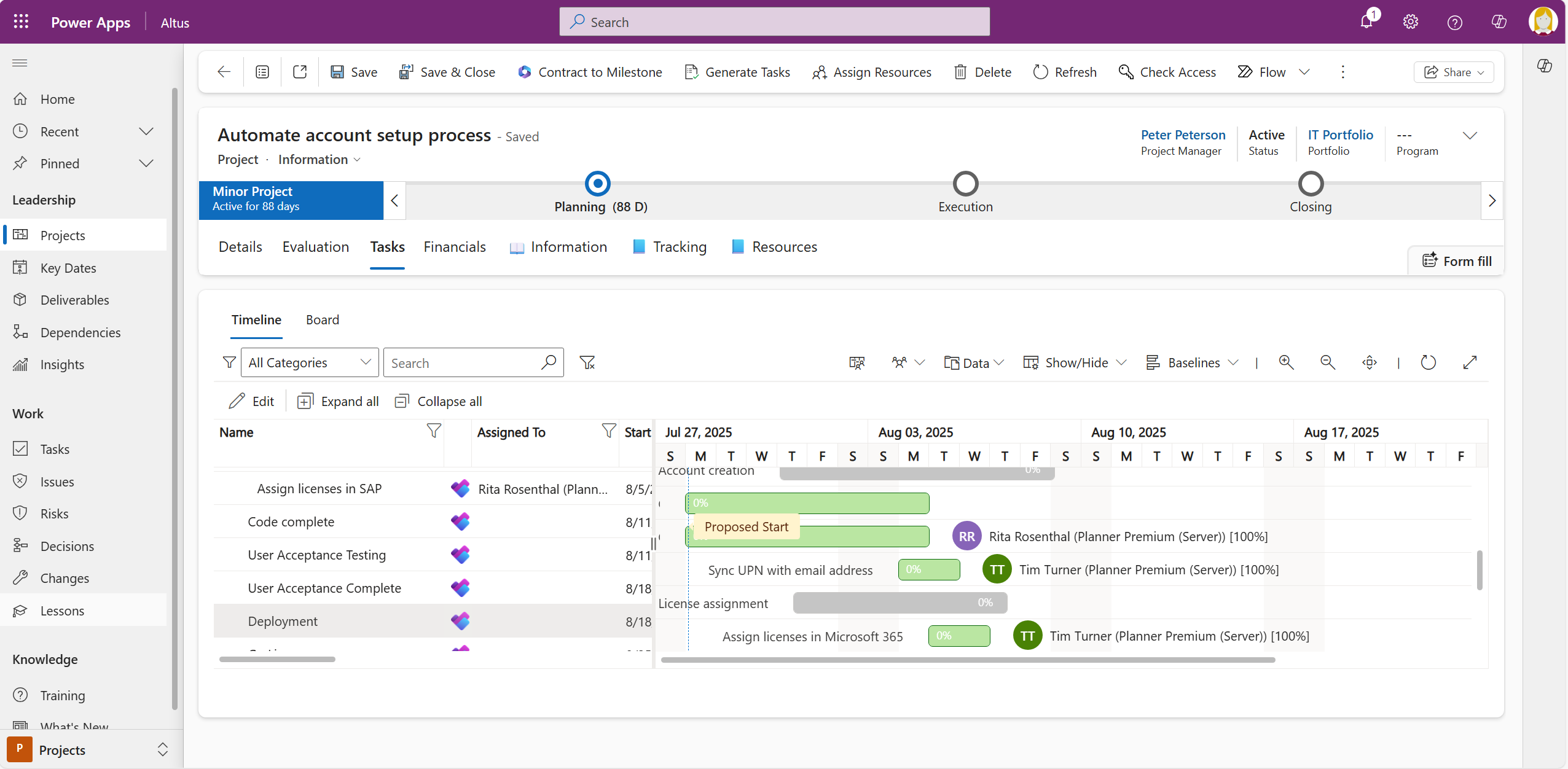
In conjunction with Altus , however, you can save base plans that also visualize a base plan comparison in the Gantt chart. To do this, Altus synchronizes premium plans and displays them in its own Gantt:
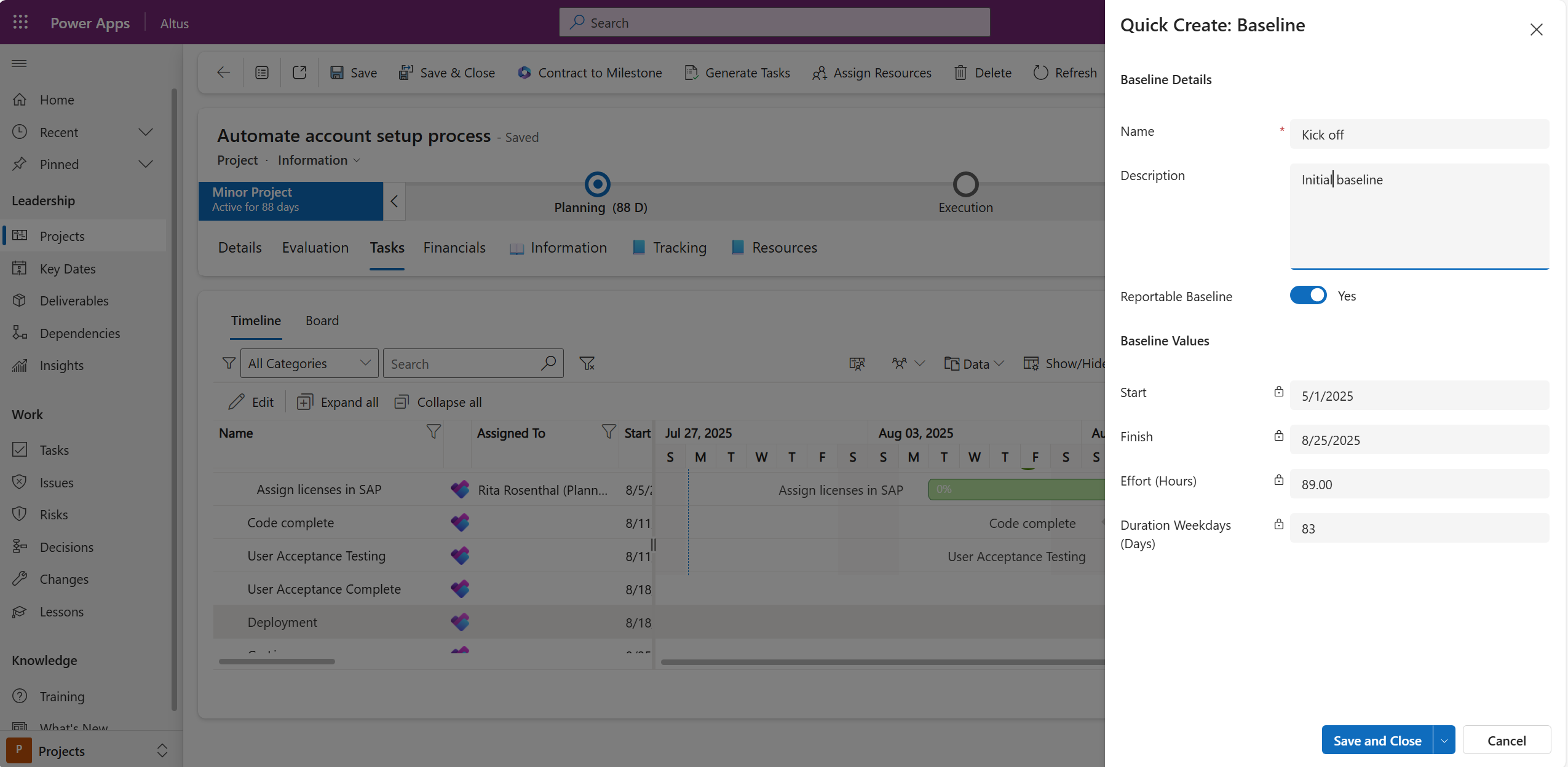
In contrast to MS Project, baselines can also be given a name, in this case Kick-Off.
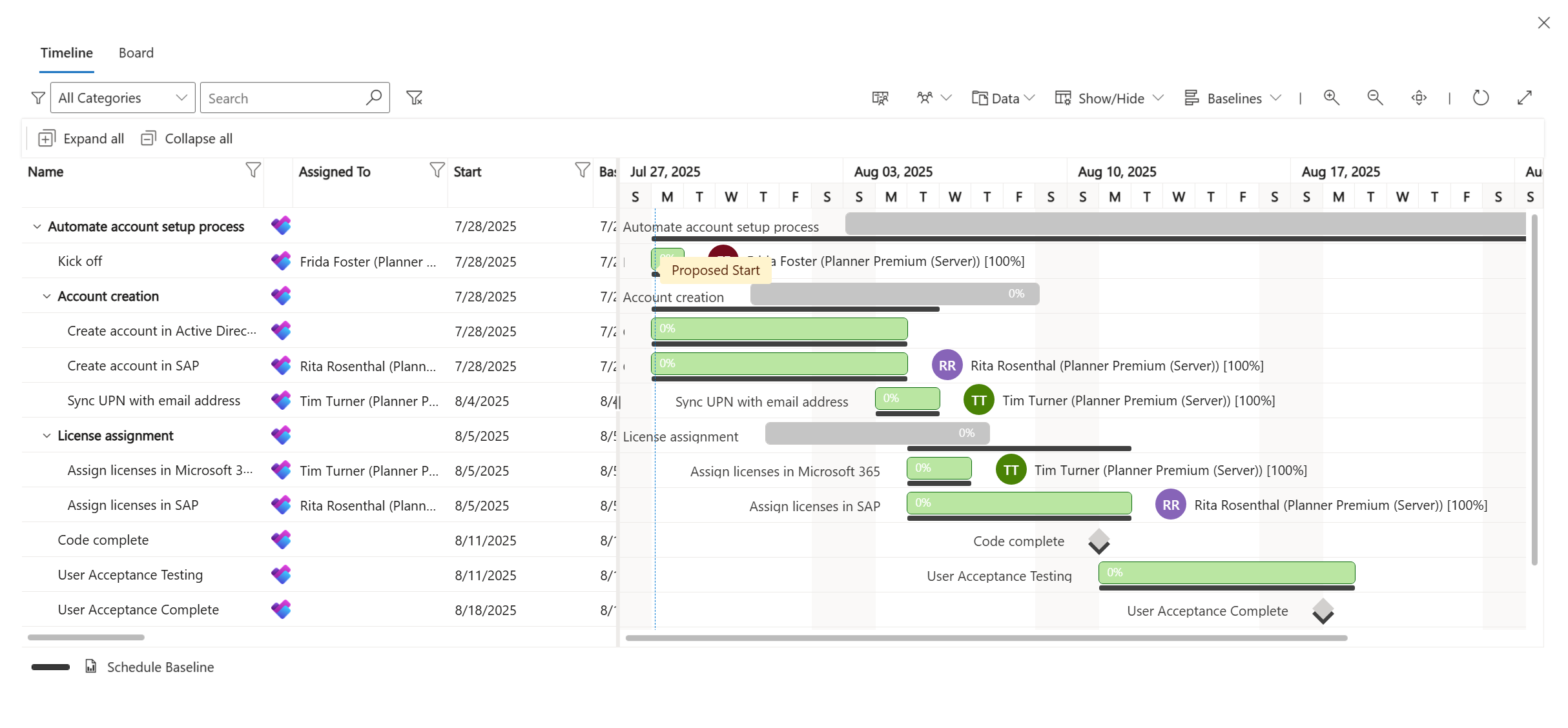
Once the base plan has been saved, it can be displayed as a reference in the Gantt chart. Here the black horizontal line under the task bars. Deviations between the planned status from the base plan and the current plan can thus be easily determined.
Planner Premium and collaboration with external employees (guest user)
If you collaborate with external resources on a project, they can also access the project plan without having a paid account in your company. The prerequisite is that they have a Microsoft 365 account. This is then used for logging in.
Even if you only have read access without a Planner Plan 1 license for Planner, you can start a discussion in Teams for each task
Planner Premium and Microsoft To Do
With Microsoft To Do, Microsoft has created a new app that combines tasks from Outlook as well as from Microsoft Planner and Planner Premium in one place. Similarly, the tasks from the three sources are also displayed in the Planner app in Microsoft Teams.
Alternatively, you can clearly display all tasks in a Power BI report, e.g. also for a team.
Planner Premium - Mobile app for iPhone and Android smartphones
Tasks from Planner Premium are displayed in the Planner app for Microsoft Teams. They are currently not visible in the Planner app for iPhone and Android smartphones. However, each individual can see their tasks in the Microsoft To Do mobile app. In addition, you can also see discussions on tasks from Planner Premium in the respective channels in Microsoft Teams.
Planner Premium - Time tracking
Microsoft Planner Premium does not contain a central project time tracking system in which employees can see all their tasks and report back their actual times (timesheets). By default, it is only possible to manually set the Effort completed field in each task. However, this only reflects the total actual effort and no daily posting is possible.
The Allocatus add-on fills this gap. You can use it to book your project times for any Planner Premium activities directly from Outlook, accurate to the hour and with a description.
Checklists for tasks and activities
You can create a checklist for each activity or task in Planner Premium. The individual action items can be checked off individually. However, ticking off the checklist entries does not change the progress of the process or task.
Show the critical path/route in Planner Premium
You can easily display the critical path in Planner Premium. However, this requires a Planner and Project Plan 3 license.
Planner Premium - Sorting tasks by end date
By default, Planner Premium does not allow tasks to be sorted by end date like MS Project. However, this can be added by programming if required.
Planner Premium and labels/tags/labels
In Planner Premium there are labels with which you can mark the individual tasks and use them for filtering.
Reporting
Power BI reports are available for Planner Premium as standard. Even better, if you synchronize Planner Planner Premium plans with Altus , you have a complete reporting system for project and portfolio management at your disposal.
Planner Premium templates
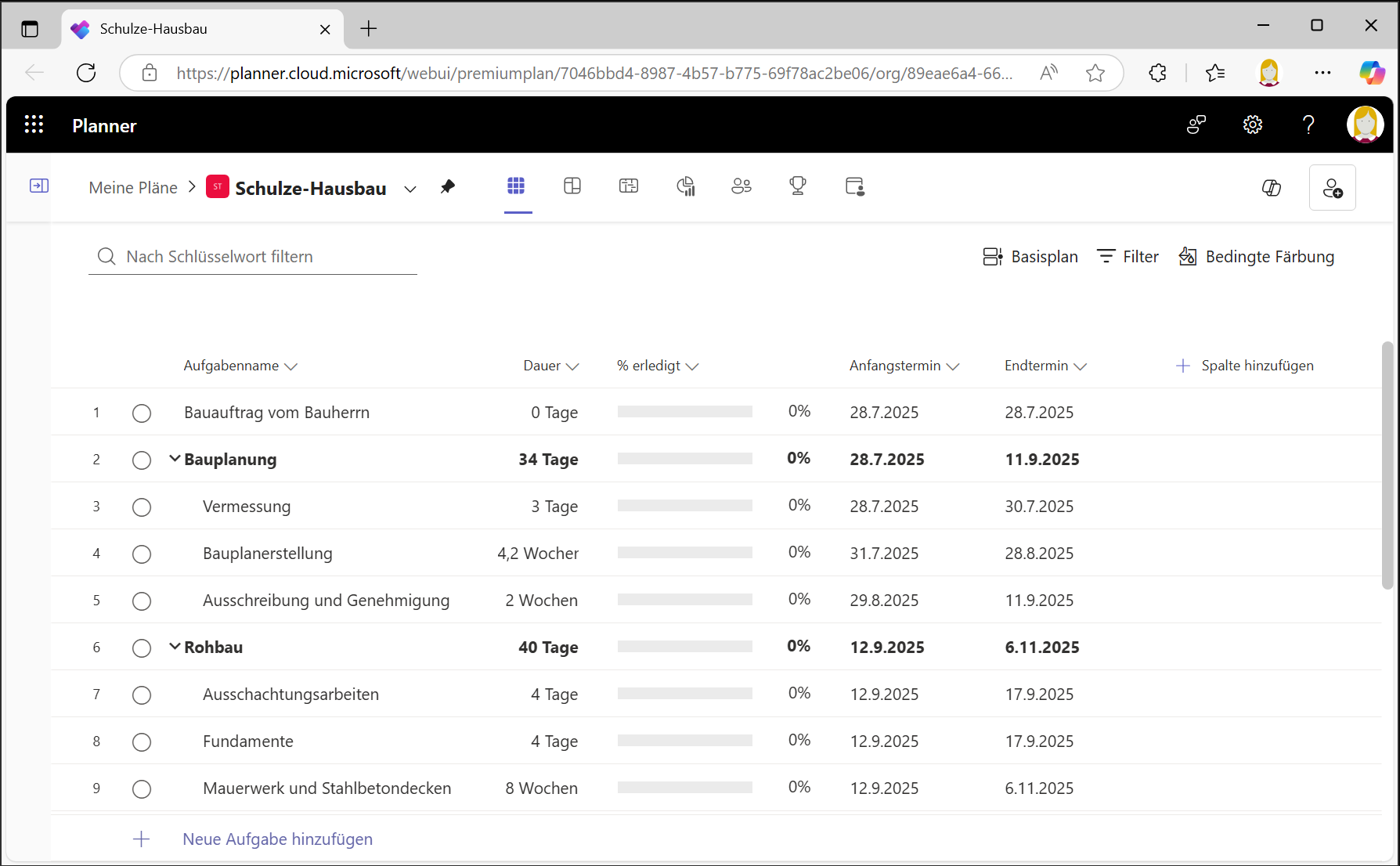
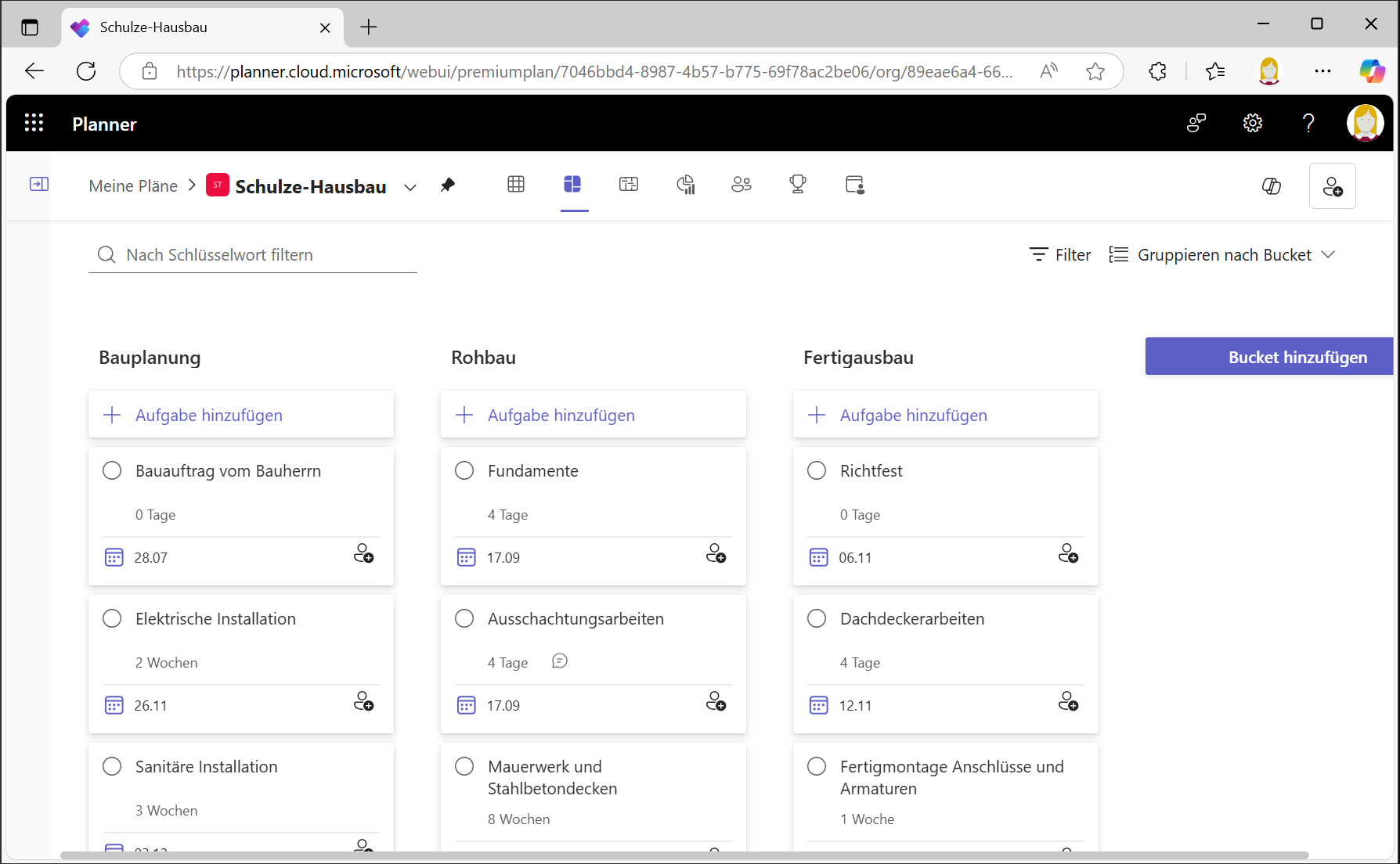
You can currently copy existing projects into Planner Premium, i.e. there is no special template management, except that you can access various Microsoft templates when creating projects. These include templates for a construction schedule, a marketing campaign, software development, the creation of a business plan, the integration of new employees (onboarding) and sprint planning.
It is also possible to import projects from Project Desktop into Planner Premium - however, certain functionality is lost, such as formulas, user-defined fields, resource management or recurring tasks.
Note: Since July 2026, Microsoft Planner offers custom templates, which let you publish a plan as a reusable template via Share > Publish as template. According to Microsoft, however, this feature currently supports basic plans only – it is not available for premium plans. We have described the details in the templates section of our article on Microsoft Planner Basic; the official documentation is available on Microsoft Learn.
Is that not enough? Then write to us.
Integration of Planner Premium and OKRs
With Viva Goals, Microsoft provided a solution for strategic management, including OKR integration with Planner Premium. As Viva Goals was retired on December 31, 2025, we offer a powerful alternative with additional benefits with the OKR function in Projectum xPM.
Microsoft Planner Premium and AI

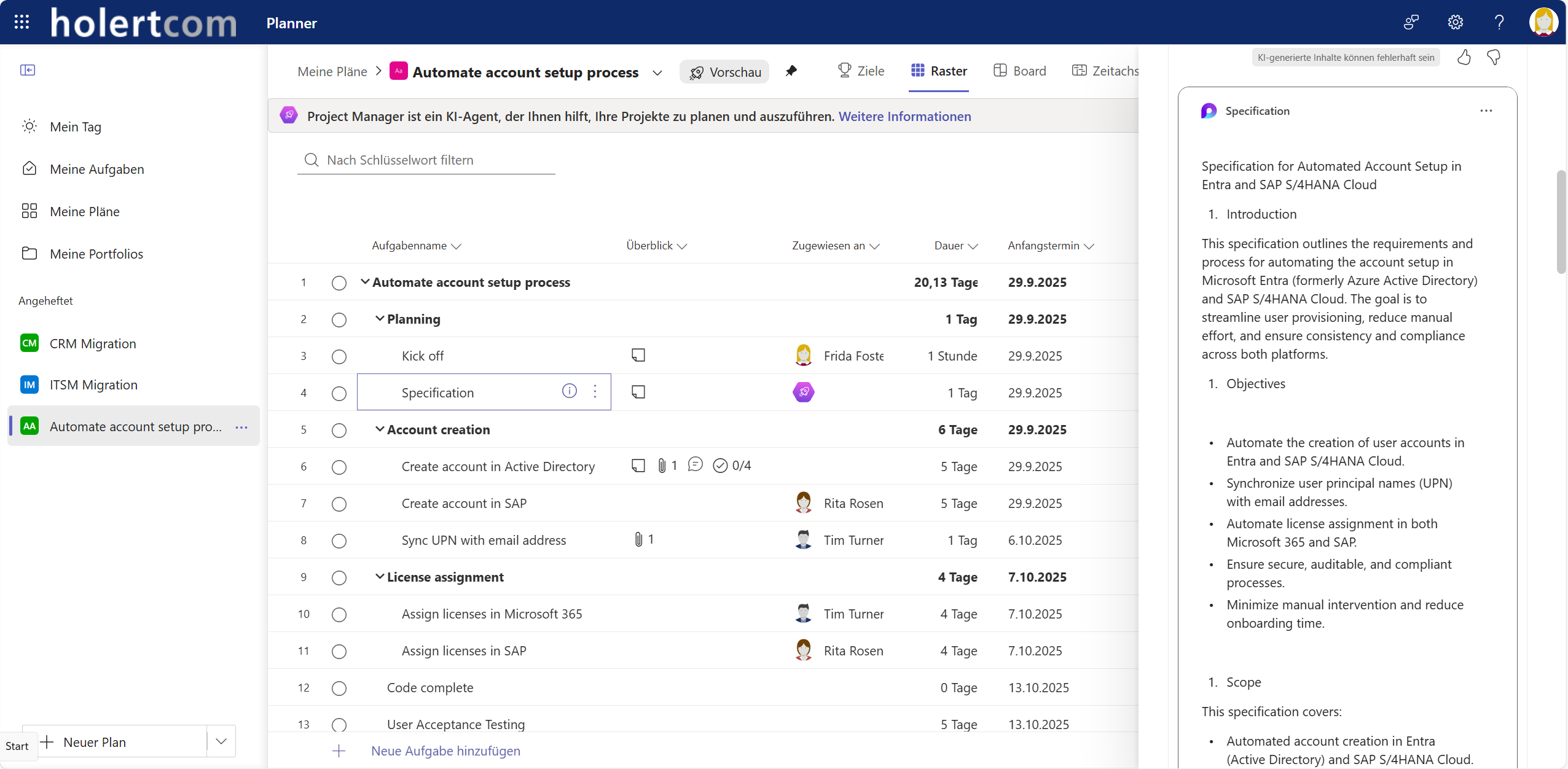
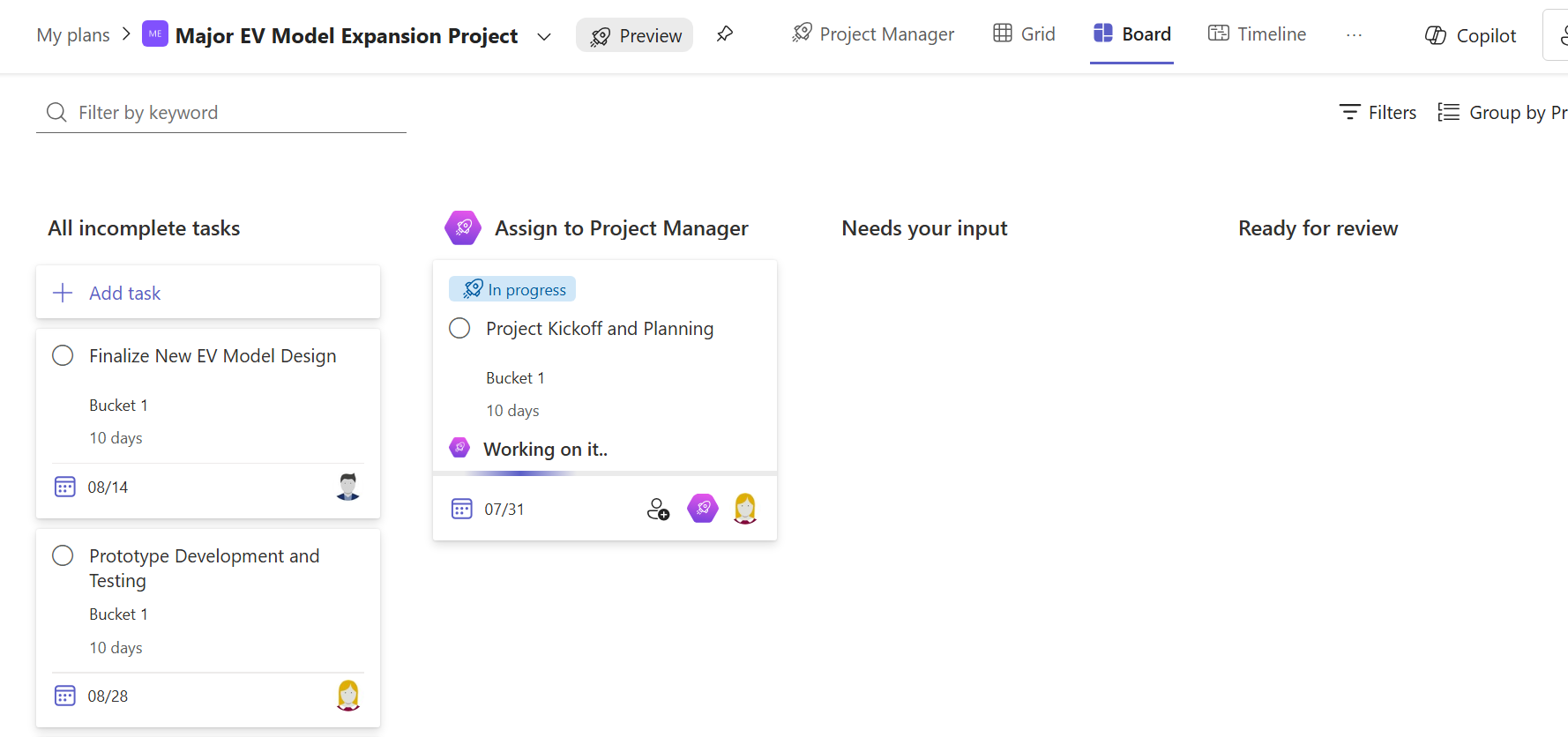
The new Microsoft Planner comes with Copilot integration so that many project management tasks can beautomated, e.g. creating a work breakdown structure.
There is also the Planner Agent (formerly Project Manager Agent), to which you can easily assign tasks such as resources and which then processes them independently. Processing here means that it carries out a search and displays the result of the search in an additional dialog box within the task.
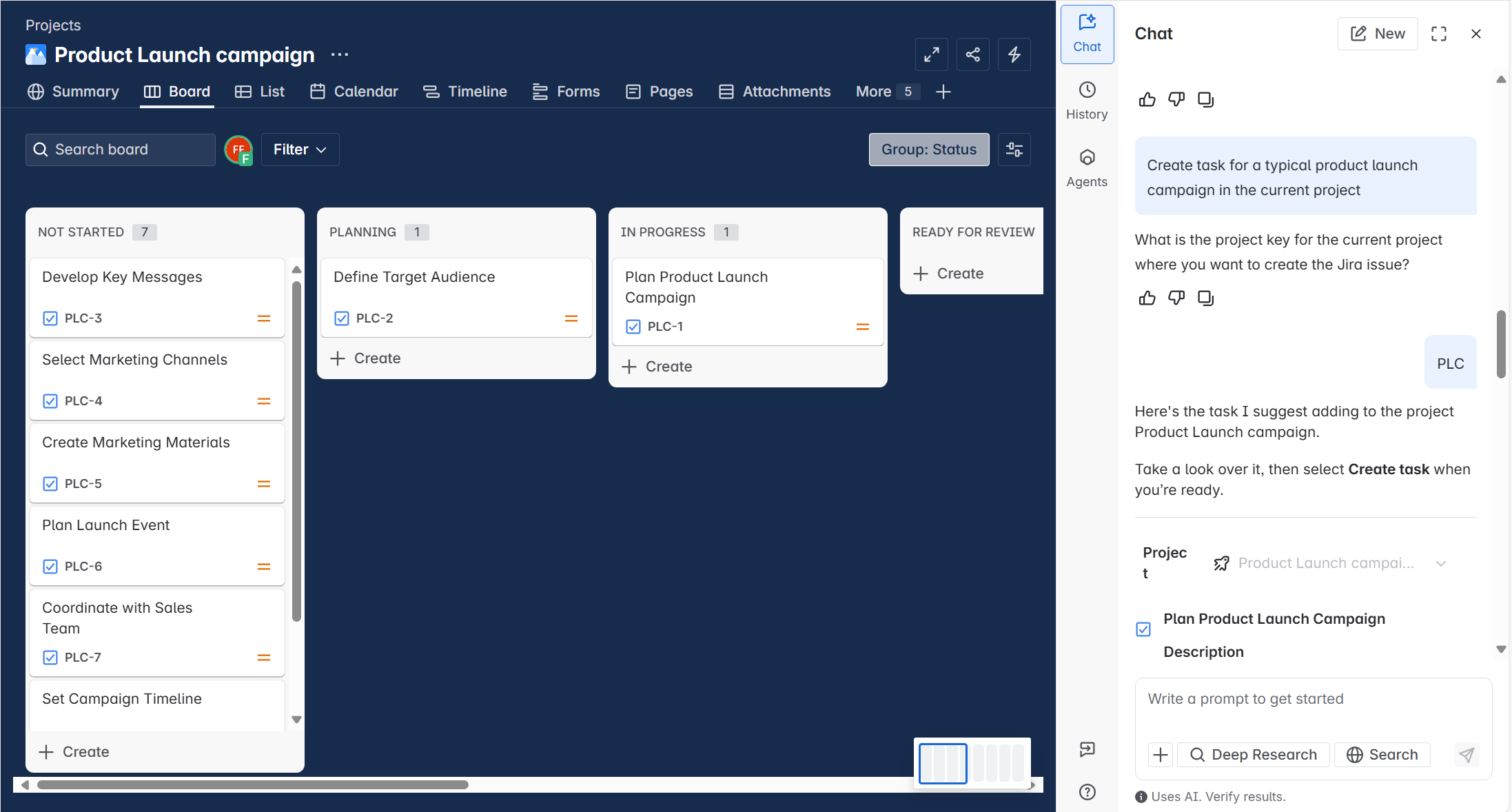
However, you can also carry outany actions with a Copilot Agent, as the Planner Premium plans are saved in Dataverse and you can therefore also use the Dataverse MCP server.
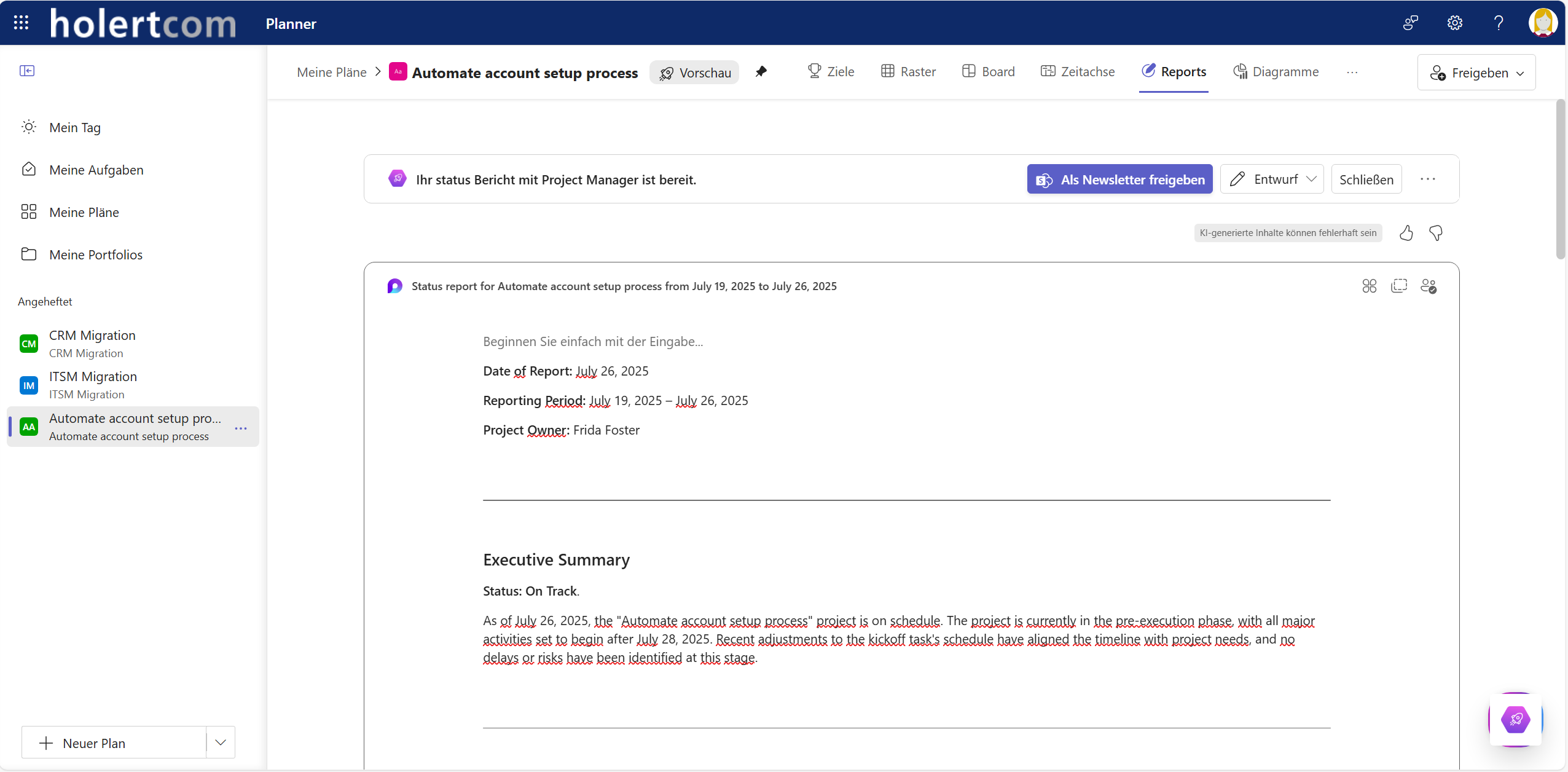
There is also a function for creating status reports. The AI automatically creates a summary of the current status of the project.
Planner Premium Plans and Microsoft Dynamics 365 Project Operations Integration
MS Dynamics 365 Project Operations is integrated into Planner Premium as standard. This allows project service providers to map their entire project business process with one solution.
Migration of Planner/Planner Premium within and between tenants
Microsoft does not offer an option to synchronize or migrate Planner Premium plans from one Microsoft 365 environment to another. Planner Basic plans can be converted to Planner Premium plans by default, but there is only one defined path.
Alternatively, we offer field-proven migrations between different Microsoft 365 environments, both between different Power Apps/Dataverse environments in a Microsoft 365 tenant or between different tenants. Common use cases are when merging tenants, e.g. during company mergers or reorganizations. Important: With our migration solution, your data is not transported via a third-party exchange platform, i.e. the data is exclusively in your source and target tenant and therefore completely under your control.
Holert offers a service for this. You can reach us here.
How do I migrate a Microsoft Project plan to Planner Premium?
You can manually import a Microsoft Project plan as an .mpp file via the Planner Power App in Microsoft Planner Premium. Only the most important standard fields are transferred, namely:
- Task Name: The title of the task.
- Start and End Date: The calculated dates from MS Project.
- Duration: The time span of the tasks.
- Percent Complete (% Complete): The current progress status.
- Dependencies: Links (predecessor/successor) are transferred if they are supported by Planner Premium (usually Finish-to-Start).
- Hierarchy (Outline): The structure of summary tasks and subtasks (WBS) is preserved.
The following cannot be migrated, or only to a very limited extent:
- Up to 10 custom fields can be imported.
- Resources (Assignments): In most cases, resources are removed because the local names in the .mpp file (e.g. “Thomas”) cannot be automatically mapped to Azure AD (Entra ID) user accounts. Tasks usually have to be reassigned in the new plan.
- Manually scheduled tasks: These are usually automatically converted to automatically scheduled tasks.
- Baselines: Historical baselines are often not transferred during the standard import.
- Formulas & Graphical Indicators: Calculated fields or traffic-light indicators from MS Project are not migrated.
As a result, migrating from MS Project to Planner Premium not only comes with many functional limitations, but the migration itself is also cumbersome, since each plan must be migrated manually one by one, and it also involves data loss. Therefore, especially when migrating from Project Online or Project Server, it may make sense to switch to a more powerful scheduling tool such as Altus PPM or Projectum xPM. For both solutions, Holert also offers a fully automated migration of data including resources and all custom fields.
More on this can also be found in the presentation by Renke Holert from the recent Project Management and AI Summit with KUKA.
Migration from other project management solutions to Planner Premium
If you are currently using Asana, Monday, ClickUp, Smartsheet or other web-based project management software, we are happy to migrate your data.
Microsoft Planner Premium offers Microsoft 365 users advanced features such as Gantt views, dependencies, resource utilization and AI-powered planning - seamlessly integrated with Microsoft Teams, SharePoint, Power BI, To Do and Copilot. Compared to the PM tools mentioned above, companies also benefit from greater security, compliance and a consolidated working environment within the Microsoft world.
Strategic planning and Planner Premium
All work within a company must be aligned with its strategic goals. This includes large projects planned, for example, with Planner Premium plans; many medium and small projects planned with Planner basic plans; as well as other initiatives such as agile product development planned with Azure DevOps or Jira. If you use the market-leading PPM solutions Altus and Projectum xPM to manage your strategic goals and portfolio, you can very easily integrate data from all the aforementioned project and product management tools. This ensures that the projects planned there also contribute to your objectives.
Frequently asked questions about Microsoft Planner Premium
How much does Microsoft Planner Premium cost?
Microsoft lists Planner Plan 1 at USD 10 and Planner and Project Plan 3 at USD 30 per user per month, paid yearly (as of October 2026). Prices in other currencies depend on region and agreement type.
Who needs a Planner Premium license?
Only users who create and schedule premium plans, e.g. edit the timeline, dependencies or custom fields. Team members with a Microsoft 365 license can view and update tasks in plans in the default environment without an additional license.
What is the difference between Planner Plan 1 and Planner and Project Plan 3?
Plan 1 offers Timeline (Gantt), finish-to-start dependencies, sprints, goals, milestones and up to ten custom fields. Plan 3 adds advanced dependencies with lead and lag, critical path, baselines, task history, Assignments view, creating portfolios and the Microsoft Project desktop app.
What does Planner and Project Plan 5 add?
In the Planner Power App, Plan 5 allows creating and updating bookings to fulfill resource requests, managing skills, and unlimited custom tables.
Is Copilot included in Planner Premium?
No. Copilot in Planner, the Planner Agent and AI status reports additionally require a Microsoft 365 Copilot license.
Is Planner Premium the successor to Project Online?
Project Online was retired on September 30, 2026. Planner Premium is one of the options named by Microsoft, but it does not cover cross-project resource, cost and portfolio management. Our article Microsoft Project Online ends – alternatives and migration describes the alternatives.
Can I import existing plans from MS Project or Excel?
Yes. MPP files can be imported via the Planner Power App, but without resources, formulas and baselines. For task lists from Excel, see Import Excel file into Planner Premium.
How Holert supports you with Planner Premium
Planner Premium is licensed quickly, but whether it works in day-to-day project work is decided elsewhere: which roles actually need Plan 1 or Plan 3, which Dataverse environment the plans live in, which templates and fields become the standard – and where Planner Premium ends and cross-project resource and portfolio management begins. Since Project Online was retired, many PMOs face these questions at the same time.
As an implementation partner for Microsoft and Atlassian with more than 25 years of experience in project, product and portfolio management, we introduce Planner Premium and, where needed, extend it with Altus PPM or Projectum xPM – methodically based on PMI and SAFe. PMOs at companies such as KUKA, Rohde & Schwarz, Miele and Evonik work with us. With our Smart Start package, we implement the solution in 4 to 12 weeks at a fixed price. You can find project examples in our customer references.
 Renke Holert





 Renke Holert : Nov 29, 2025, 8:33:18 AM