Microsoft Planner gives teams an easy way to organize tasks visually and stay on top of things. Seamlessly integrated into Microsoft 365, it supports collaboration – with Basic plans at no additional license cost.
TL;DR
- No extra cost: Planner Basic is included in every eligible Microsoft 365 subscription – no separate license required.
- At home in Teams: the Planner app in Microsoft Teams (formerly “Tasks by Planner and To Do”) brings plans, your own tasks and to-do lists together in one place.
- Where Basic ends: no Gantt chart, no task dependencies, no sprints and no timesheet – that starts with Planner Premium.
- New: custom templates for basic plans since July 2026, task chat with @ mentions since early 2026.
- Gone: the iCalendar feed into the Outlook calendar was retired without replacement in early 2026.
Microsoft Planner Basic: Simple, visual task management for teams
Microsoft Planner Basic is Microsoft's smallest project management solution which, unlike Planner Premium (formerly Microsoft Project for the web), can be used by every Microsoft 365 user without additional license costs.
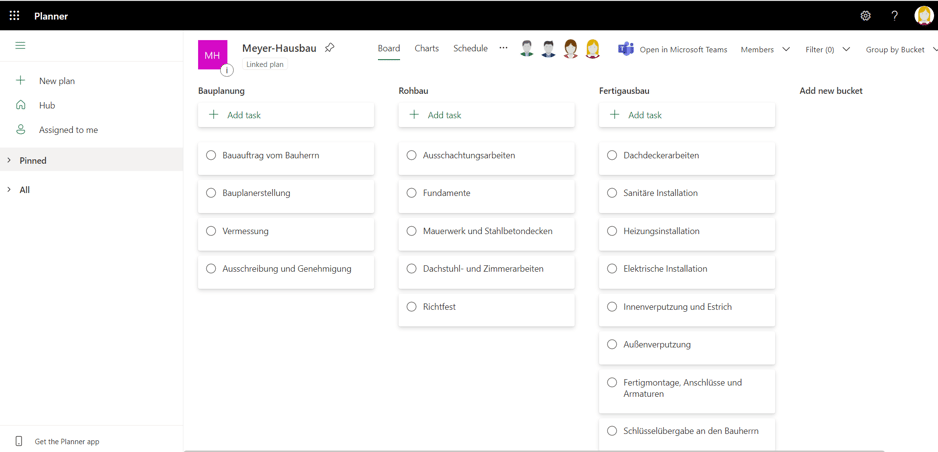
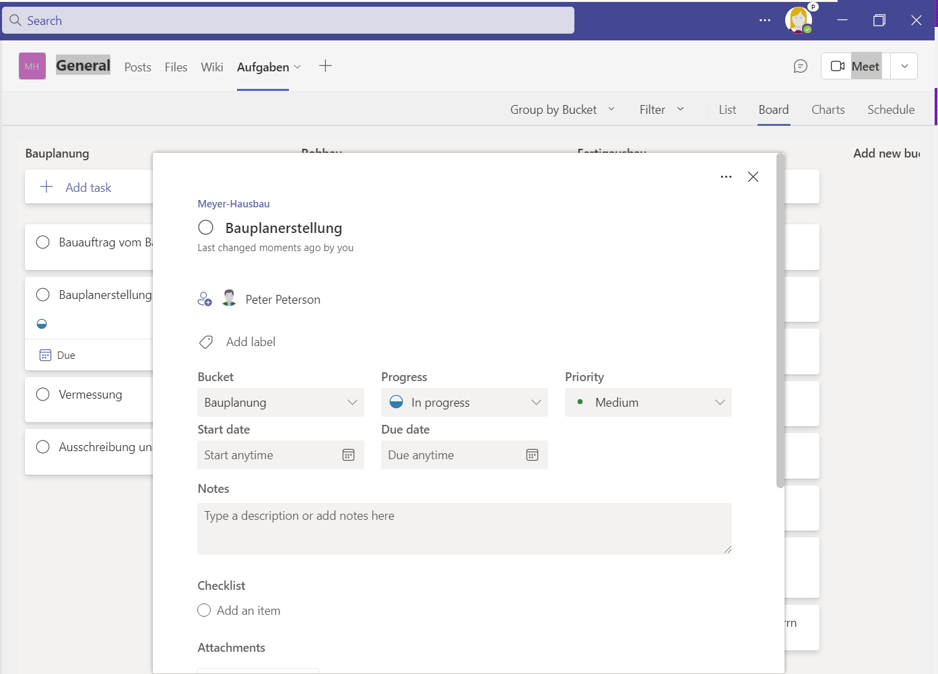
Create a Kanban card for every task in your plan, add details, and organize all cards to keep an easy overview.
Each plan has its own board on which you can group individual tasks. Categorize your tasks in whatever way suits you best, e.g. by assigned resource or processing status. To change the assignment, simply drag a card into another category with your mouse.
Use the Tasks app, for example, for
- a project team that wants to track open items for a project (PMBOK)
- a Lean Portfolio Management team to steer all of your company's initiatives (SAFe)
- a team working in an agile way for a value stream and maintaining a backlog (SAFe).
Microsoft Planner in Teams, on the web, Windows desktop app and mobile/notifications
Thanks to the charts view, you and every employee always keep track of whether the team has made progress and whether you can meet your set timeframe. In addition to the web app, Planner is also available for mobile devices (iOS/Android). This keeps everyone up to date on the team's latest status anywhere, anytime. There is no standalone desktop app for Planner. However, Planner content is displayed in the Tasks app, in Microsoft To Do, and in the Microsoft Teams desktop app.
If you wish, Planner can notify team members by email about newly assigned tasks. In addition, there is the option to receive notifications about tasks and the conversations contained in Planner.
Microsoft Planner is part of Microsoft 365
Since Microsoft Planner is part of Microsoft 365, you can easily attach all related files to each task and edit them directly in Planner. This saves you the tedious search for files and switching between different applications. The task data itself is stored in Dataverse and Azure, the files in the SharePoint document library of the associated Microsoft 365 group.
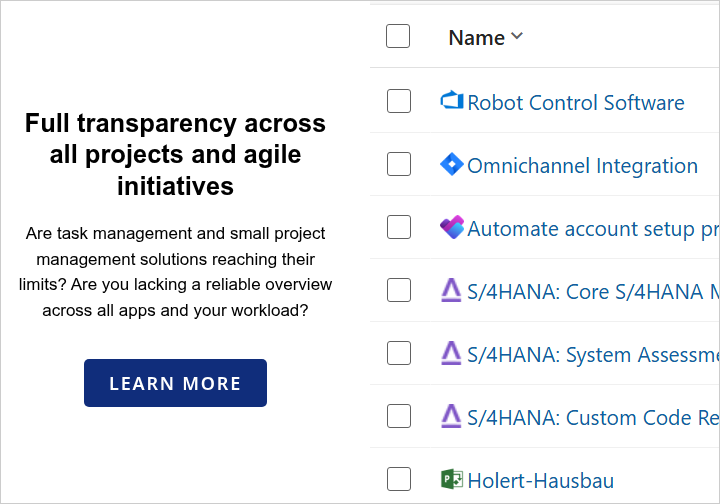
Planner reaching its limits? When your projects need more than boards and buckets: with Smart Start we introduce a full PPM solution for Microsoft 365 or the Atlassian Cloud – close to standard, in 4 to 12 weeks, at a fixed price.
Microsoft Planner/Microsoft Project integration
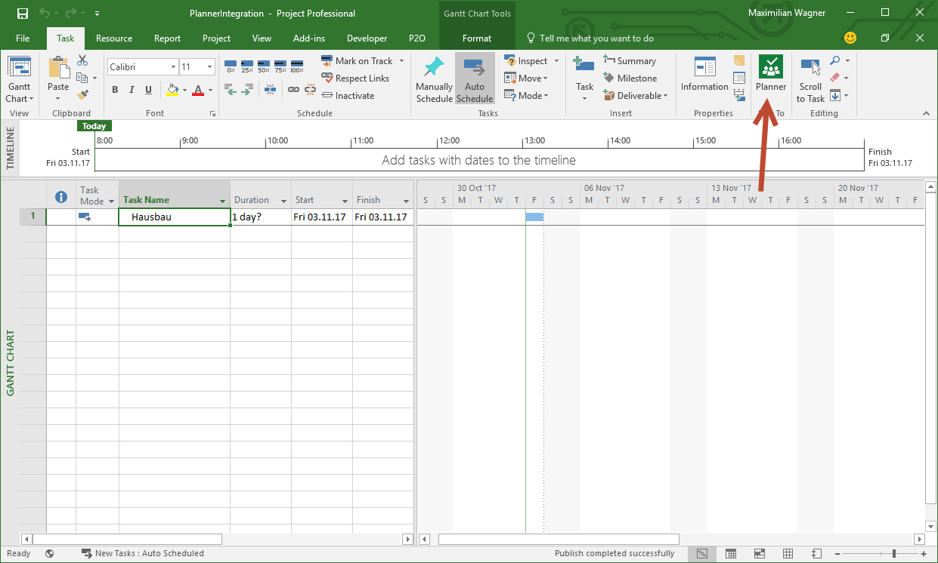
If you are a Microsoft 365 customer and have the latest version of Microsoft Project, you have the option to link a task from Project to a plan. This allows the project manager to detail the planning of a task in Planner.
The plan can be viewed directly from MS Project via a small icon next to the task. This allows the project manager to see and track progress, but the task in Project must be updated manually.
In practice, assigning a plan to a single task is often not suitable, which is why we recommend our add-on Project2Planner. It synchronizes tasks from Microsoft Project with one task each in Microsoft Planner.
Tip: Automatically create a Planner plan per project in Microsoft Teams with Allocatus.
Microsoft Planner/Microsoft Teams integration
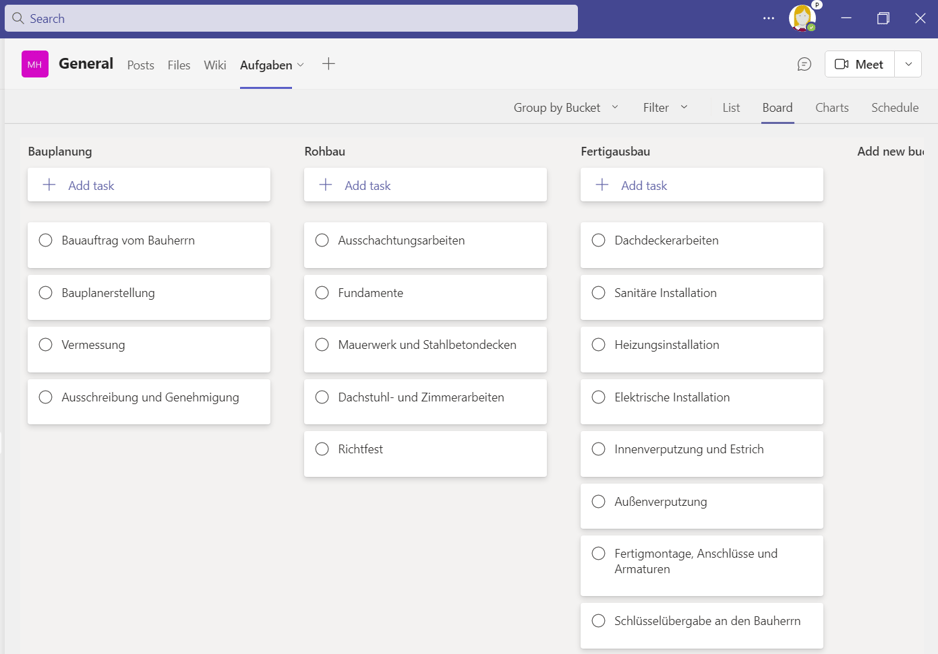
Microsoft Planner is integrated into Microsoft Teams by default. You can add a Planner plan as an additional tab in Microsoft Teams so that team members can see all tasks. Since September 2026, according to Microsoft, this also works in private and shared channels: you create a new basic plan there or select an existing plan shared with the group associated with the channel. In addition, an individual team member can see all tasks assigned to him or her in one place in the Teams Planner app.
How to turn a single chat message into a Planner task without any detour is shown in Create tasks from Microsoft Teams chat.
Planner Basic and Planner Premium compared
Which feature sits in which plan is what decides, in practice, whether Planner Basic is enough for your initiative. The overview below summarizes the differences that most often tip the balance in projects (source: Microsoft feature comparison, August 2026).
| Feature |
Planner Basic |
Planner Premium |
| License cost | included in Microsoft 365 | paid (Planner Plan 1/3/5) |
| Grid, Board and Charts view | Yes | Yes |
| Timeline (Gantt chart) | No | Yes |
| Dependencies between tasks | No | Yes |
| Critical path | No | Yes |
| Milestones and custom fields | No | Yes |
| Backlogs and sprints | No | Yes |
| Recurring tasks | Yes | No |
| Task limit per plan | 9,000 | 3,000 |
| Timesheet/time tracking | No | No |
Details on scope, Plan 1/3/5 and pricing are covered in Microsoft Planner Premium plans.
Microsoft Planner/Outlook integration
For a long time, every Planner user could display their tasks in Outlook as an additional calendar via an iCalendar feed. Microsoft retired this feature without replacement in early 2026 (Message Center MC1193421, switched off between mid-January and mid-February 2026): new iCalendar feeds can no longer be published, and feeds that were already subscribed to are no longer updated. Microsoft has withdrawn the corresponding support article. If the menu entry still appears in your tenant, publishing fails with an error message.
The feature was never widely used anyway: the feed was reachable by anyone who knew the sharing address, which is why many IT departments had disabled it for security reasons. On top of that, the integration was read-only – typical use cases such as resource scheduling and time tracking were not supported.
With no Microsoft replacement, two routes remain. Tasks assigned to you still appear in Microsoft To Do and therefore in your task list in Outlook. A full, read-and-write integration between Microsoft Planner or the Tasks app and Outlook is available through the add-on Allocatus. It uses a secure method to access Outlook and, analogous to the Microsoft Project integration, supports all use cases, including time tracking.
Time tracking for Microsoft Planner in Microsoft Teams
Microsoft does not offer a timesheet function for Microsoft Planner – neither in Basic nor in Premium. However, you can integrate projects from Planner Basic and Planner Premium with Altus, among others, and record actual times for projects directly in the Altus timesheet.
Gantt chart/bar chart for Microsoft Planner
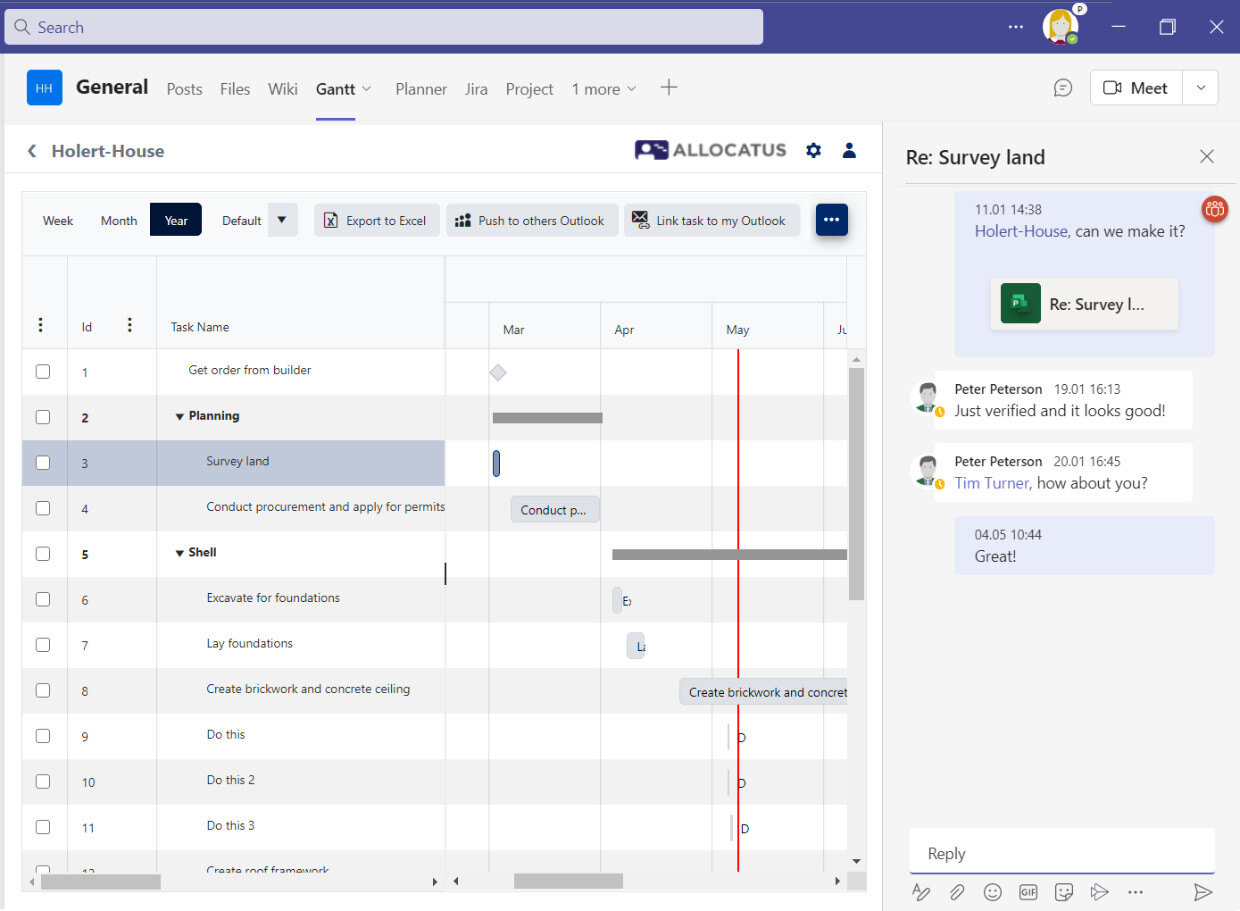
Microsoft Planner Basic does not have a Gantt chart for scheduling. This feature is available for a fee via Planner Premium (formerly Microsoft Project for the web) . As an alternative to using Planner Premium, you can also use the add-on Allocatus to additionally display Microsoft Planner Gantt charts on the web and in Microsoft Teams.
Microsoft Planner desktop app
There is no desktop app for Microsoft Planner. However, you can add Planner to Teams via the Teams Planner app and thus also use it in the Microsoft Teams desktop app for Windows. In addition, you can see tasks assigned to you in the Windows desktop app To Do.
Moving tasks between different plans in Microsoft Planner
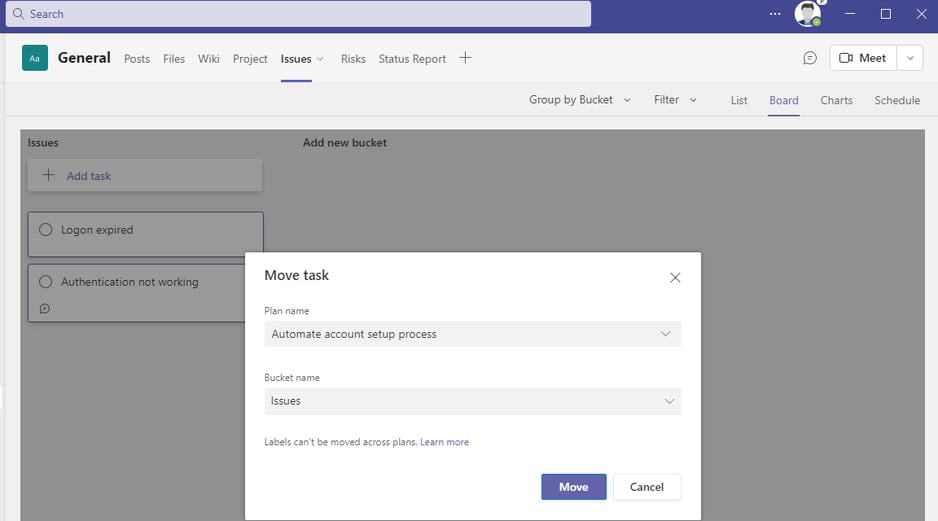
Tasks can easily be moved between plans, but not delegated. Tip: With Allocatus, depending on the project type, you can have predefined tasks automatically created in your Microsoft Planner plan when a team is created.
Linking tasks to each other in Microsoft Planner
Once a Planner plan contains a certain number of tasks, it is easy to lose track of related tasks. How can you link individual tasks in Planner to each other?
Microsoft does not offer this feature in Planner Basic, as it is reserved for the paid product Microsoft Planner Premium.
Templates for Microsoft Planner
How can you create Microsoft Planner plans or projects based on templates? Besides copying an existing plan, genuine custom templates have been available since July 2026. To use them, open an existing basic plan, select Share in the top-right corner and then Publish as template. You decide which elements are carried over – tasks, buckets, goals, labels, notes, checklists and attachments – and which Microsoft 365 group the template is shared with. New plans are then created via Create a plan under Shared or Created by me.
Templates are stored as a file in the SharePoint site of the associated group, so permissions and retention run through the existing Microsoft 365 mechanisms. Two points are worth knowing: changes to a template do not retroactively affect plans that have already been created, and the feature currently supports basic plans only – it is not available for Planner Premium.
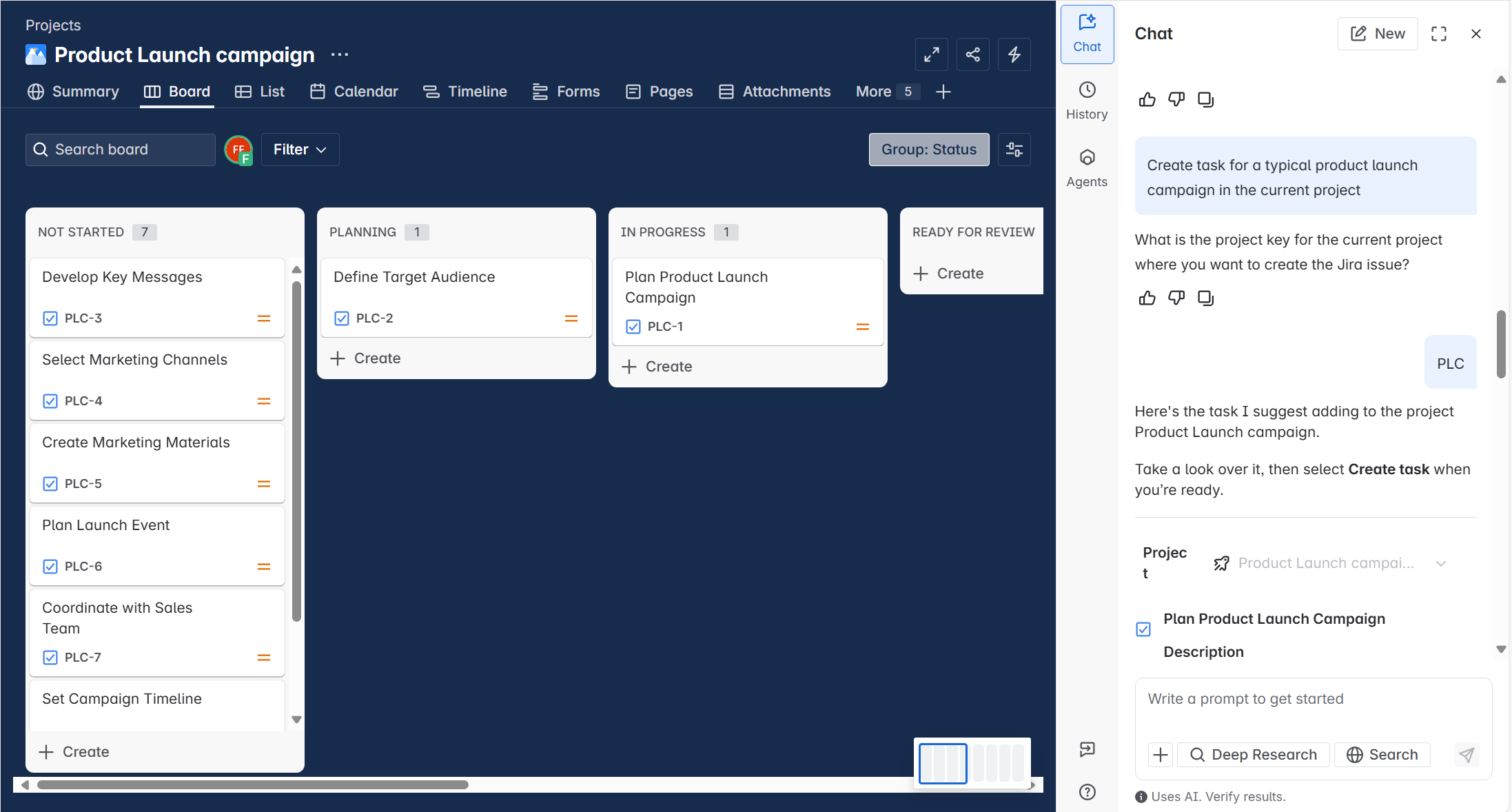
If you want to standardise not just the plan but the entire setup process, you can automate this with Allocatus: it creates predefined Microsoft Teams workspaces for your project, including a Planner plan and the matching template.
How can you search in Microsoft Planner?
Within a Microsoft Planner Basic plan, you can search using the filter function. In addition, in the mobile app you can search for the names of plans or for the names of your own tasks.
However, Planner content is not found by the Office 365 search or Teams search.
Can you send a selected filter in a link?
I have created a filter in Planner that shows all tasks with a label. How can I then send an email with a link that presents the recipient with exactly that view in Planner? Are there URL parameters in Microsoft Planner?
Yes, it is possible to create and send a link to a filtered view in Microsoft Planner. Microsoft Planner supports URL parameters that allow you to link directly to specific views or tasks.
Can you mention someone in Microsoft Planner?
Yes. Since early 2026, Task chat has been part of the refreshed design for basic plans: every task has its own chat thread where you can mention anyone with access to the plan by typing @ followed by their name. Mentioned people get a notification by email and in Microsoft Teams. One important change from the previous comment feature: for chat messages, only explicitly mentioned people are now notified, rather than automatically notifying everyone who had previously commented. In Planner Premium, you can still mention someone via task conversations in Microsoft Teams.
Can you set a default view in Microsoft Planner?
Can you, for example, group the view by progress by default in MS Planner? There is still no way to pick a fixed default view of your own choosing: the web app currently always opens a basic plan in Grid view; however, the grouping within Board view (e.g. by bucket or progress) is remembered across sessions, the way you last left it.
How can I see all of my team's tasks in Microsoft Planner across all plans?
My team works in many Microsoft Planner plans. How can I see who is assigned which task in which plan? With Planner Basic, this standard requirement cannot be met. If you use Altus, for example, you can see tasks across multiple plans there centrally.
How can I create a report in Power BI on all Planner tasks?
Unfortunately, this is not easily possible with Microsoft Planner Basic plans. With Altus, however, you can visualize the data from Planner with Power BI. Altus also ships with standard reports for almost every project management question.
Is Planner suitable for multi-project management and more complex projects?
Planner alone is not, but with solutions such as Altus or Projectum xPM you can essentially put a bracket around Planner and keep the overview, even with many projects.
What Holert delivers around Microsoft Planner
Planner is set up in minutes – but a plan alone does not answer the questions project organizations actually struggle with: who is working on what right now, which initiatives have been approved at all, how much effort has been spent, and what the portfolio looks like across all teams. The answer is not another view, but the decision on which work stays in Planner Basic, which belongs in Planner Premium, Altus PPM, Projectum xPM or Jira – and how those tools interlock cleanly.
That is exactly what we have been doing for more than 25 years: selecting, introducing, optimizing and training project, program and portfolio management on Microsoft and Atlassian, methodically grounded in PMI and SAFe. With Smart Start we introduce a full PPM solution close to standard, in 4 to 12 weeks and at a fixed price; our own products Allocatus and Project2Planner connect Planner with Microsoft Project and Outlook. Companies such as Rohde & Schwarz, KUKA, LAPP and Amer Sports rely on us – you will find further customer references and the professional background under about us.
 Renke Holert


 Renke Holert : Nov 29, 2025, 8:33:18 AM