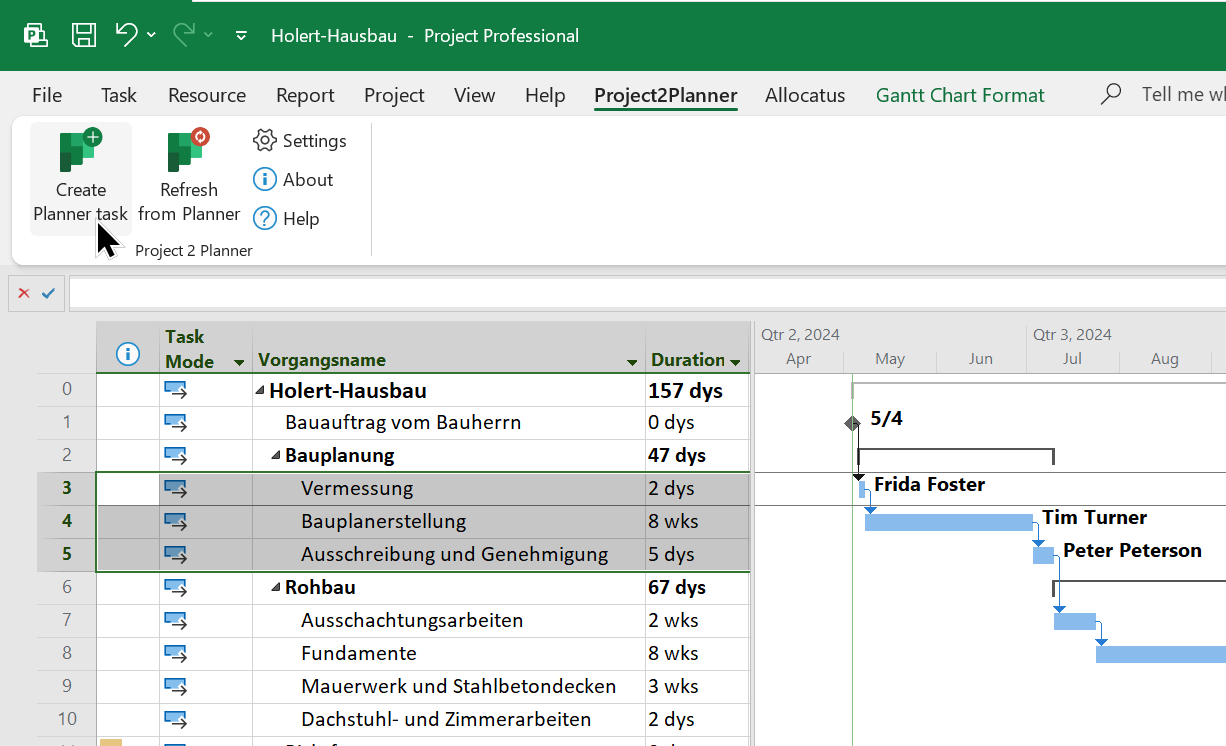
The move from Project for the Web to Planner Premium brings many benefits – but also questions. Companies that manage projects not in the default environment but in their own custom Power Platform environments in particular want to know: Will my data be preserved? Do I need to migrate? What changes?
TL;DR
- Project for the Web was replaced on 1 August 2025 – the plans have been called Planner Premium ever since.
- No migration required: projects, tasks and custom fields stay in the same Dataverse tables – including in custom Power Platform environments.
- No new licenses, no price increase: Project Plan 1 is now Planner Plan 1, Project Plan 3 and 5 are now Planner and Project Plan 3 and 5.
- Discontinued: Roadmaps (replaced by Portfolios) and MPP import via the web interface.
- To do: switch Teams tabs to the Planner app, review security groups and Dataverse capacity in your own environment.
Feature scope and licensing at a glance: Microsoft Planner Premium Plans
What Happens to the Project Home Page?
For a while now, Microsoft has been warning Project for the Web users with the notice: Microsoft Project for the web is retiring on August 1, 2025. All your Project plans are now available in Microsoft Planner with the tools you love, plus a host of new features. But what exactly does that mean?
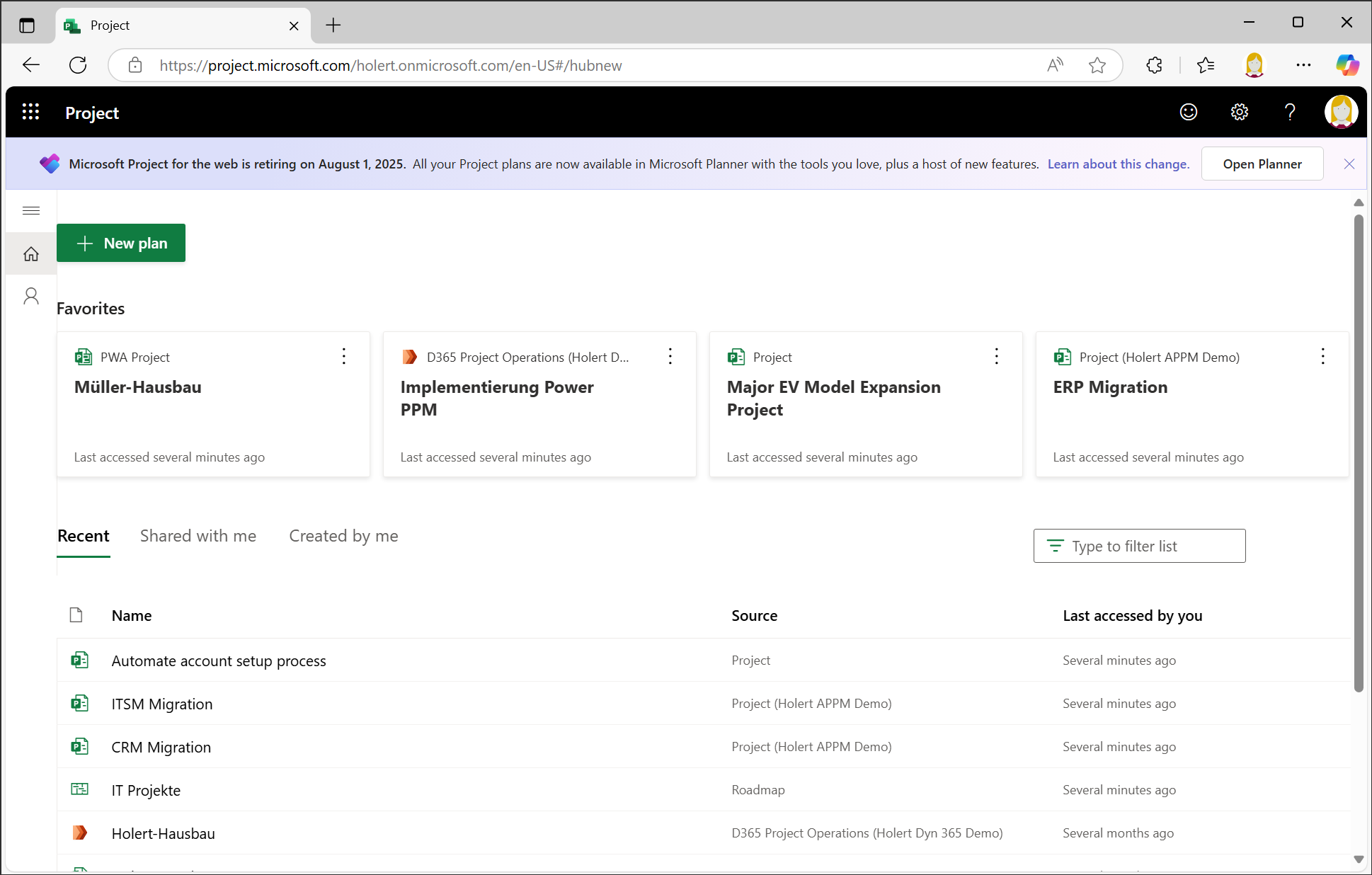
In the example, we see the Project Home page, which until now was the central place to open projects from Microsoft Project for the web and Microsoft Project Online (Project Web App). Projects from Project for the web that are not stored in the Power Apps or Dataverse default environment are also visible here. In this example, it is the Holert APPM Demo environment. Projects from Microsoft Dynamics Project Operations are also displayed there, which likewise reside in their own environment, here Holert Dyn 365 Demo). This was also the place to access Roadmaps (here IT Projekte).
Project and Planner Plans in the Planner Web App
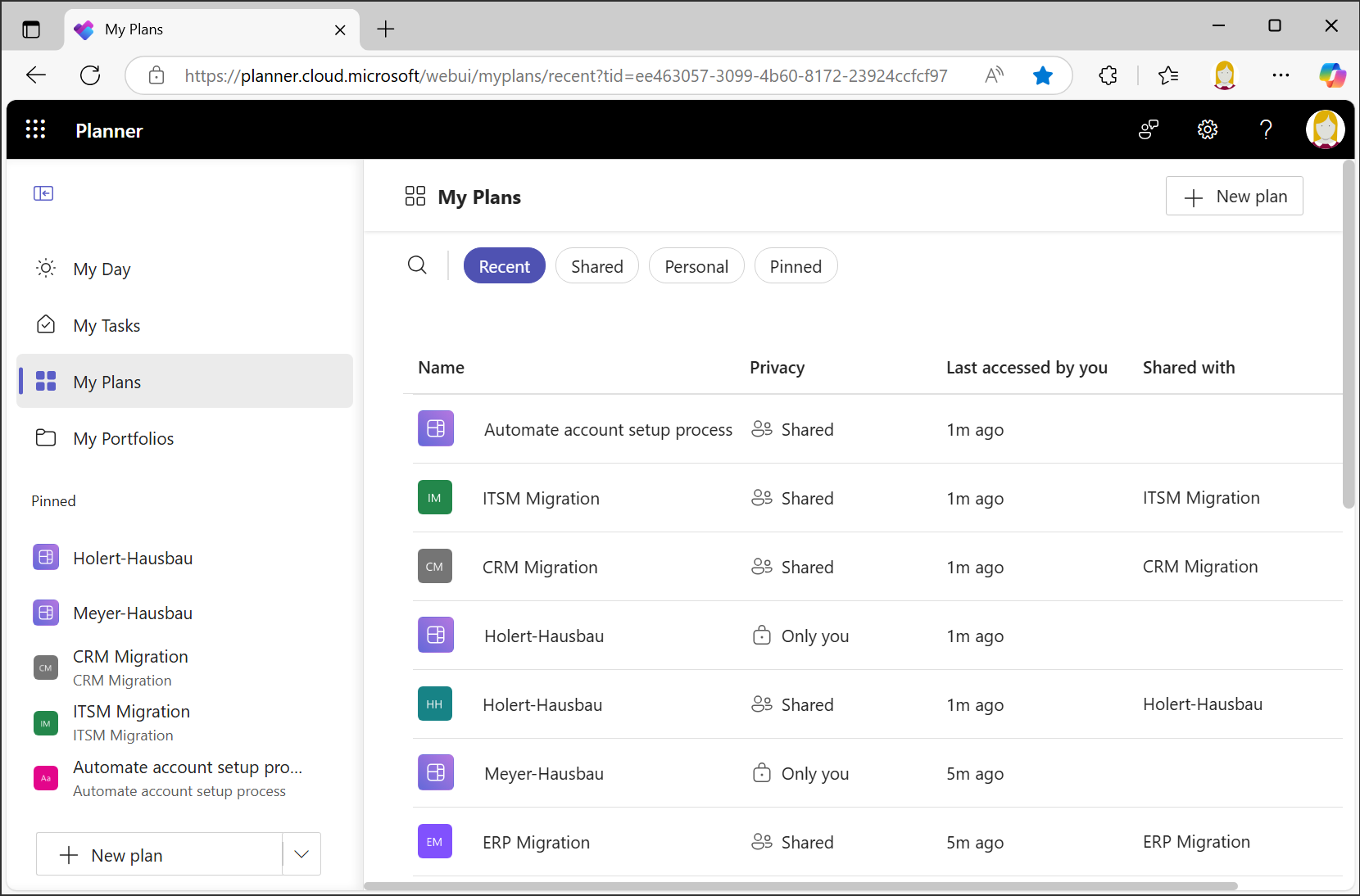
All projects can be found both in the new Planner Web App and in the Planner app in Microsoft Teams – including projects from Project Online and the Project Web App, the classic Planner plans (now called Basic plans), and the Planner Premium plans (formerly Project for the Web). The latter from both the default environment and other environments.
For existing Project Online customers, one limitation comes with a fixed date: Microsoft will retire Project Online on 30 September 2026. Projects from the Project Web App will no longer appear in this overview after that date. Our article Microsoft is discontinuing Project Online – alternatives and migration describes the available successor options. Planner Premium and your custom Power Platform environments are not affected.
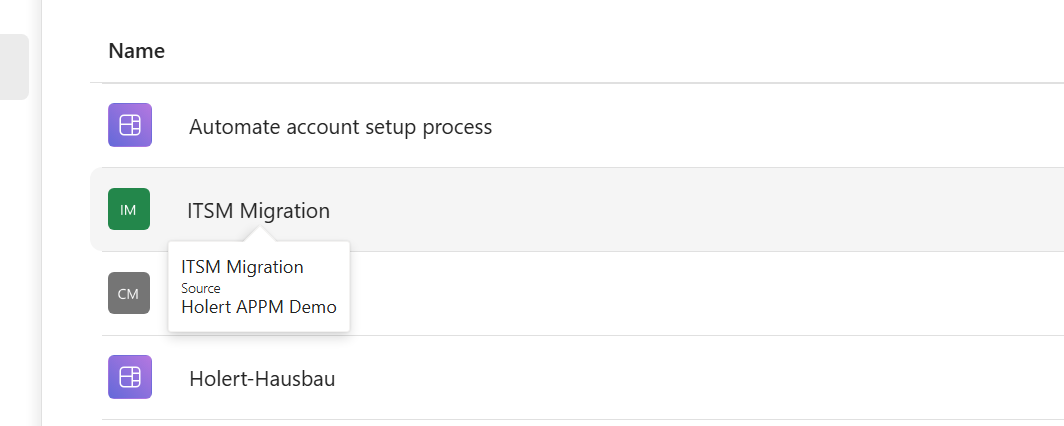
While the Project Home page made it easy to see where plans came from, this is not possible at first glance in the Planner app. Only when you hover the mouse pointer over the project name is the source displayed. In the example, you can see a Premium plan from the Holert APPM Demo environment. Project Online projects, for example, are displayed with the source Project Web App. Plans from the default environment are displayed without a source. It is not possible to tell whether a plan is a Premium or a Basic plan.
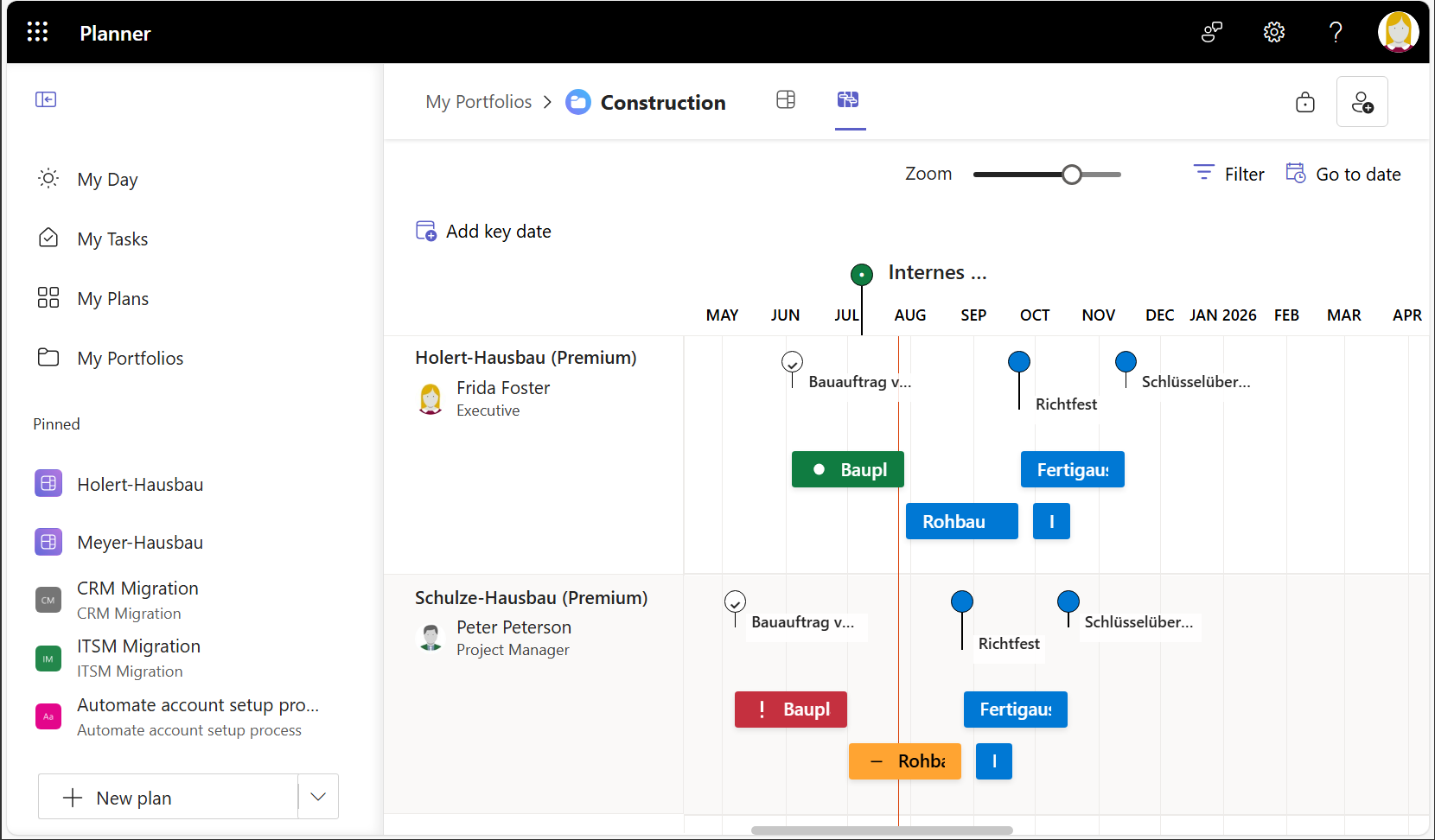
Roadmaps are not displayed. However, the data is preserved in the Dataverse tables. New Roadmaps can be created under the My Portfolio menu item.
Are Projects in Custom Power Platform Environments Preserved After the Switch?
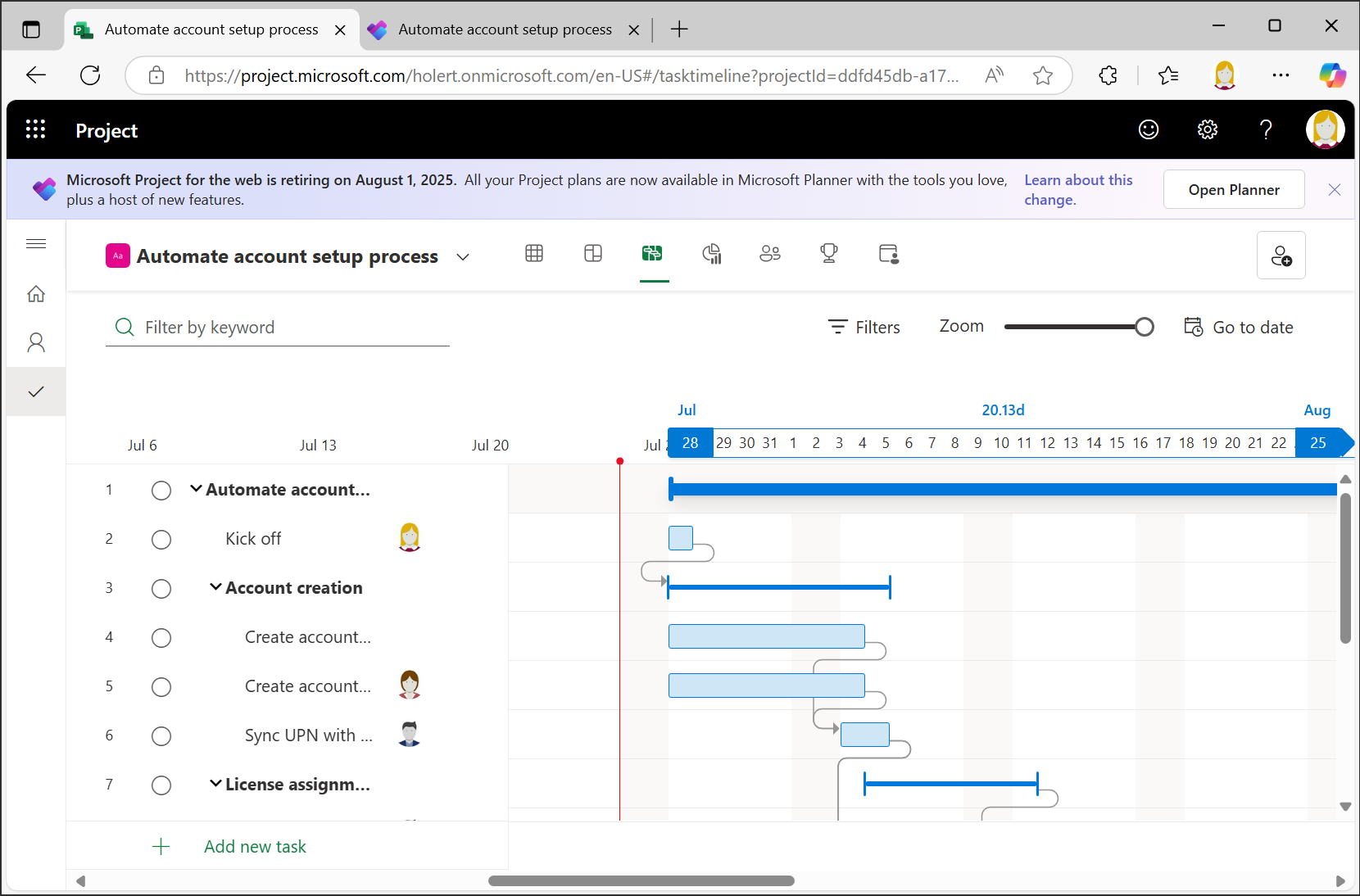
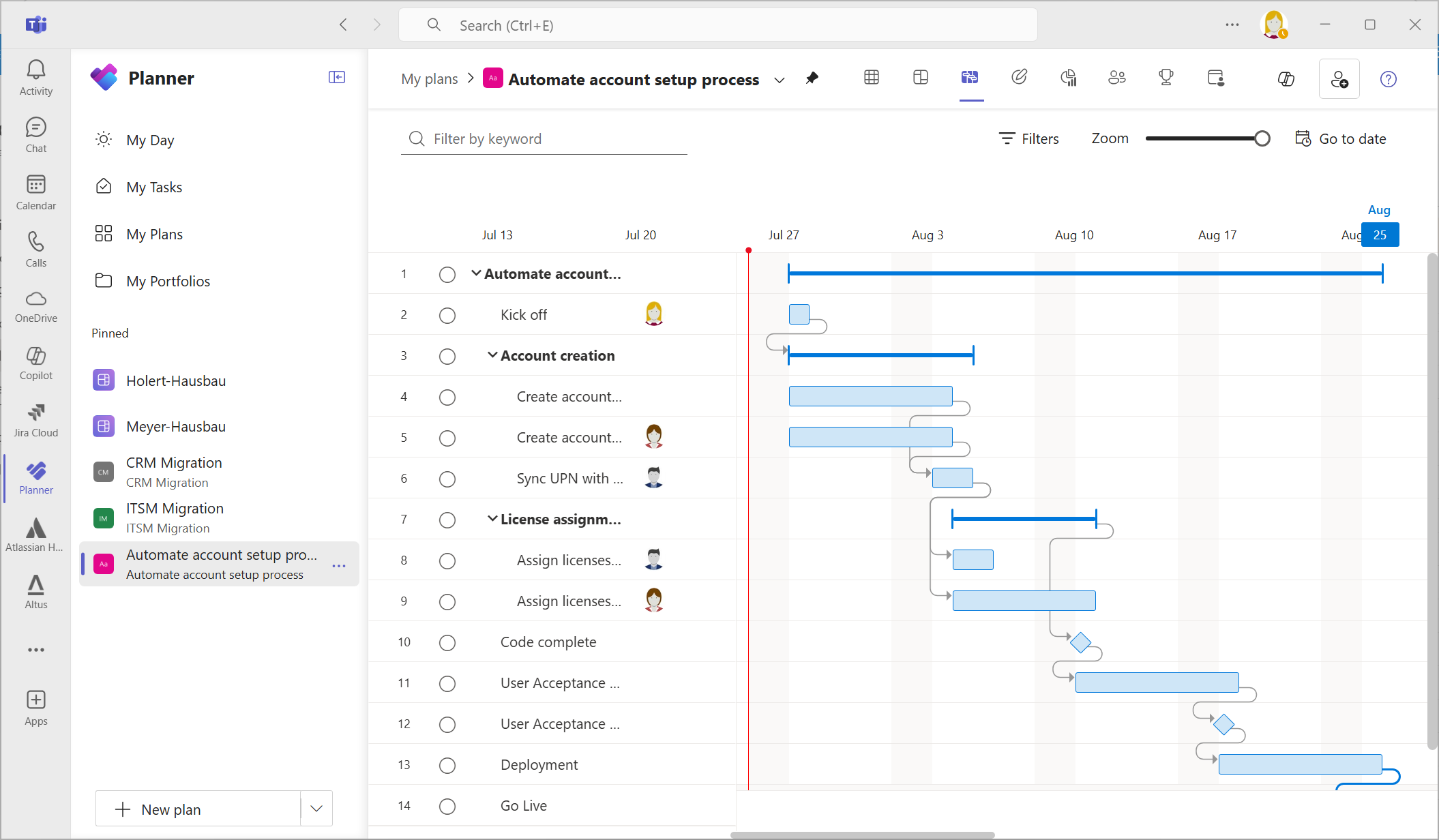
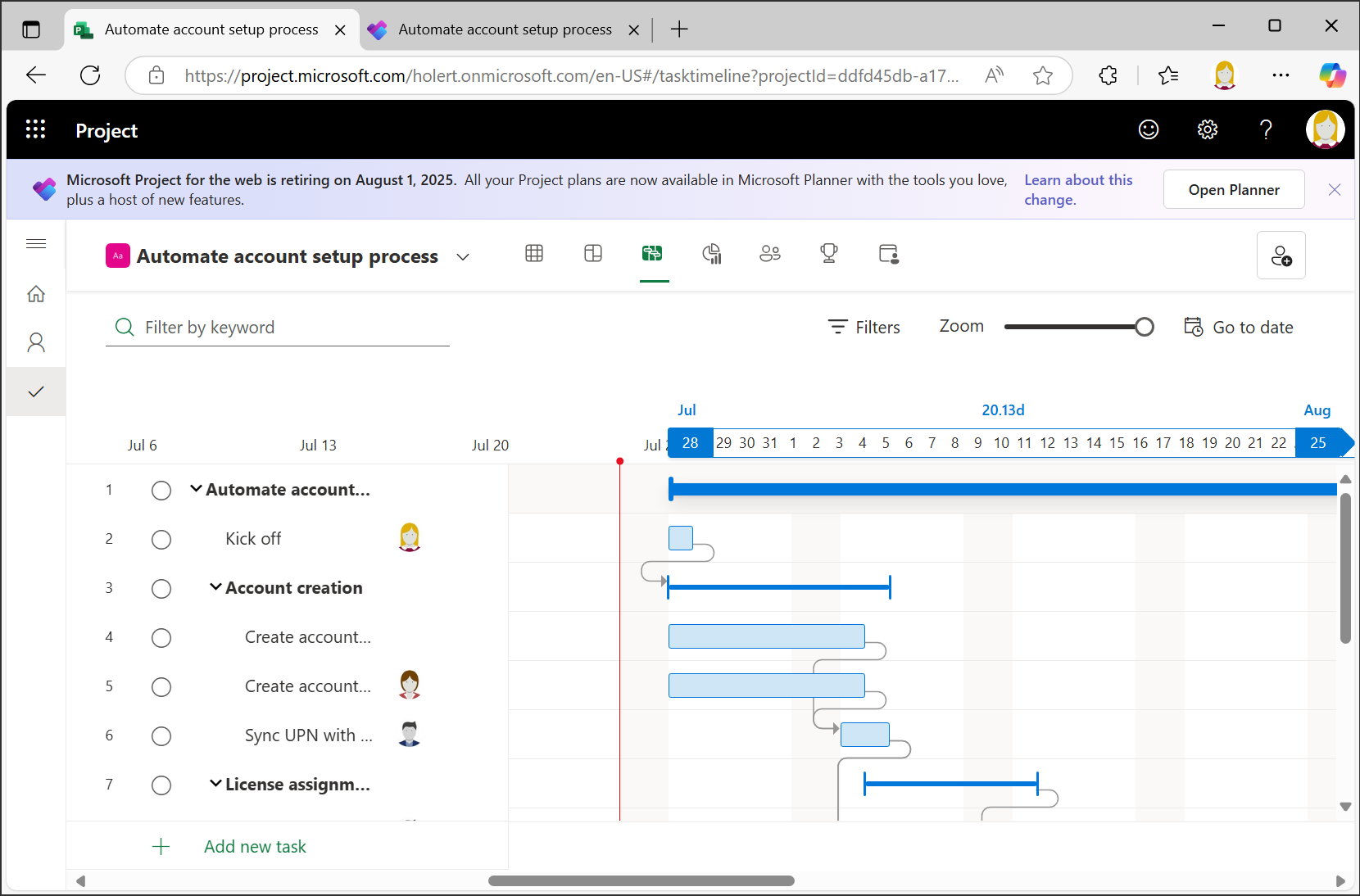
All existing projects can be opened directly in the new Planner interface after the transition. In the example, we see the project Automate account setup process in Project for the web.
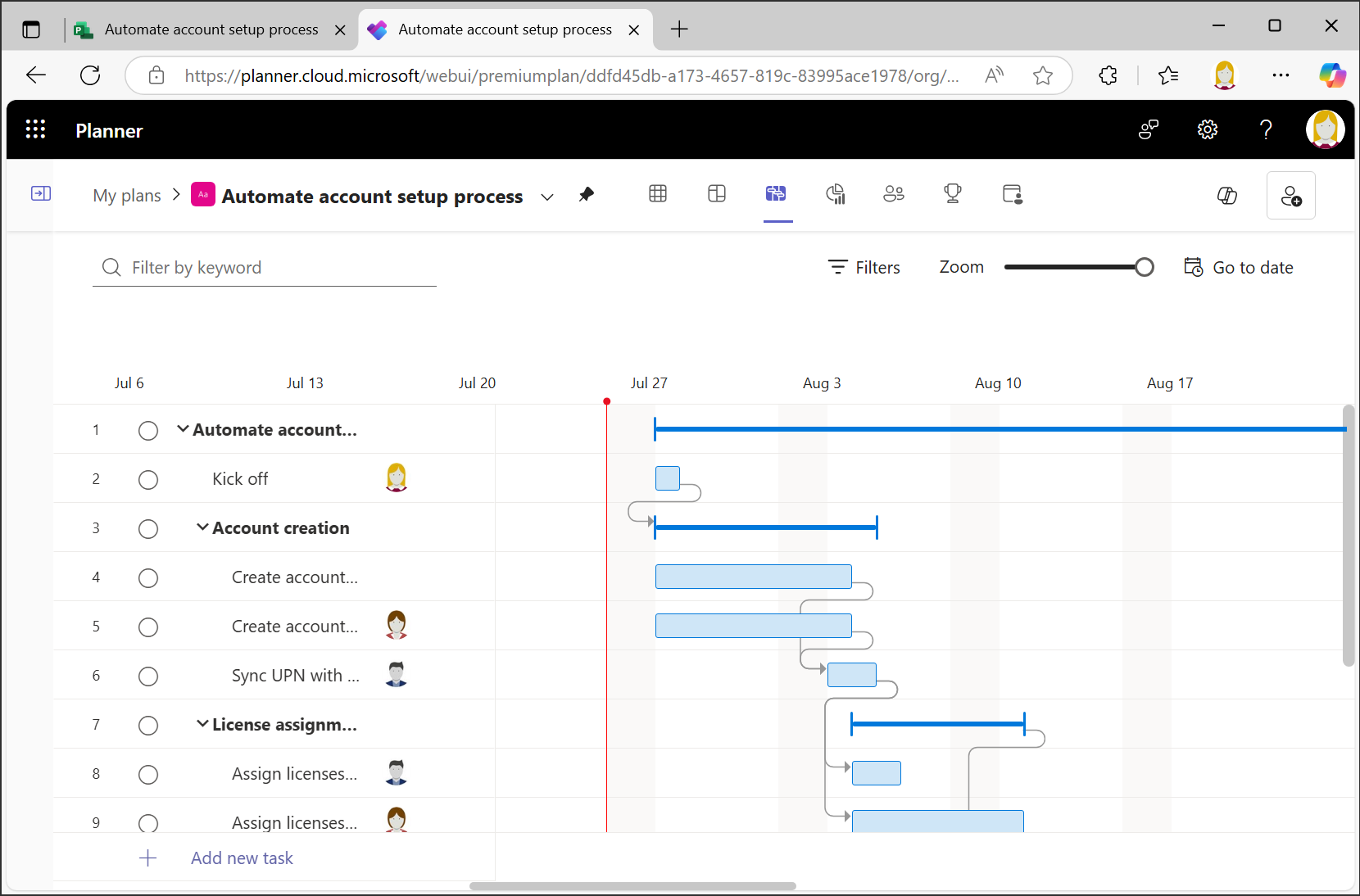
Via the Planner Web App, it looks exactly the same.
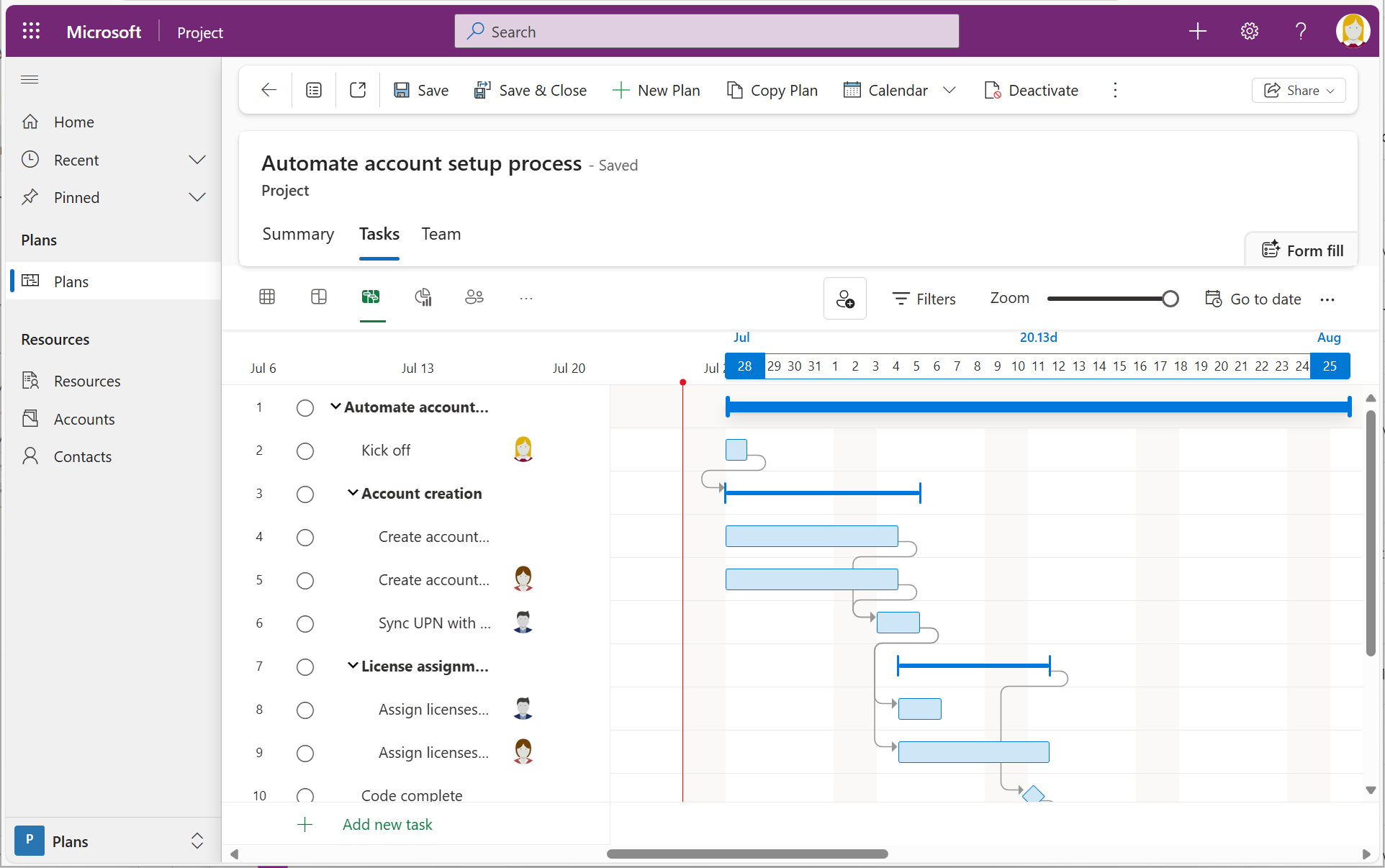
The existing Project Power App also continues – under the new name Planner Power App.
Which Features Are Discontinued and What Is New in Planner Premium?
Existing features and new features
- ✅ All existing features from Project for the Web, incl. Gantt charts, dependencies, timelines, and custom fields
- ✅ New features such as AI-powered Copilot integration and Portfolios for project overviews
Discontinued features:
- ❌ Roadmaps: no longer supported. The data is preserved in Dataverse but can be re-visualized via Portfolios.
- ❌ Direct MPP import in the web interface, although still possible via Power Apps
Licensing and Administration: What Changes with Planner Premium?
The good news: No new licenses are required.
- Project Plan 1 becomes Planner Plan 1 (Premium)
- Project Plan 3/5 are now called Planner and Project Plan 3/5
- No price increase, no relicensing required
Administrators will find the previous Project administration options in the Planner admin area of the Microsoft 365 Admin Center going forward. For custom environments, the familiar access and security groups remain unchanged.
Integration with Microsoft Teams: How to Find Your Projects in the New Planner App
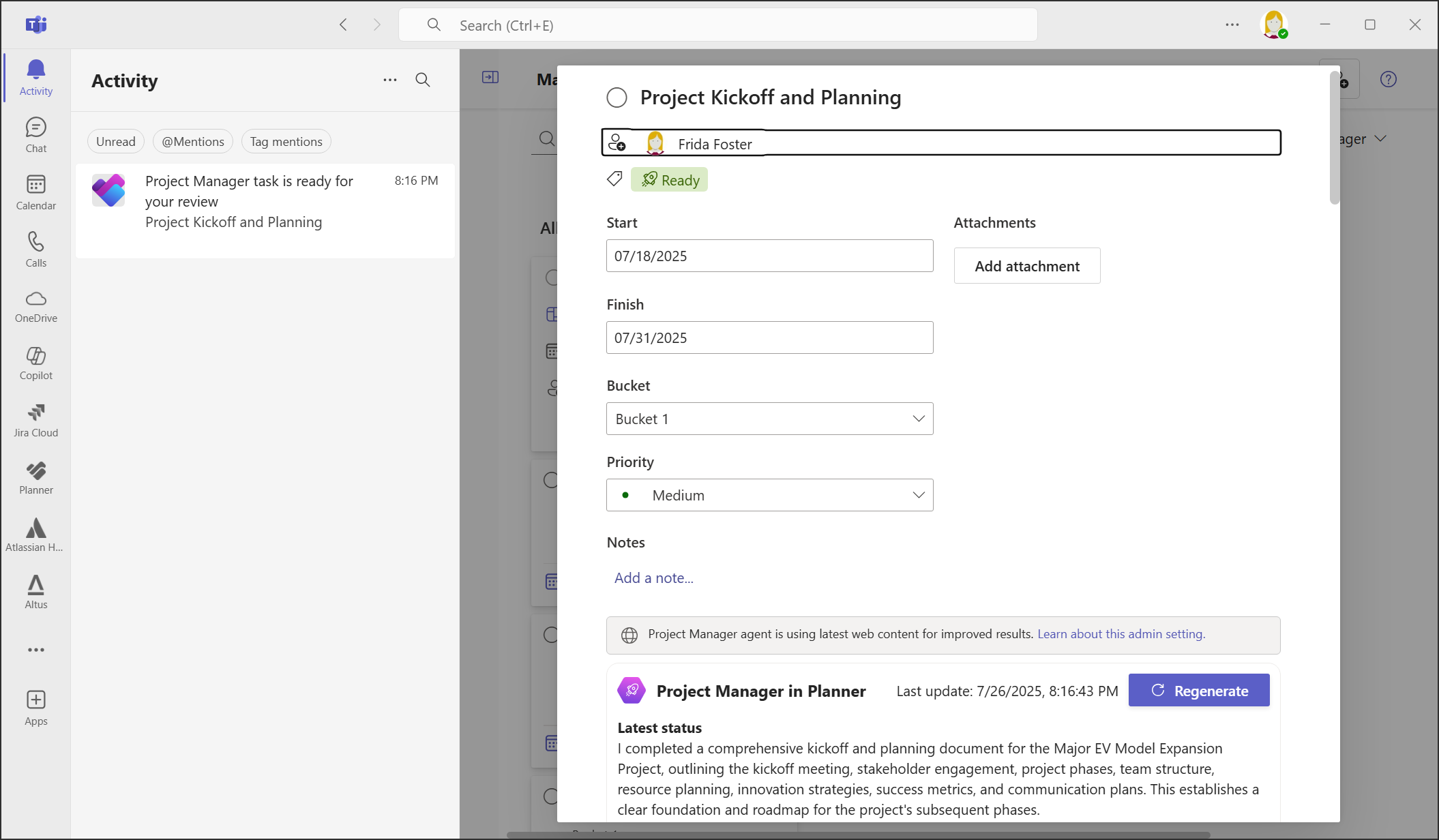
With the new Planner app in Microsoft Teams, the old “Project” and “Roadmap” tabs are being replaced. Teams users need to re-add their tabs to display projects in Planner Premium.
Premium projects can be opened and edited directly in the Teams app – including selecting the desired Power Platform environment.
Step by Step: How to Prepare Your Organization for Planner Premium
- ✔️ Inform users: Communicate the changes and update internal guides.
- ✔️ Update Teams tabs: Replace old Project tabs with the new Planner app.
- ✔️ Migrate roadmaps: Transfer roadmap data to the new Portfolios feature.
- ✔️ Check licenses: Make sure all project participants have the right Planner Premium licenses.
- ✔️ Review environments: Check storage and security groups in your custom environments.
Conclusion: Planner Premium Makes Project for the Web Even More Powerful
The switch from Project for the Web to Planner Premium is not a migration in the classic sense – your data, projects, and workflows are preserved. At the same time, you benefit from a modern, integrated interface with new features for efficient project management in Microsoft 365 – including with custom Power Platform environments.
For organizations, this means: More capabilities, no data loss, and a seamless transition.
Frequently Asked Questions About Moving from Project for the Web to Planner Premium
Do I have to migrate projects from a custom Power Platform environment?
No. The data remains in the same Dataverse tables in the same environment. Planner reads it from there – no export or import is required.
How can I tell which environment a plan comes from in Planner?
Only by hovering: point at the plan name and the source is displayed. Plans from the default environment are shown without a source.
Do I need new licenses for Planner Premium?
No. Project Plan 1 is now called Planner Plan 1, and Project Plan 3 and 5 are now Planner and Project Plan 3 and 5. Scope and price remain unchanged.
What happens to my roadmaps?
Roadmaps are no longer displayed. The data is preserved in Dataverse; you create new overviews as Portfolios under My Portfolio.
Can I still import MPP files?
Not via the web interface. The import is still available through the Planner Power App (formerly Project Power App).
Does the Project Online retirement on 30 September 2026 affect me?
Only if you use the Project Web App. Planner Premium and custom Power Platform environments are not affected. Details in our article Microsoft is discontinuing Project Online – alternatives and migration.
How Holert Supports Your Move to Planner Premium in Custom Environments
Whether your projects actually run smoothly in a custom Power Platform environment after the switch to Planner Premium depends on more than the Microsoft-side transition alone: security groups, Dataverse capacity, and the interplay with other environments – for example for Dynamics 365 Project Operations – need to match your organization's rollout and governance model. That does not check or maintain itself.
As an implementation partner for Microsoft 365 and Atlassian with more than 25 years of experience in project, product, and portfolio management, we support PMOs – including customers such as KUKA and Rohde & Schwarz – in setting up custom Power Platform environments for Planner Premium correctly and integrating them into existing Microsoft 365 governance. As part of our Smart Start Package, we handle this at a fixed price. You can find further project examples in our customer references.
 Renke Holert
 Renke Holert : Nov 29, 2025, 8:33:18 AM