 Renke Holert
Microsoft Planner (Tasks in Microsoft Teams)
 Renke Holert : Jun 7, 2026, 11:47:25 AM
Efficient task management with Microsoft Planner: task organization, integration with MS Teams and Outlook, plus practical add-ons for project...
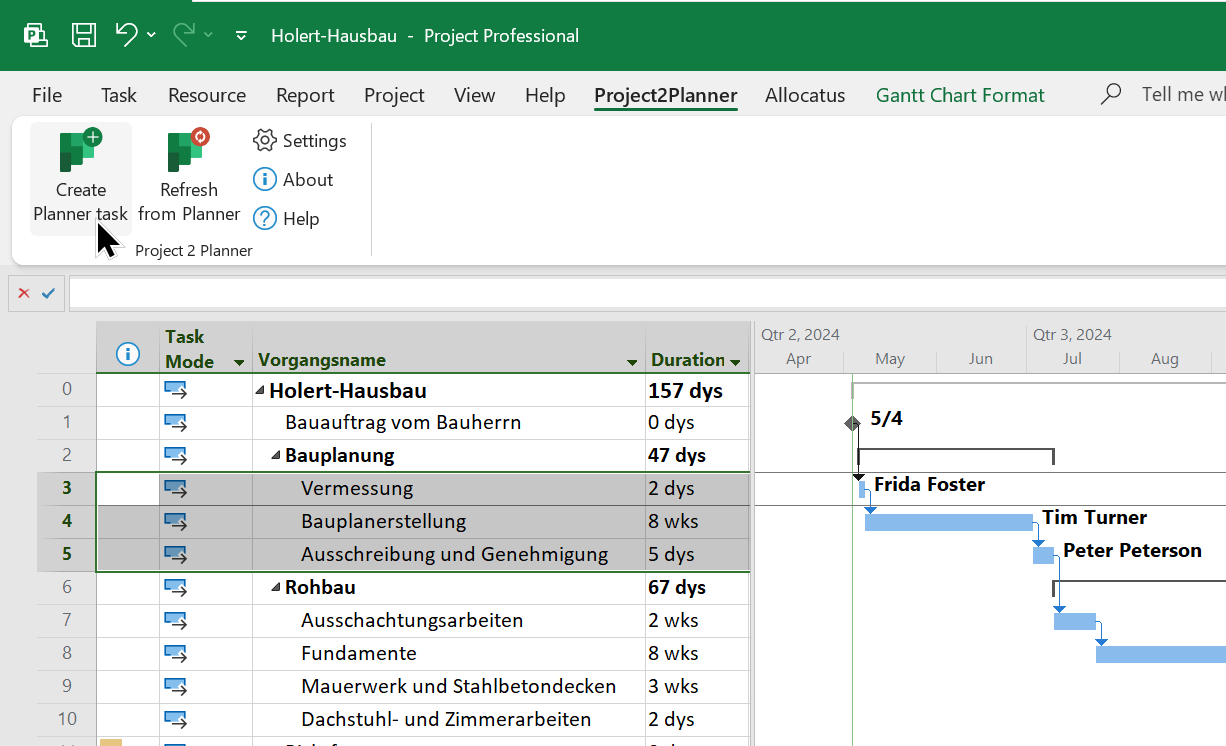
If you are working as a project manager with the Microsoft Project Desktop App (MS Project) and your team is using Microsoft Planner it can be tedious to keep the data in sync. With Holert Project2Planner you can integrate both Apps.
Key facts at a glance
If you are a project manager working with the Microsoft Project Desktop App (MS Project) and you are not using an extension such as Allocatus, it is
However, if your company uses Microsoft 365 including Microsoft Planner Basic, which is included at no extra cost, you can use the Project2Planner add-in from Holert to create tasks from MS Project directly in Microsoft Planner Basic.
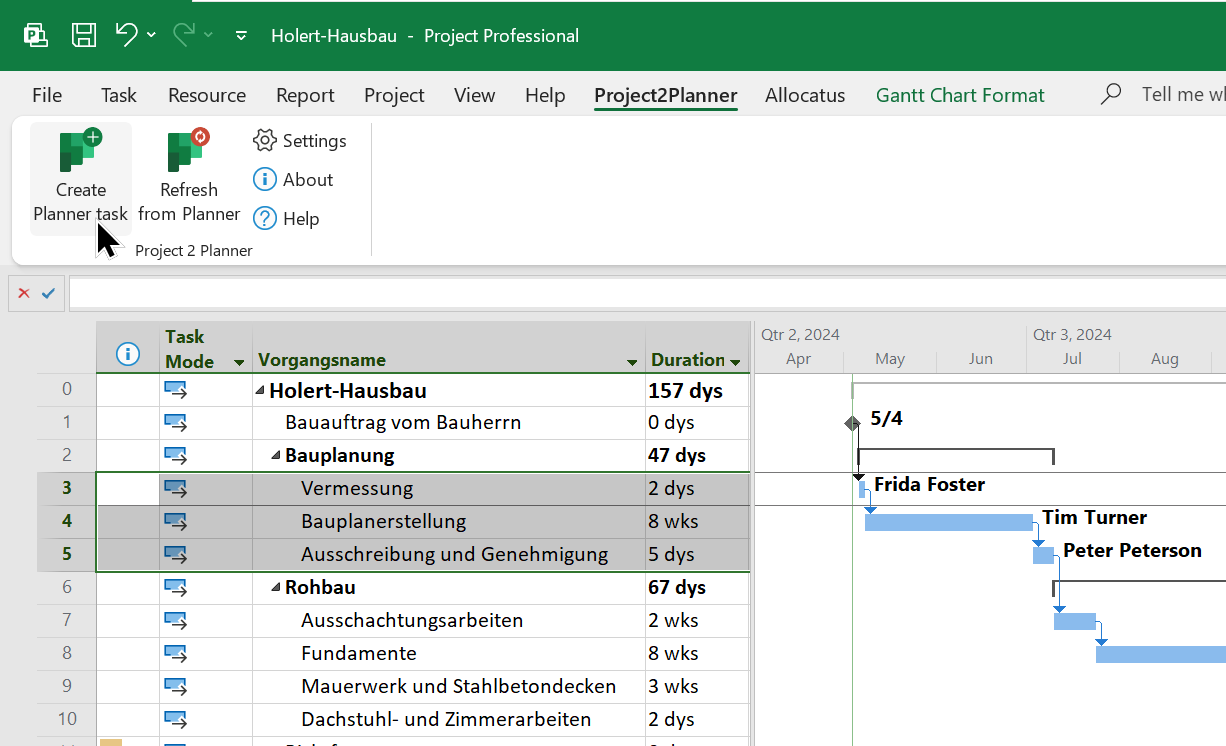
After that it synchronizes your Microsoft Project Gantt Chart directly with your team's Microsoft Planner plan. To do this, simply select the tasks in Project and click Create/Update Planner task.
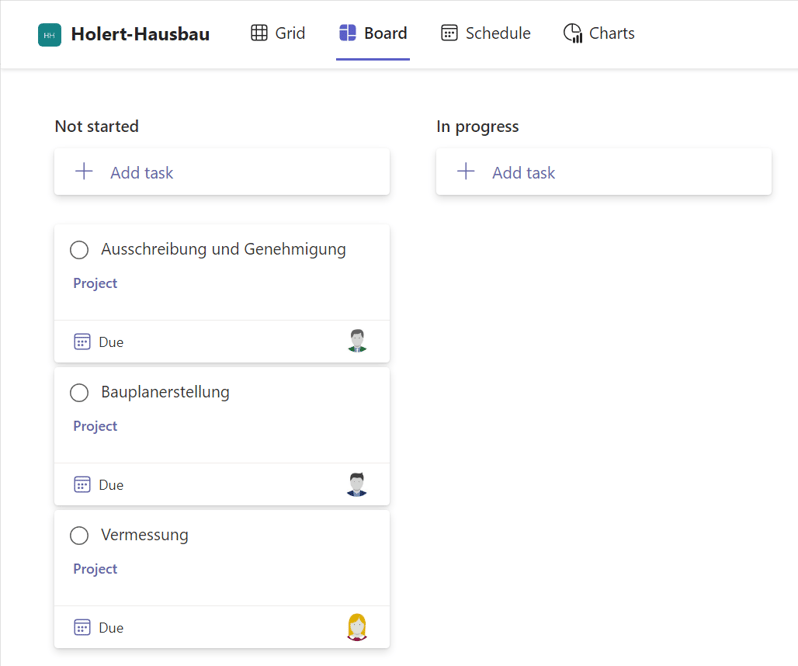
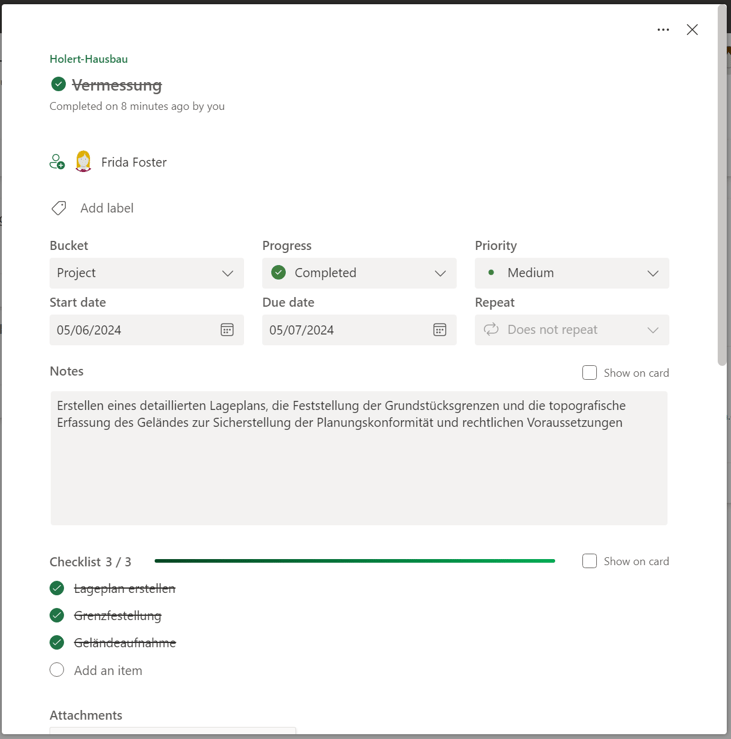
When a team member reports a task as completed,
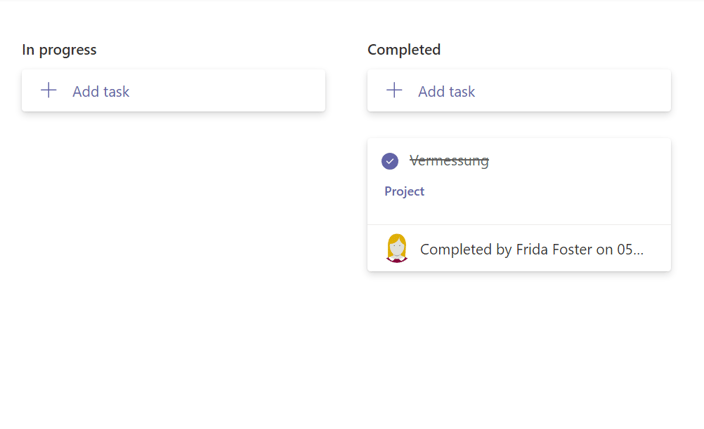
and you approve the update it will automatically show the progress in your Microsoft Project schedule
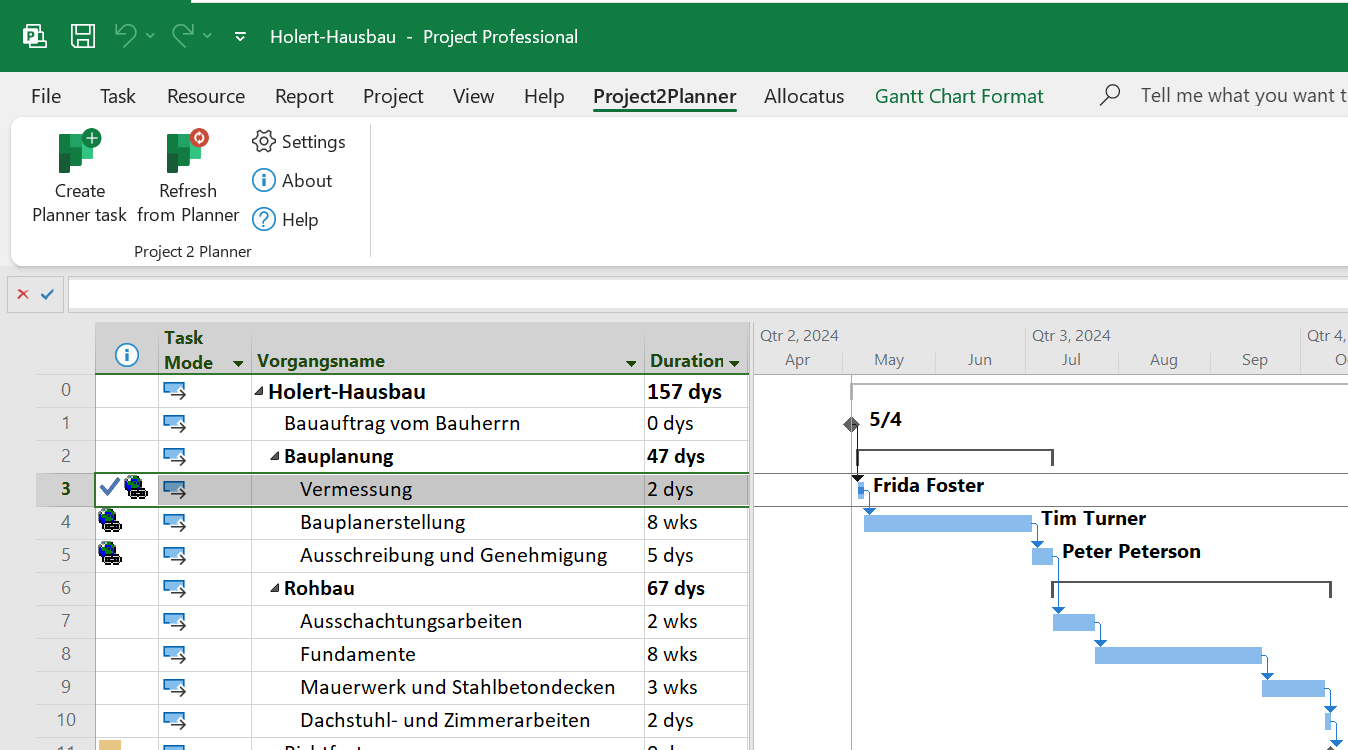
and the project manager can view the full details of the task with a click of the mouse.
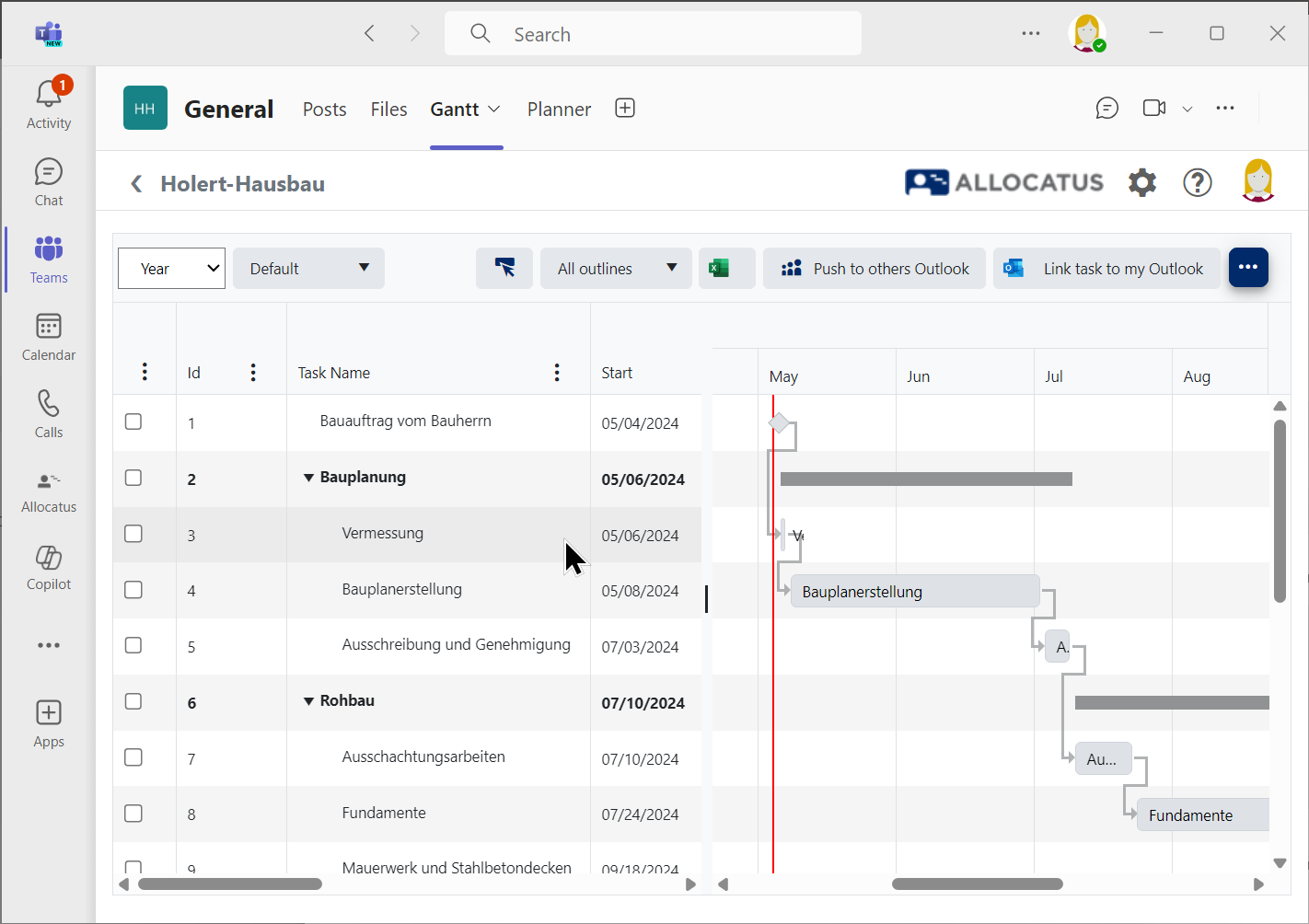
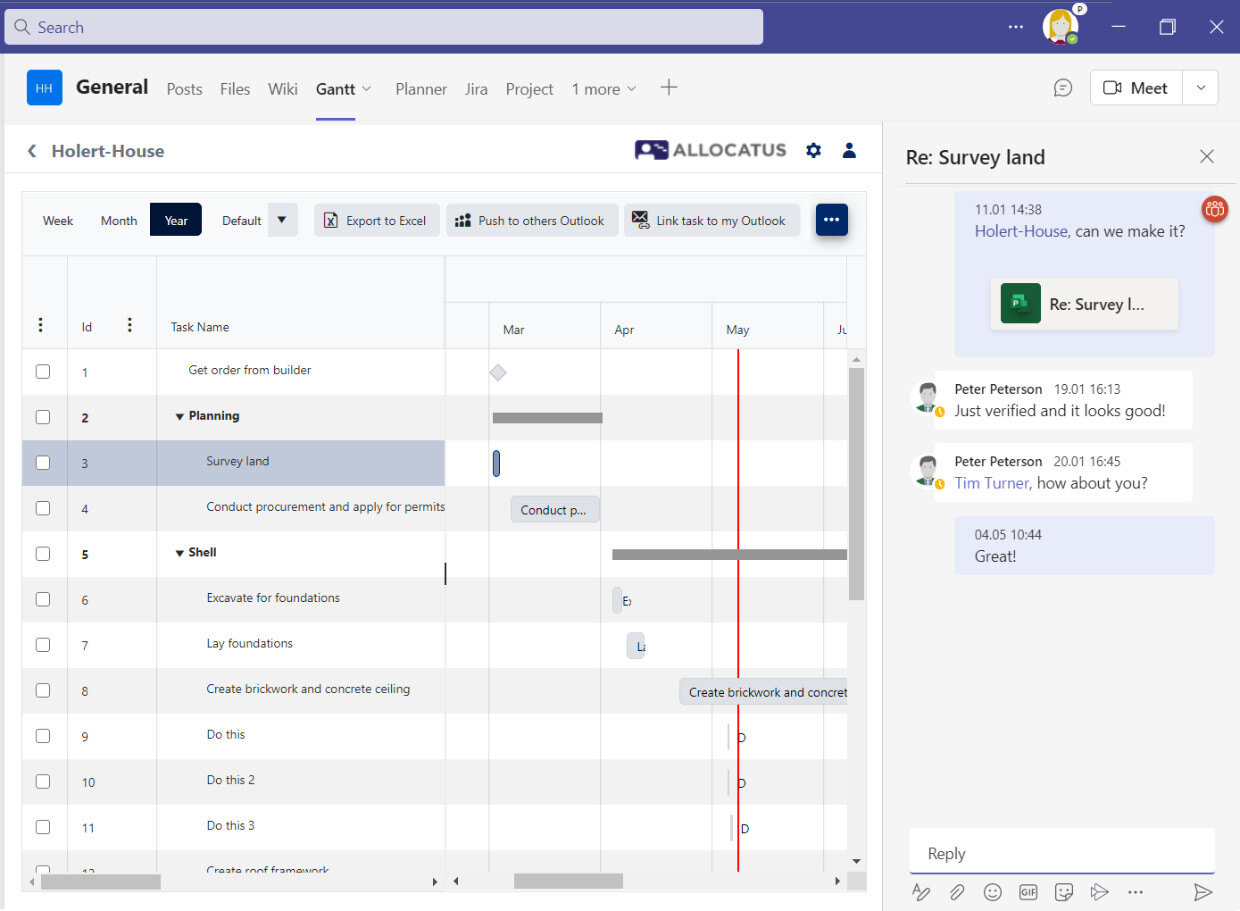
Allocatus (available as an additional add-on: https://allocatus.holert.com) can optionally automatically create suitable project rooms in Teams including Gantt, or provides a Gantt chart in your existing Teams provisioning solution. Project Online is not required.
Project2Planner offers two ways of working. By default, a project belongs to one Planner plan: you select the tasks, and the bucket comes from a field, either for the whole project or per task. For projects whose parts are planned by separate teams, the second way follows the outline: the first level stands for the Planner plans, the second for the buckets, the third for the tasks, and subtasks become checklist items.
With Project2Planner from Holert
Both routes bring tasks from Microsoft Project to the team, but they differ in licensing and functionality. The deciding question is where the schedule is maintained: if it stays in the Project Desktop App, a basic plan is enough; if scheduling itself should move into Microsoft 365, the route leads to Microsoft Planner Premium Plans. Microsoft documents the feature differences between both plan types in its comparison of basic and premium plans.
| Criterion | Basic plan with Project2Planner | Premium plan |
|---|---|---|
| Licence | Included in the Microsoft 365 and Office 365 suites, plus Project2Planner | Planner Plan 1 or Planner and Project Plan 3/5 |
| Where the schedule lives | Microsoft Project Desktop App or Project Server SE | Planner itself (data in Dataverse) |
| Timeline (Gantt) view in Planner | No (Gantt in Project, optionally via Allocatus in the Teams channel) | Yes |
| Dependencies, milestones, critical path | In Microsoft Project | Included in Planner |
| Task limit per plan | 9,000 | 3,000 |
| Tasks in the Outlook calendar and in the Tasks app on Teams Mobile | Yes | No |
| Progress flows back into the project schedule | Yes, after the project manager approves it | Not applicable, the plan lives in Planner |
How the team works with those tasks day to day is covered in Microsoft Planner (Tasks in Microsoft Teams); the wider picture is set out in Project Management with Microsoft Teams.
Microsoft retired Project Online on 30 September 2026; Project desktop, Project Server and Planner are not affected. What many former users miss most is sending tasks from the project schedule to their team and getting the progress back.
That is exactly what Project2Planner does. Scheduling continues in the Project Desktop App or in Microsoft Project Server SE, while the team works in a basic plan in Planner from Microsoft 365. If what you miss is a shared resource pool, cross-project utilisation and portfolio reports, a PPM solution such as Altus PPM is the better fit. Which successor option fits your portfolio is covered in Microsoft is discontinuing Project Online – what are the best alternatives?.
Do I need Project Online or Project Server for Project2Planner?
No. Project2Planner works with the Microsoft Project Desktop App and a Planner plan from Microsoft 365. A Project Server SE in the background is possible, but not required.
Which Planner licence do team members need?
A basic plan is enough. Planner is part of the Microsoft 365 and Office 365 suites; a Planner premium subscription is only needed for premium features such as the timeline, dependencies or the critical path.
Does progress from Planner flow back into the project schedule?
Yes. When a team member completes a task in Planner, Project2Planner writes the status into the task in Microsoft Project once the project manager approves it.
Can team members see their tasks on mobile devices?
Yes, through the Planner app or the Tasks app in Microsoft Teams and in Microsoft To Do. According to Microsoft, the Tasks app on Teams Mobile is a basic plan feature.
Can I not simply import an .mpp file into Planner?
Not into a basic plan. Microsoft only offers the import of Project files for premium plans. Project2Planner instead transfers selected tasks into a basic plan and keeps them aligned with the project schedule.
Which permissions does Project2Planner need?
Only delegated Microsoft Graph permissions: User.Read, User.ReadBasic.All and Tasks.ReadWrite. The add-in always acts on behalf of the signed-in person and only reaches the plans that person has access to.
How does Project2Planner differ from Allocatus?
Project2Planner transfers tasks into Planner. Allocatus additionally distributes tasks into Outlook calendars and Microsoft To Do and provides a Gantt chart in the Teams channel.
Project2Planner is a lean add-in for the Microsoft Project Desktop App. You install it, create the required fields in the project, sign in with your Microsoft 365 account and transfer the first tasks. No implementation project is needed. Companies in Germany and the United Kingdom already use Project2Planner to keep their project schedules aligned with their teams' Planner plans.
If you want to go beyond individual project schedules and introduce a PPM solution such as Altus PPM or Projectum xPM, our Smart Start package supports you at a fixed price. As an implementation partner for Microsoft 365 and Atlassian with over 25 years of experience in project, product and portfolio management, we work with PMOs at customers such as KUKA, Rohde & Schwarz and Amer Sports. You can find further project examples in our customer references.
Would you like to see Project2Planner in action? Contact us for a free demo.
 Renke Holert : Jun 7, 2026, 11:47:25 AM
Efficient task management with Microsoft Planner: task organization, integration with MS Teams and Outlook, plus practical add-ons for project...
 Renke Holert : Nov 29, 2025, 8:33:18 AM
Compare Microsoft Planner Basic, SharePoint Lists, Planner Premium, Loop, and Jira Business Projects to find the right task management tool for your...
 Renke Holert : Jun 7, 2026, 11:47:25 AM
Efficient project management with Microsoft Teams: how Teams streamlines collaboration, communication, and integrates Microsoft project tools...